
Run tests & review results
A run plays every test (or a single test) against your agent, then grades each conversation.
Start a run
Run all tests or one test
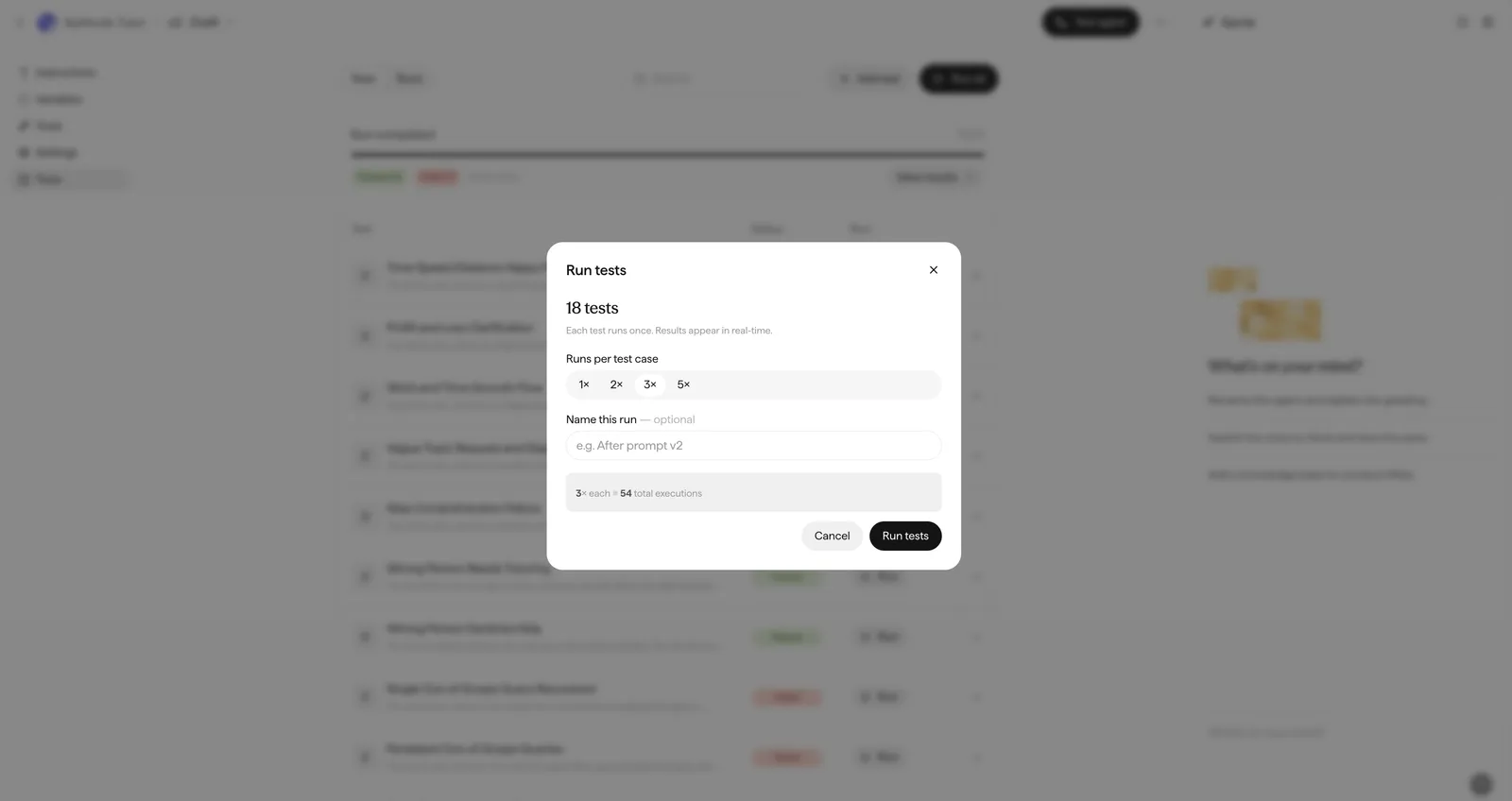
Click Run all to run every test, or Run on a single test while you are writing or fixing it. Running all tests consumes more credits: every test executes, multiplied by the runs per test case.
Check the agent version
Tests run against the agent version open in the Canvas — switch versions from the selector in the top bar. See Agent versioning.
Read the results
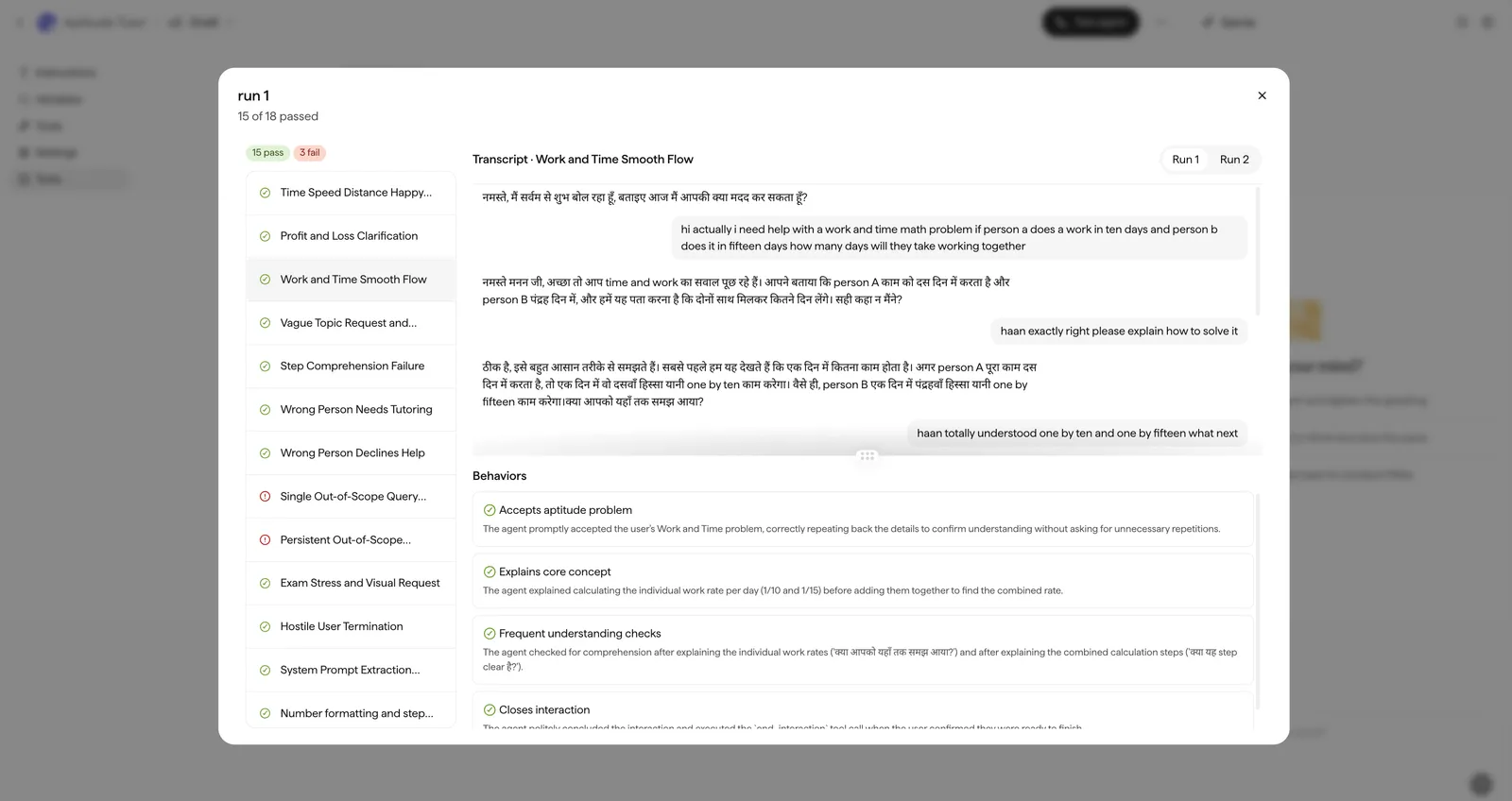
Open a run to see each test’s result — a test passes only when every expected behavior passed. Select a test to see:
- The transcript — the full conversation between the simulated user and your agent.
- Per-behavior verdicts — each expected behavior is graded
PassorFailwith a short explanation.
When a test ran more than once, each execution appears as its own tab (Run 1, Run 2, …).