

Variables & Personalization
Variables carry data through a call: they personalize greetings, feed tool calls, capture structured results, and drive analytics. There are two kinds: Sarvam variables (system variables available by default on every agent) and agent variables (the ones you create).
Sarvam variables
Sarvam variables are system variables available by default on every agent. No setup required. When you type @ in the canvas, they appear alongside your agent variables. Insert them into greetings, instructions, and tool prompts the same way you would any other variable.
Sarvam variables are read-only. They are populated automatically at the start of each call and cannot be edited or deleted.
Agent variables
Agent variables are the ones you create on the Variables tab. The tab splits them into Input variables and Output variables, but these are just frontend labels for how you use a variable. There is one underlying type, and the same variable can serve both roles.
Because they share storage, tools can read and write any agent variable mid-call. An API tool can pass an input variable in its request body and store a response field back into an output variable.
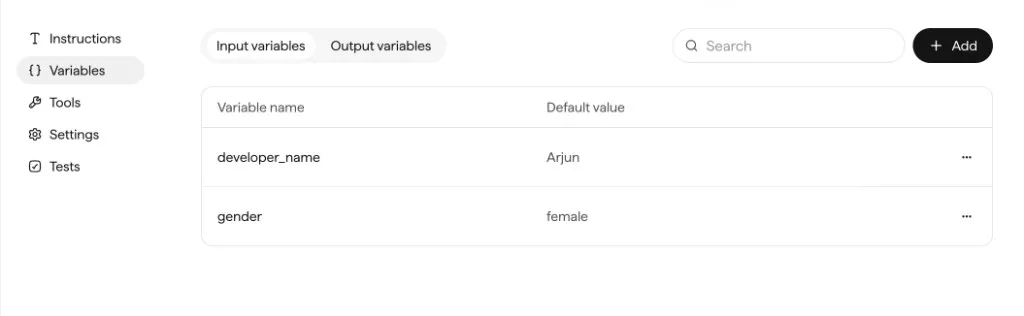
Input variables
Each input variable has a name and a default value. At runtime, values are populated from:
- Telephony metadata: for example, the caller’s phone number on an inbound call.
- On-start hook: an API call fired at call start that returns CRM profiles, account details, or eligibility flags. The response fields are mapped into agent variables before the agent speaks.
- Campaign row fields: for outbound calls, each contact’s CSV columns are mapped to agent variables so the agent knows who it’s calling and why.
Controlling context sent to the LLM
Each input variable has a toggle that controls whether it’s sent to the LLM. It’s on by default, so the value is included in the agent’s context. Turn it off to keep the variable available for tools without consuming LLM context tokens.
Output variables
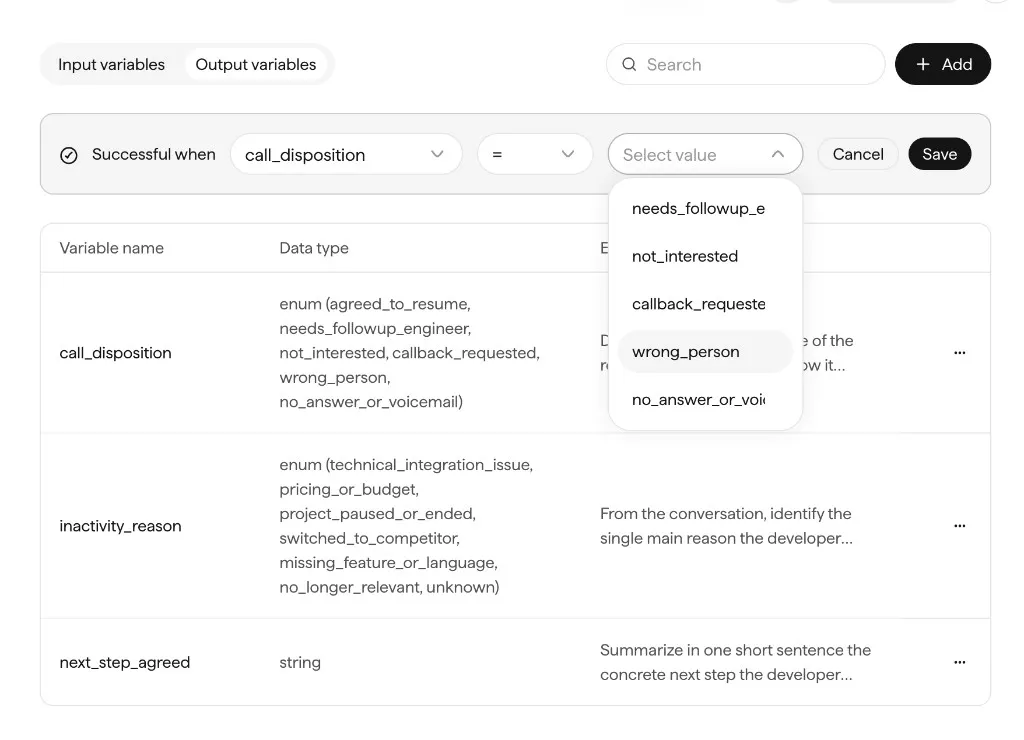
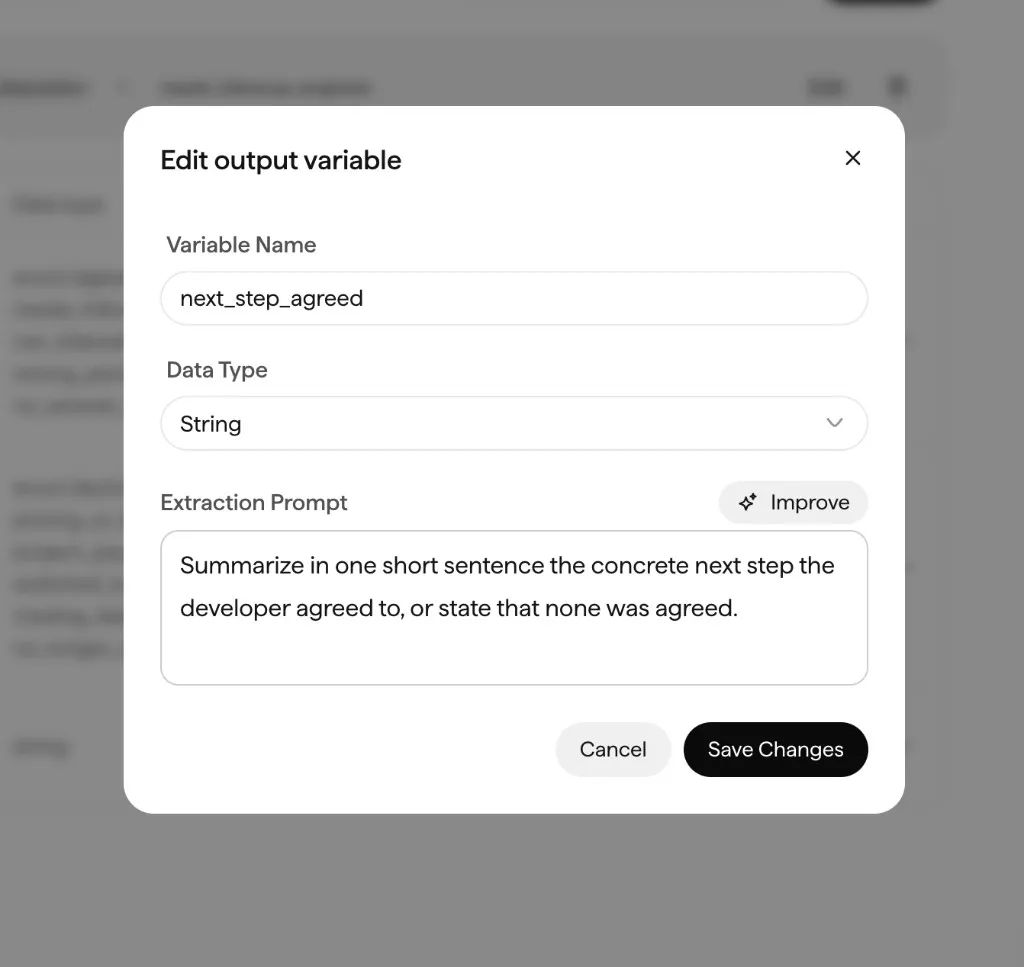
Output variables are extracted from the conversation after the call ends. Each has:
- Data type: String or Enum. For an Enum, define the allowed values (for example,
agreed_to_resume/not_interested). - Extraction prompt: a natural-language description of what to extract and how. Genie can Improve the prompt for you.
Call goal
On the Output variables tab, define success with a Successful when rule: <variable> <operator> <value> (for example, call_disposition = agreed_to_resume). Every call is scored against this goal, which powers the success and outcome insights in Agent Analytics.
Using variables in tools
Tools can read and write any agent variable. The API tool, for example, can pass agent variables in its request body and store response fields back into agent variables via Save reply into variables. This lets you chain lookups across a call: fetch an account on start, reference it in a mid-call tool, and capture the final disposition on end.
Variable lifecycle across a call
PII flagging and privacy transforms
Mark variables that contain personal data and apply privacy transforms (mask, hash) as needed. PII-flagged variables are redacted in logs and analytics where appropriate.