

Call transfer
Call transfer lets a voice agent hand a live phone call to a human, another number, or your own SIP trunk when the conversation needs it - an escalation, a specialist, or an explicit request to speak to someone.
It is a core tool. You configure the destination under Settings → In Call Actions; the model decides when to transfer from the conversation.
Call transfer is available on phone calls. It is not available in chat or the browser voice tester.
When the agent should transfer
Write a clear instruction so the model transfers at the right moment. Typical triggers:
- The caller asks to speak to a human, an agent, or a named team (sales, billing, collections)
- The request needs human judgment the agent cannot complete
- An escalation rule fires (for example, a dispute, a cancellation, or a complaint)
Be specific in the instruction. Type @ and insert the call_transfer tool so the agent knows exactly what to call. “When the caller asks for a refund, confirm they want a human, then transfer using call_transfer” works better than “transfer the call”.

Supported telephony
Call transfer is not self-serve on other telephony providers.
Prefer Vobiz or Plivo if you want to configure and test transfers yourself. Numbers rented through Rent from Sarvam use Vobiz underneath, so they support call transfer the same way.
Destination types
Choose one destination type per agent. The value can be fixed, or read from an agent variable at runtime.
Use a variable when the destination depends on the caller - for example a campaign column, an on-start CRM lookup, or a language-specific queue. The variable’s value is resolved when the transfer runs.
The destination must answer. A number that rings out, goes to voicemail, or rejects the call looks like a failed transfer even when the agent invoked the tool correctly. Test with a phone you control.
How to configure
Call transfer is configured as Call forwarding under Settings → In Call Actions.
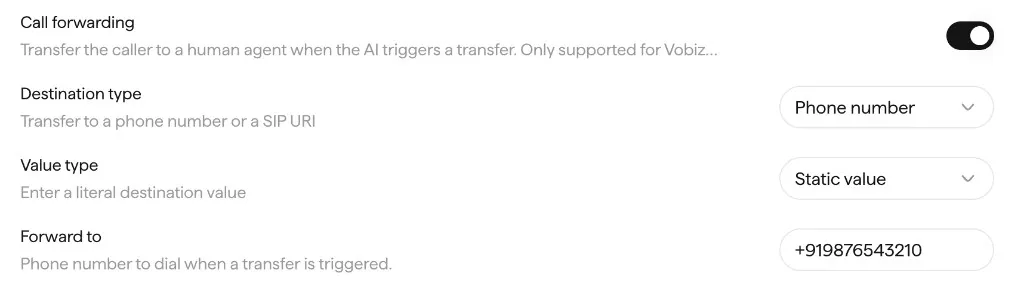
Turn on Call forwarding
Enable Call forwarding, then set Destination type to Phone number or SIP URI.
Set the destination
Set Value type to Static value and enter the number or SIP URI in Forward to. Or bind an agent variable so the value is filled at runtime.
Tell the agent when to transfer
In the instruction, state the conditions and insert call_transfer with @. For example: “When the user requests a refund, acknowledge the request, confirm they want a human support agent, and, upon confirmation, transfer the call using call_transfer.”
Example
Caller: “Can I talk to someone on your sales team?”
Agent: “Sure, I’ll connect you now.”
The agent calls call_transfer. The live call is bridged to the configured sales number or SIP URI.
After a transfer
Transferred calls are visible in Call Logs like any other conversation.
- End Reason is
CALL_TRANSFERwhen the agent handed the call off. - Transfer status and the recording of the transferred leg are captured, so you can see whether the destination answered and what happened after the handoff.
Filter Call Logs by agent, campaign, or date, then look for CALL_TRANSFER in End Reason.
Best practices
- Be specific in the prompt. Name the situations that should transfer (human request, billing dispute, cancellation) instead of a generic “escalate if needed”.
- Confirm the destination is reachable before you go live - a wrong number or an unmanned queue fails the caller, not just the metric.
- Use a variable for routing. When sales and support should land on different numbers, set the destination from a campaign column or an on-start hook, rather than hard-coding one number for every caller.
- Plan for a failed transfer. Tell the agent what to say and do if the destination does not answer - offer a callback, take a message, or continue the conversation.
- Test on the same telephony you will use in production. A transfer that works on Vobiz is not a test of an Exotel number.