

Voice agent call logs: find, filter and export calls
Call Logs is the row-level history of every call your agents have handled. It lives under Monitor → Agent Analytics → Call Logs.
Use it to locate the exact call behind a change in connect rate or engagement, open its transcript and metadata, and then continue to Log Analyser for turn-level detail.
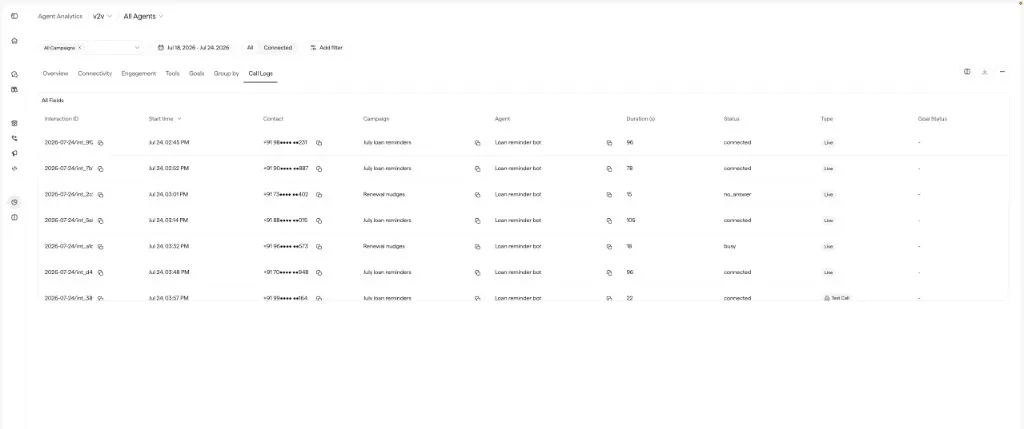
What you can do
- Find a call - filter by campaign, contact, failure reason, or test agent traffic.
- Open its details - click a row to view the transcript and metadata.
- Debug a turn - click a message to open Log Analyser.
Filter the table
The shared toolbar filters (Agents, Campaigns, Date range, Filters) still apply. Call Logs adds a few controls of its own:
Default sort is newest first. Click any column header to re-sort. Text filters support equals / contains / starts with; number filters support comparisons.
Export calls to CSV
Select a single agent, click the download button, then Download CSV. We email you a download link once your file is ready, so you don’t have to wait on the page. You can also download it from Recent exports in the same menu, which keeps your exports from the last 7 days.
Each export holds up to 1,000,000 rows.
How to review a call
Keep the same scope as your chart
If Overview showed a change for a specific agent and date, apply the same filters here so the signal carries over.
Review several examples before concluding
Open multiple rows that share a failure reason or a short duration. A single unusual call is not a reliable pattern.
Open Call Log Details
Transcript
Overview
Full conversation. Click a message, or the Conversation Initiated / Conversation Ended chips, to open Log Analyser.
Hand off to Log Analyser
Use Call Logs to find the call, then use Log Analyser to explain what happened during a turn.
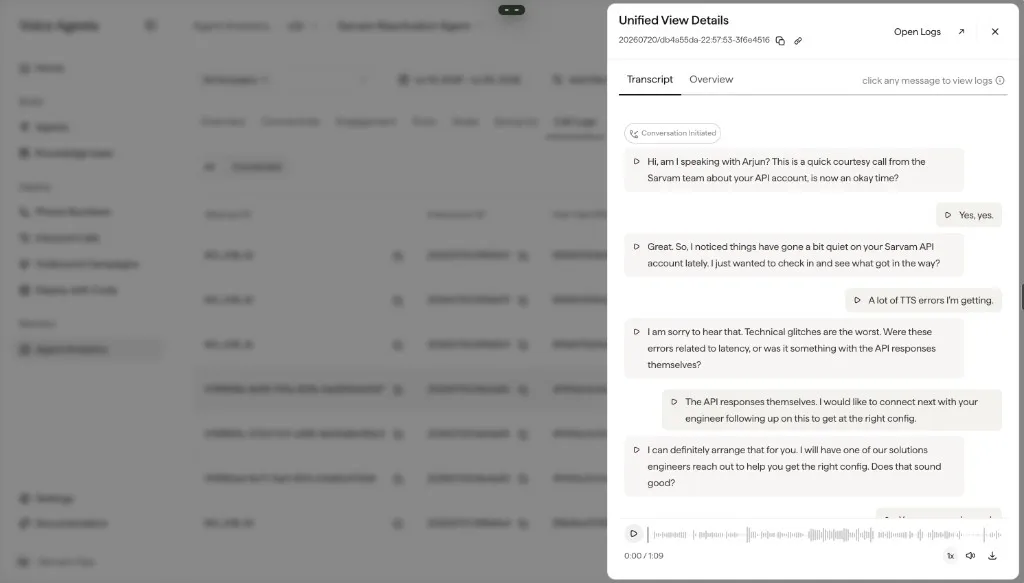
For details on the recording itself, including mono vs stereo channel layout and how to enable dual-channel recordings, see Call recordings.
Column reference
Visible labels can vary by org. Expand a group when you need the dictionary.
Identity & routing
Outcome & quality
Channel & extras
You may also see start/end datetime, job ID, retry attempts, provider type, Test Call / Live badges, agent variables, and goal status when configured for your org.