

Browsing and Selecting Voices
Browse Sarvam’s voice catalog and your own clones, preview any voice, and set it as your active persona. For an overview of the Voice Library and who it’s for, see the Voice Library overview.
Discovering Voices with Featured Voices
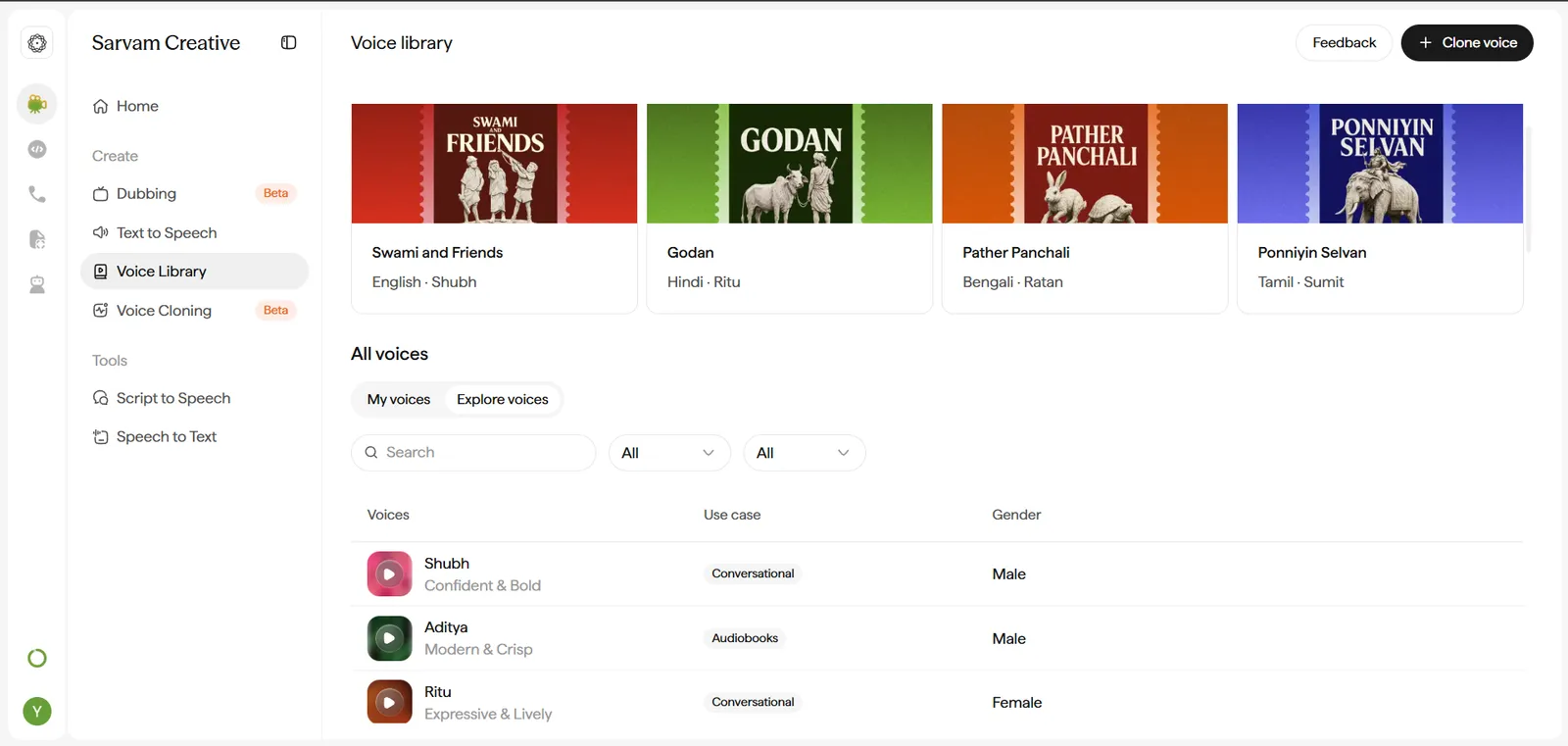
- Featured voices surfaces curated examples organized by content category - Audiobooks, Podcasts, Education, and Marketing.
- Switching category tabs swaps the example cards, each pairing a piece of sample content with the voice (or voices) narrating it.
- Podcast examples showcase two-narrator pairings - a useful preview of how two distinct personas sound side by side before you pick voices for a multi-speaker project.
Browsing All Voices
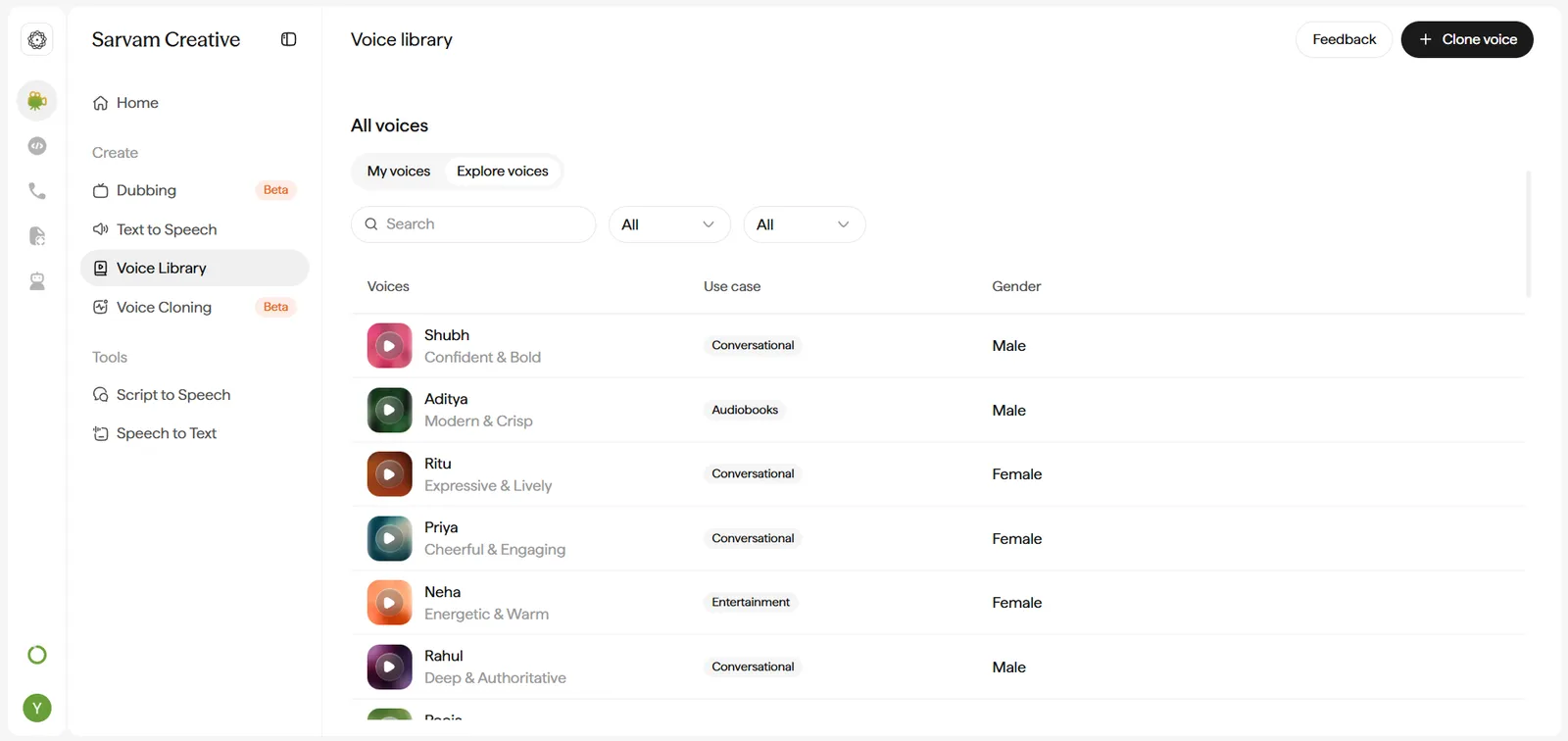
Choose My Voices or Explore Voices
Switch between the My voices and Explore voices tabs depending on whether you want your existing/favorited voices or the full catalog.
Filter by Use Case or Gender
Narrow the table using the use-case filter (Conversational, Audiobooks, Entertainment, Sales, News) or the gender filter (All, Male, Female), or search by name.
- Worth the extra click once the library grows past a handful of voices - scanning by ear through dozens of unfiltered rows is slower than narrowing to the ones that actually match your project.
Preview a Voice
Click the play icon on any row to hear a short sample.
- Always preview before selecting for a real project - a voice’s personality tag (e.g. “Warm & Reassuring”) can suggest a tone the actual sample doesn’t quite match.
Favorite or Select a Voice
Hover a row to reveal a heart icon (favorite it for quick access later) and a Use voice button (set it as your active persona).
- The selection carries over into Text to Speech and Dubbing automatically, so do this deliberately once you’ve settled on a voice rather than switching back and forth mid-project.
Reading Voice Metadata
Each voice is tagged with a short personality descriptor, a use-case category, and a gender - for example:
Use the personality tag as a quick filter for tone, and the use-case tag as a starting point - a voice tagged “News” isn’t locked to news content, it’s just been curated with that context in mind.
Sarvam Voices vs. Cloned Voices
- Sarvam voices - curated native-artist personas, ready to use immediately, no setup required.
- Cloned voices - voices you’ve created via Instant Voice Cloning. These appear once processing finishes, and can be managed from the My voices tab.
See Creating a Clone to add a new voice to this library.