

Generating Speech
Generate a voice clip from written text, tuned for Indian accents and dialects. For an overview of what Text to Speech does and who it’s for, see the Text to Speech overview.
Interface Controls
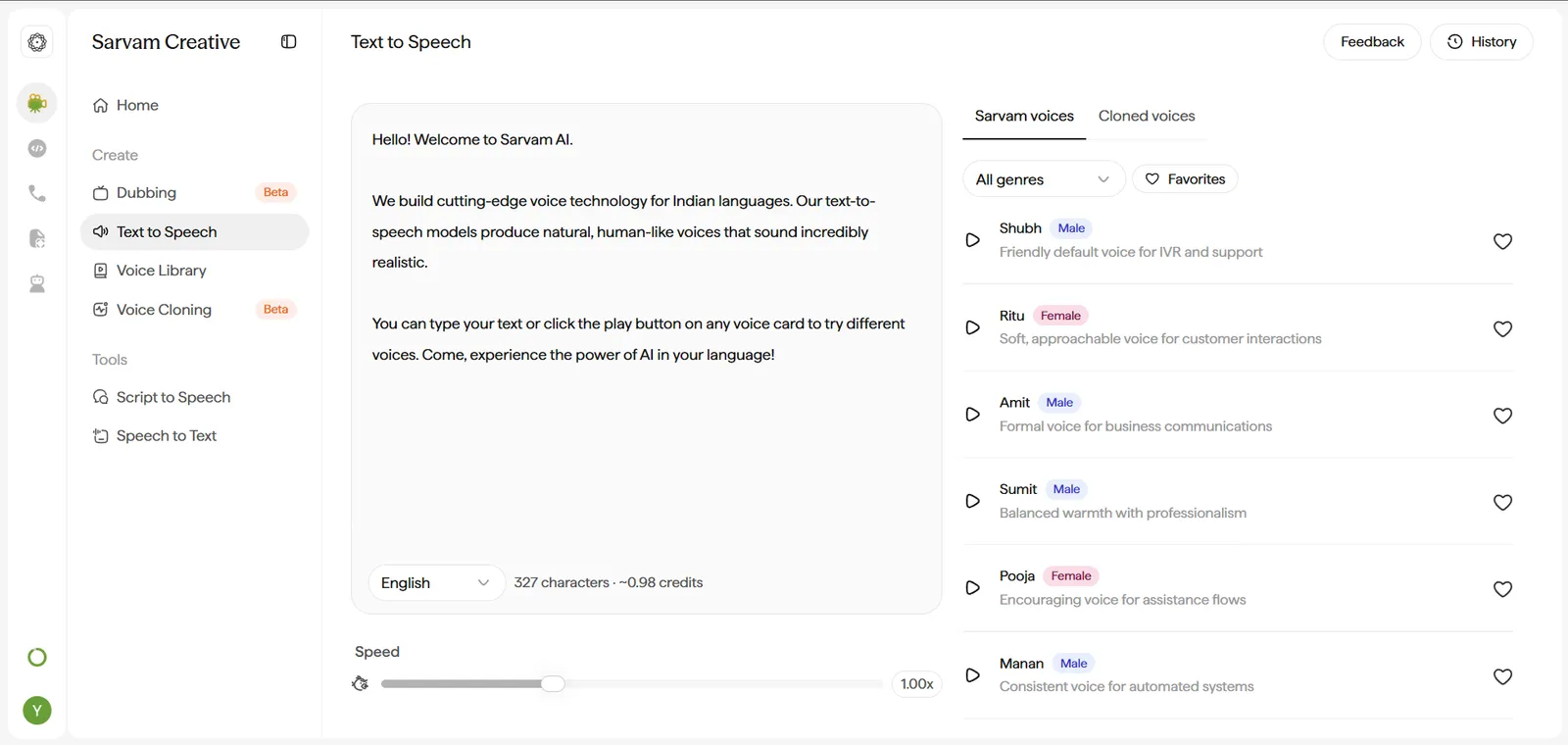
- Text input box - central field, pre-filled with sample text you can try or overwrite; character count updates live to estimate credit cost.
- Feedback and History - header buttons for sending feedback and reviewing your past generations.
- Language dropdown - along the bottom edge of the input box.
- Speed - a slider showing the exact delivery-speed multiplier (e.g. “1.00x”).
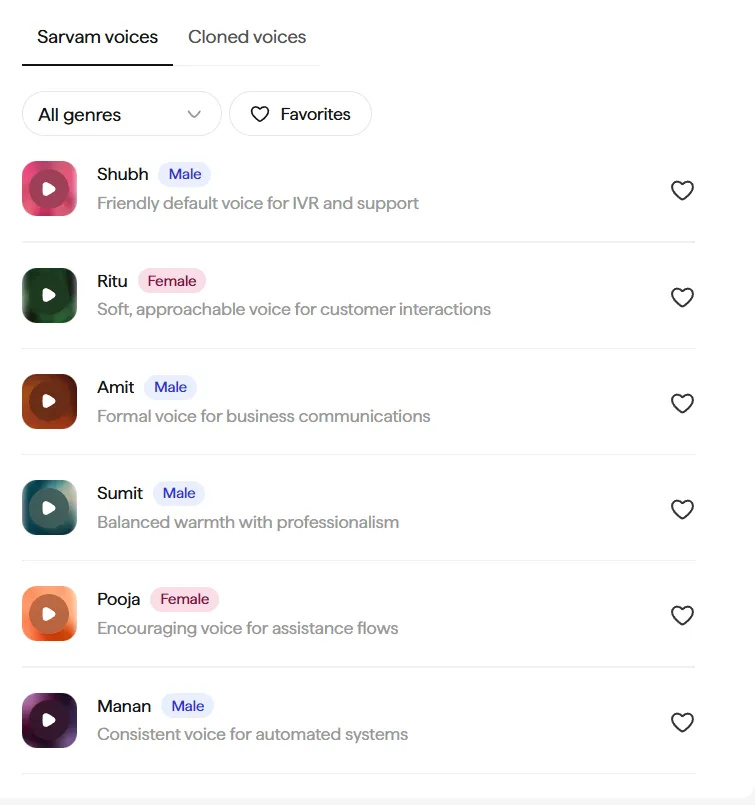
- Sarvam voices / Cloned voices tabs - toggle between curated voices and your own clones. The Sarvam voices tab also has an “All genres” filter and a Favorites toggle, on top of each voice’s own favorite heart icon.
Generate a Voice Clip
Enter Your Text
Paste or type your text into the text input box, replacing the sample text.
- Punctuation matters more than you’d expect - commas and periods are what the model uses to place natural pauses. Under-punctuated text tends to sound rushed.
The gap between a rushed clip and a natural one is usually just punctuation:
- Weak: “welcome to sarvam ai we build voice technology for indian languages”
- Better: “Welcome to Sarvam AI. We build voice technology for Indian languages.”
- Best: “Welcome to Sarvam AI - we build voice technology for Indian languages, with support across more than 10 scripts.”
The dash and comma in the last version give the model natural places to breathe, instead of reading the whole line in one flat rush.
Set the Output Language
Choose the synthesis language from the dropdown along the bottom edge of the input box.
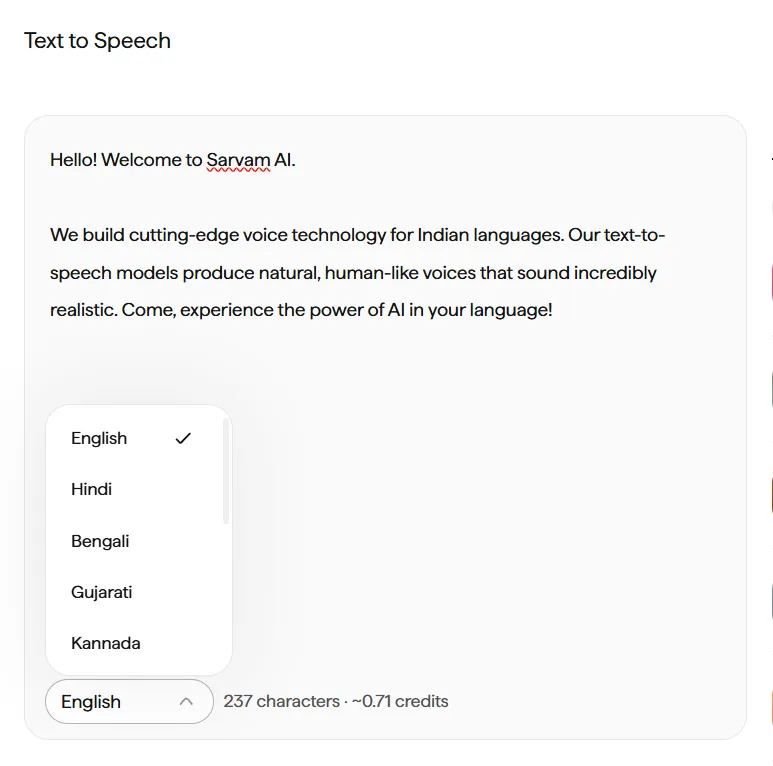
- This should match the language your text is actually written in - mismatches are one of the most common causes of mispronounced words.
Tune the Delivery Speed
Drag the Speed slider to set the multiplier (e.g. “1.00x” is normal pace).

- Values below 1.00x read as more deliberate and authoritative - useful for narration or instructional content.
- Values above 1.00x read as more energetic and casual - useful for ads or social content.
Pick a Voice Persona
Select a persona from the Sarvam voices or Cloned voices tab.
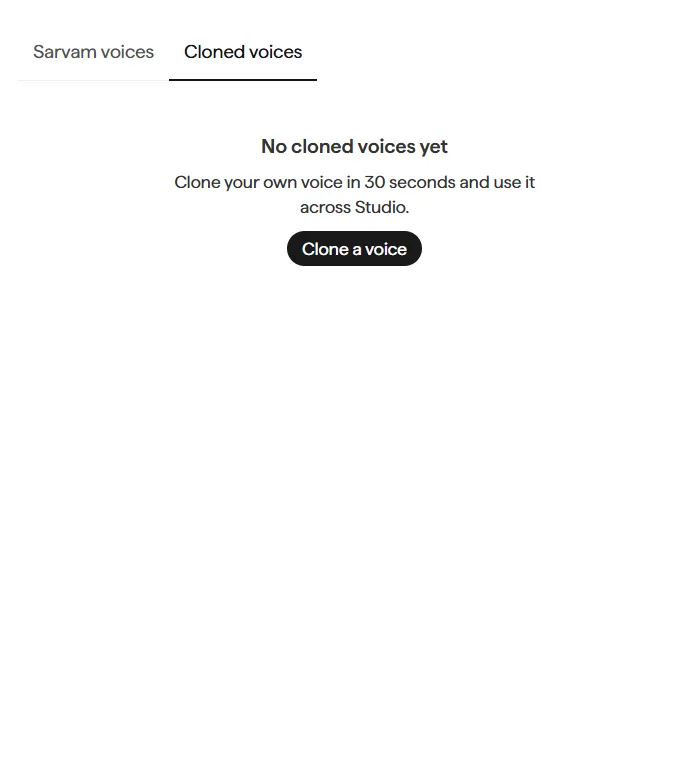
- No cloned voices yet? Click Clone a voice right there in the Cloned voices tab - it opens the cloning flow directly, and the new voice becomes available here once processing finishes.
- Reusing the same persona across a project’s assets is what makes the output feel like one consistent “voice” rather than a series of one-off generations.
Need this in your own product instead of the dashboard? The same synthesis pipeline is available via the TTS API - see the API Reference.