

Translate a document
Translate renders a whole document into one or more languages while preserving its structure: headings, paragraphs, images, and layout all stay in place. In Editor mode you then review and refine each translation in a side-by-side editor with AI assistance, learned rules, and guidelines. In Download only mode you get the translated file directly.
This guide walks through the full flow: open Translate, start a project, add target languages, refine in the editor, and export.
Step 1: Open the Translate page
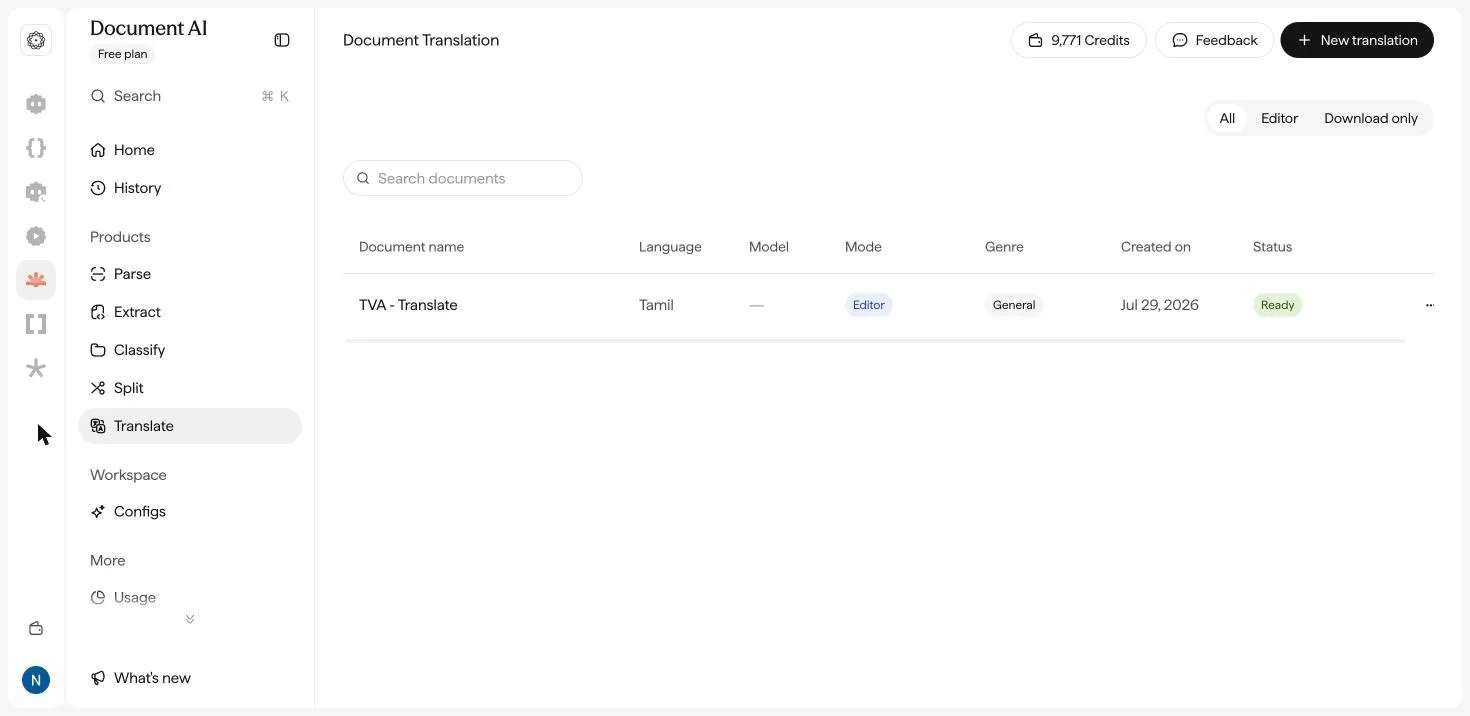
Click Translate under Products in the sidebar. The Document Translation page lists every translation in your workspace, with columns for Document name, Language, Model, Mode, Genre, Created on, and Status. Search by name, or filter with All / Editor / Download only. Your credit balance is shown at the top.
Step 2: Start a new translation project
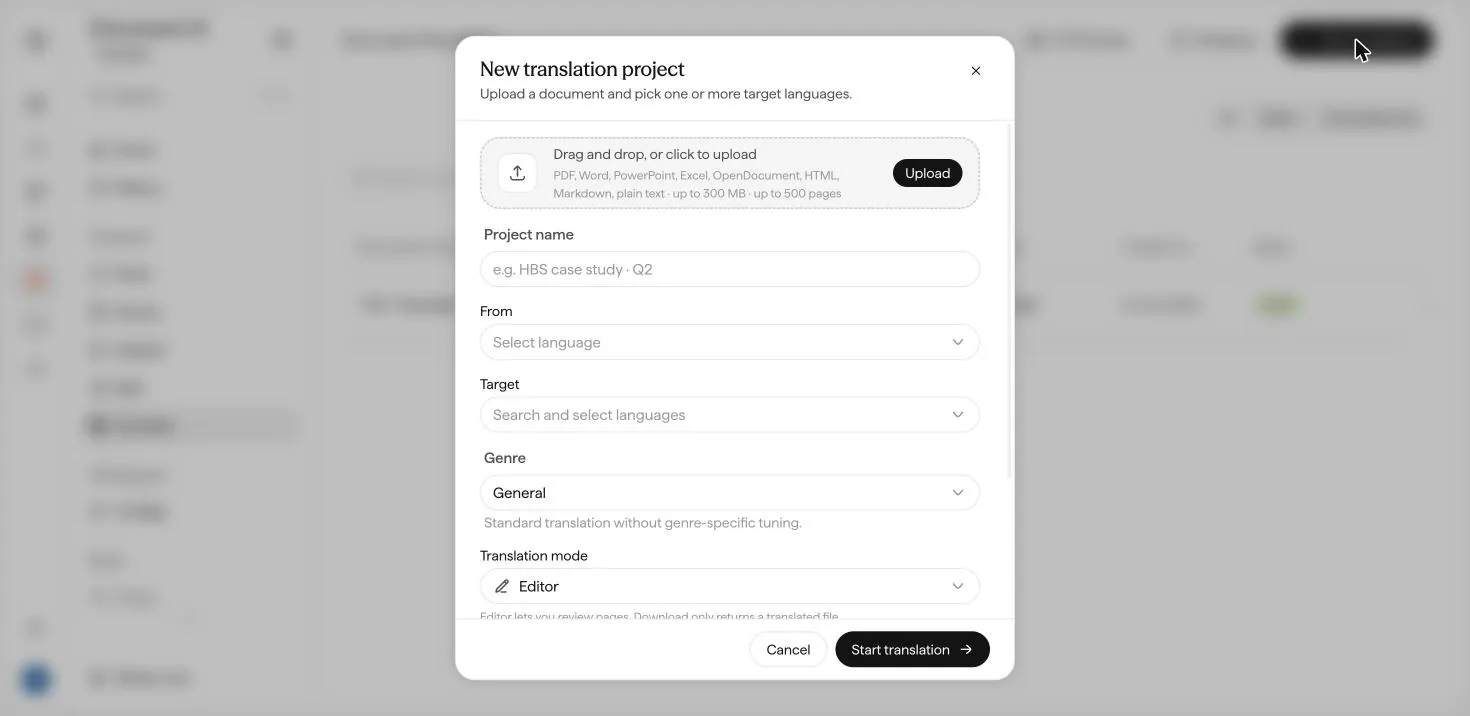
Click + New translation to open the New translation project dialog.
Upload the source document
PDF, Word, PowerPoint, Excel, OpenDocument, HTML, Markdown, or plain text, up to 300 MB and 500 pages.
Pick the languages
From is the document’s language. Target takes one or more languages to translate into.
Pick a genre
Genre tunes tone and vocabulary: General, Non-fiction, Adult Fiction, Children’s Book, Religious & Spirituality, Legal / Judicial, or Academic.
Choose a translation mode
Editor lets you review and edit every page before you export. Download only skips the editor and gives you the translated file.
Choose a model
Sarvam Plus gives the best quality for complex or nuanced documents. Sarvam Lite is faster for straightforward content. Pricing is shown under the dropdown; see Sarvam pricing for details.
Click Start translation → to begin.
Step 3: Add or manage target languages
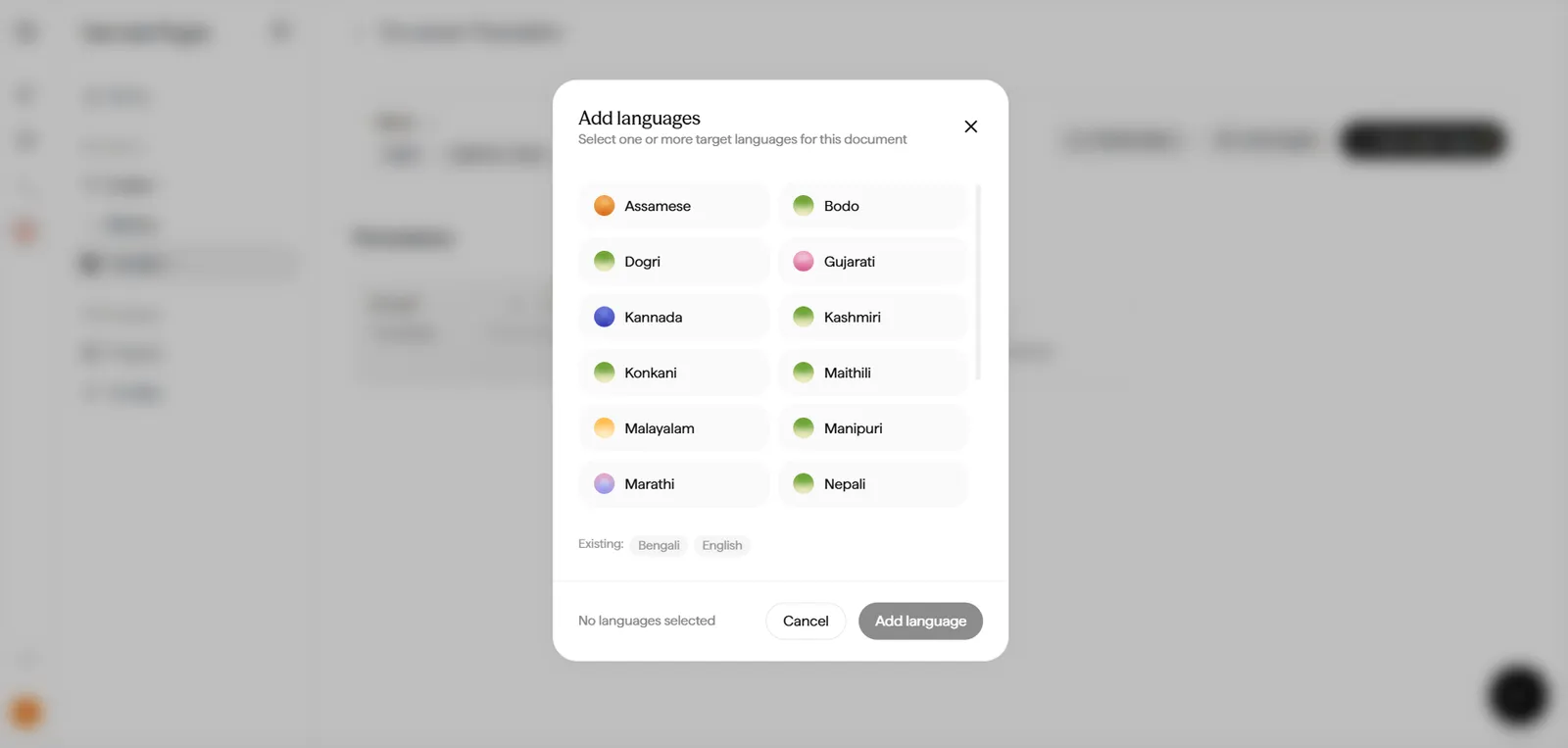
A single document can be translated into many languages. From the document’s detail view, click Add Language to pick from the full set of supported languages: Assamese, Bodo, Dogri, Gujarati, Kannada, Kashmiri, Konkani, Maithili, Malayalam, Manipuri, Marathi, Nepali, and more. Languages already on the document show under Existing.
Step 4: Track progress per language
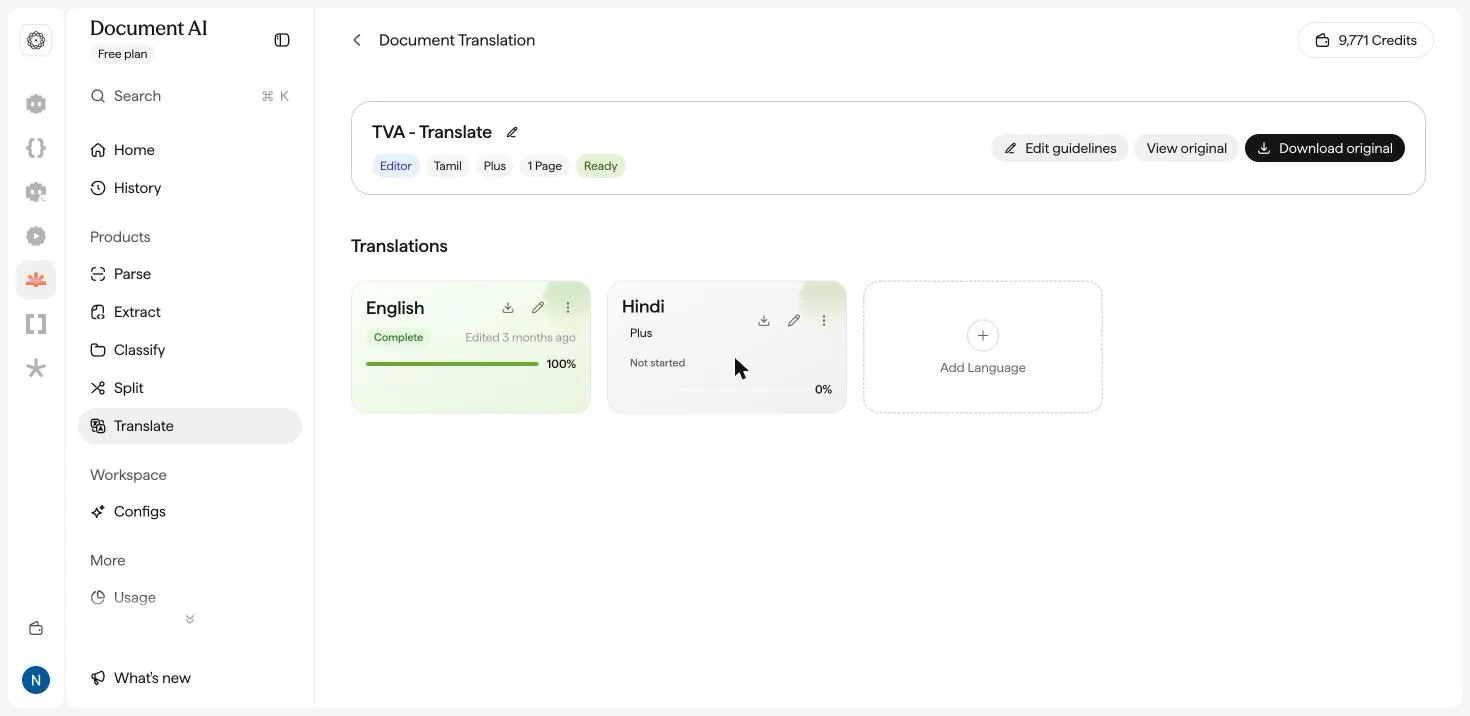
Click a document in the list to open its detail view. The header shows the document’s mode, source language, model, page count, and status. Edit guidelines updates the rules for every language, View original opens the source, and Download original saves it.
Under Translations, each target language has a card with its status and a progress bar (for example English · Complete · 100%). Use the card’s icons to download that translation, open it in the editor, or open more options. Each language can also have its own guidelines, such as a formality level or cultural notes.
Step 5: Review in the side-by-side editor
Steps 5 to 7 apply to projects in Editor mode. In Download only mode, download each translation from its card in the detail view.
Open a translation to enter the editor. The source sits on the left and the translation on the right, with a language selector at the top so you can switch between target languages. A page selector (< 1 of N >) moves through the document. Three actions live in the toolbar:
- Changes shows your edit history for the document.
- Edit Guidelines opens the document-level translation rules.
- Bulk Translate re-runs the translation across the whole document, applying your latest guidelines and learned rules.
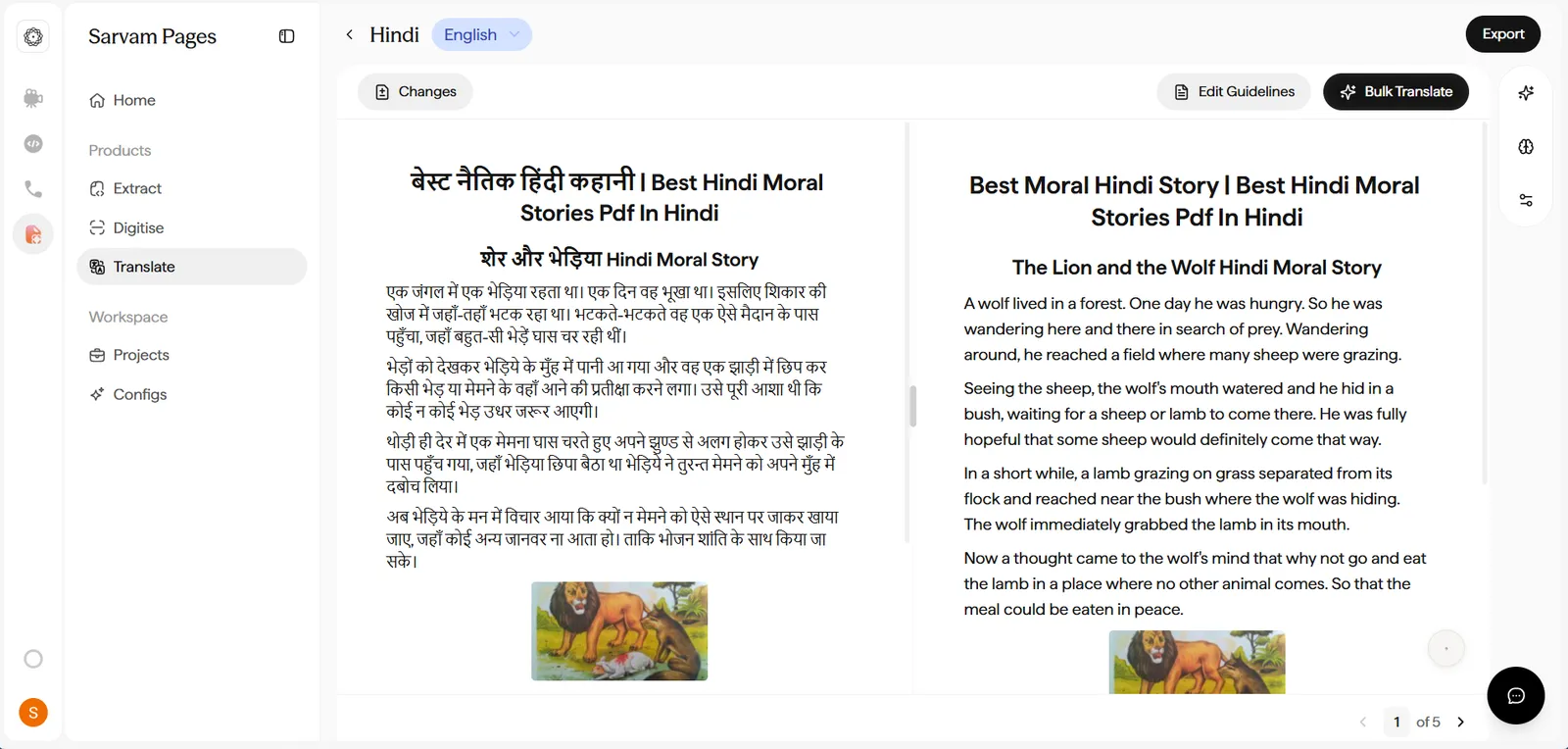
Step 6: Use the side-panel tools
The right rail has three tools:
- AI Assistance. Ask questions about the content (“what is the moral of the story”) and get answers grounded in the document.
- Learned Rules. Corrections you make are remembered and reapplied across the document, so you fix a term or phrasing once.
- Editor Settings. Toggle Transliteration (type English, get Indic suggestions), Spell Check (target-language dictionary), and Editor Stats (word / character / reading-time counts); set Font Size (S / M / L); and choose a Panel Layout (50-50, 40-60, or 30-70 split, or drag the divider).
Step 7: Export
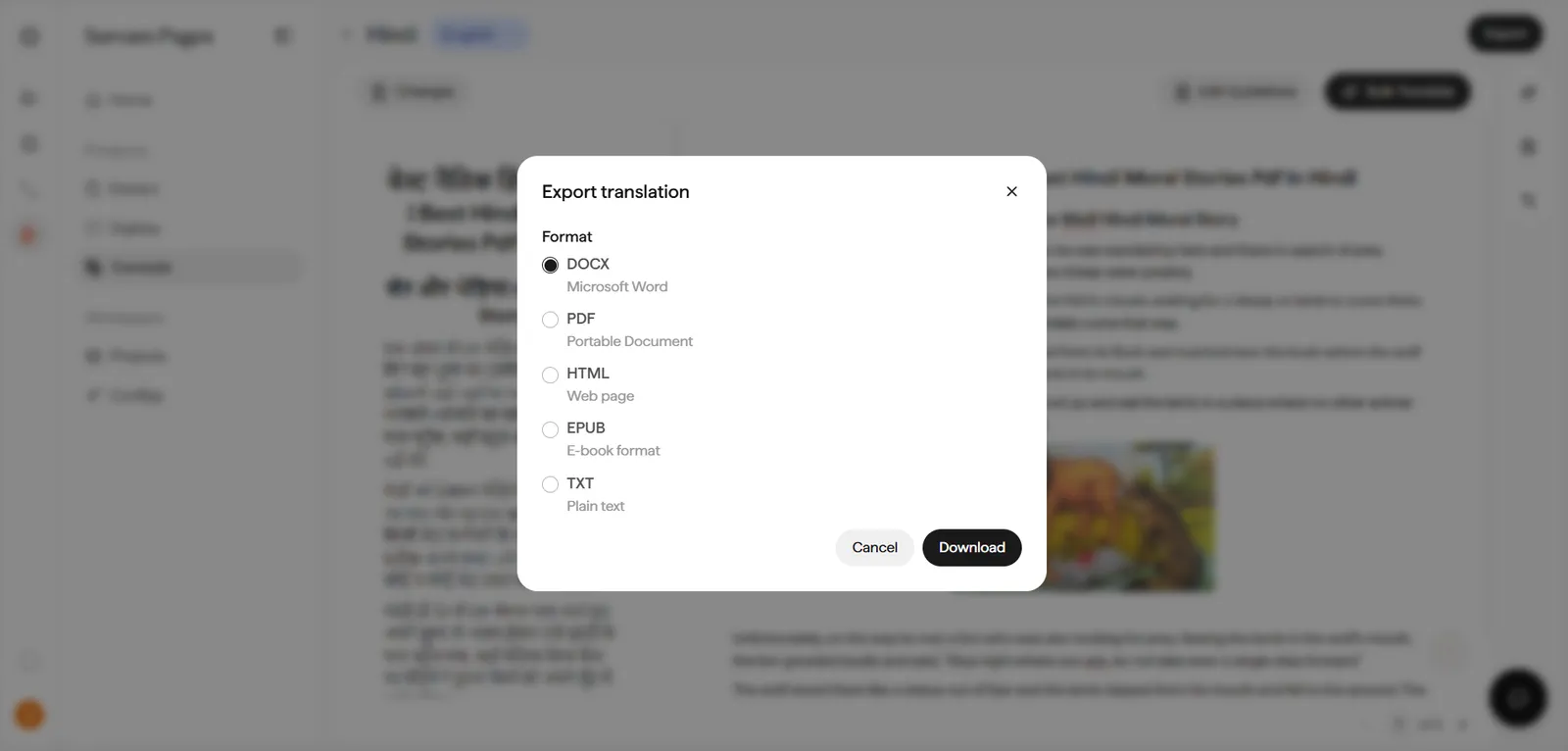
When a translation reads the way you want, click Export in the editor toolbar. Pick a format from the dialog and click Download:
- DOCX (Microsoft Word)
- PDF (Portable Document)
- HTML (Web page)
- EPUB (E-book format)
- TXT (Plain text)
For a multi-language deliverable (say, the same story in Bengali and English), add both target languages to one document. Each gets its own editor and progress bar, all tracked under the same source.
Next: FAQs · Document Translation API