

Parse a document
Parse reads every page of a document and turns it into structured text. Headings, paragraphs, tables, lists, images, and reading order are kept, so the output is ready for an LLM, a RAG pipeline, search, or an archive. Parse was called Digitise in earlier versions of the app.
It works on modern printed documents, scans, handwritten forms, land deeds, and historic multilingual manuscripts.
Step 1: Add your document
Click Parse under Products in the sidebar (or the Parse card on Home). Drag and drop your files, click Upload documents, or click the IT policy.pdf demo document under Try a demo doc.
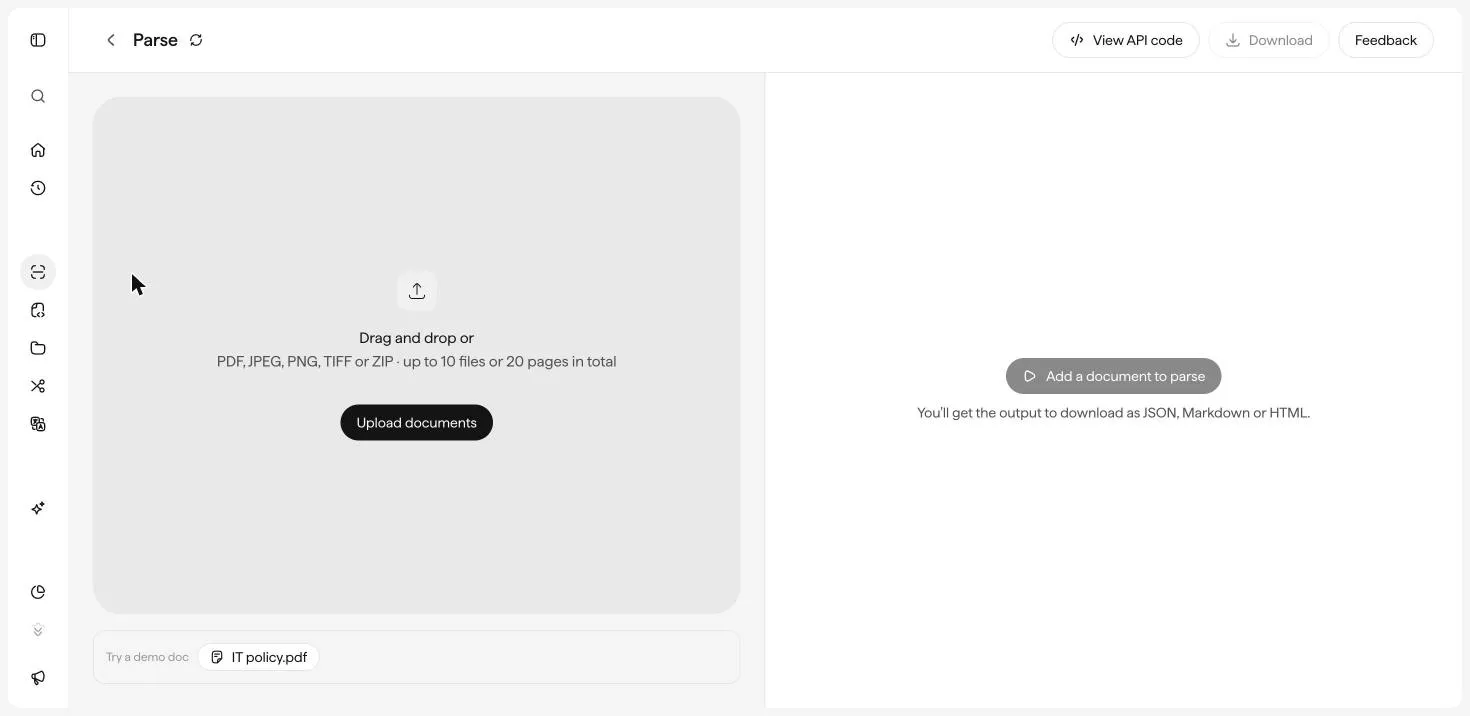
Accepted formats: PDF, JPEG, PNG, TIFF, ZIP. Each run takes up to 10 files or 20 pages in total. Click + Add under the page thumbnails to add more files to the same run, or the trash icon to remove one. For bigger jobs, use the Parse API.
Step 2: Run Parse
Parse needs no setup. Click Parse 1 document (the label counts your files). The credits the run will use are shown under the button. A small single-page document typically finishes in a few seconds.
You can leave the page while a run is processing and reopen it later from History.
Step 3: Review the output
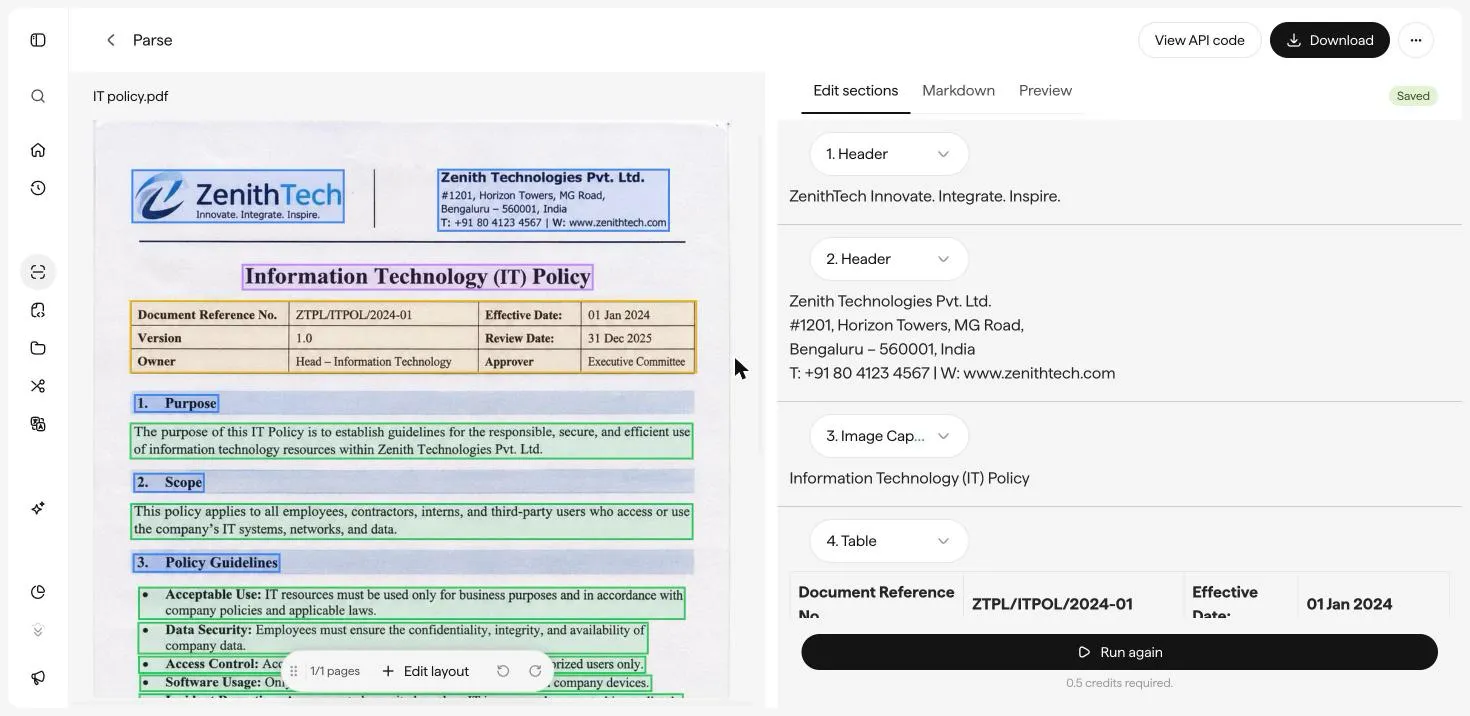
The source document sits on the left with a color-coded box around every region Sarvam detected. The right pane has three tabs:
Edit sections
Markdown
Preview
A numbered list of every detected region, in reading order. Each section has a type dropdown and its content underneath. Click into any text to correct it. Tables render as grids you can edit cell by cell. Images and signatures get a written description. Changes save automatically; the Saved badge confirms it.
Change a section’s type
Open the type dropdown on any section to reclassify it. The list is searchable and includes:
Add a region Sarvam missed
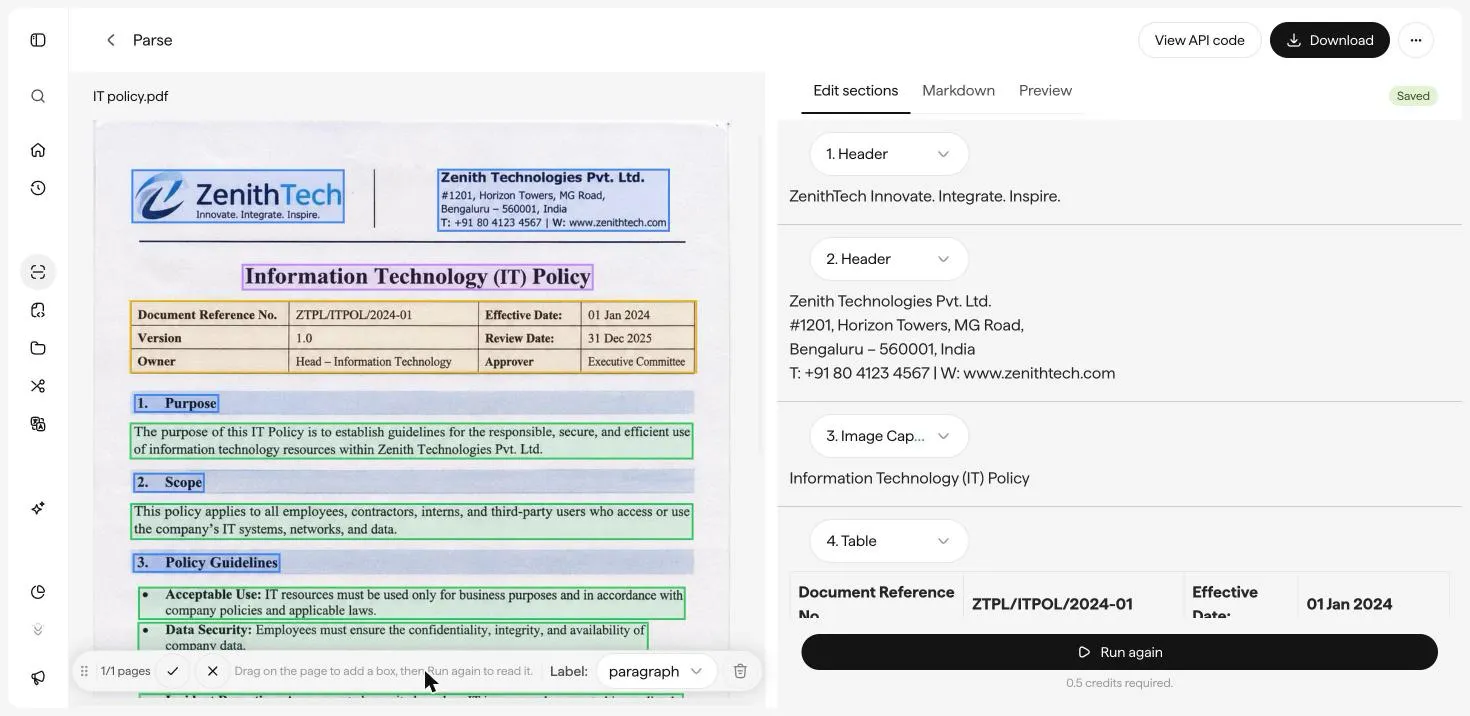
If a caption, stamp, or column wasn’t picked up, draw it in.
Multi-page documents
The toolbar under the source page shows the page count (for example 1/3 pages), and each page shows its own detected regions.
Step 4: Download
Click Download, choose a Format, and click Download again.
Run it from code
Click View API code to get cURL, Python, or JavaScript that runs this exact setup through the API. Replace YOUR_API_KEY and the file name, and you’re ready to go. See the Parse API guide for every option.
Parsed Markdown makes a much better LLM input than raw OCR. Headings give you natural chunk boundaries, tables stay as tables, and multi-column pages keep the right reading order. If your RAG pipeline ingests raw OCR today, swap in Parse output and measure retrieval again.
Next: Extract fields.