

Save and reuse Configs
A Config is a saved setup for a task: the schema and instructions for Extract, or the document types and settings for Classify and Split. Build it once in the playground, then reuse it on every document of that kind, in the app or from your code.
Save a Config from the playground
The quickest way to make a Config is to save one you’ve just tested.
Get the setup right
In Extract, Classify, or Split, build your setup and run it on a few sample documents until the output looks right.
Create a Config from the Configs page
Open Configs under Workspace and click + New config. Pick a task (Parse, Extract, Classify, or Split). Its playground opens, and you save the Config from there with Save config.
Manage your Configs
Configs has two tabs, each filterable by type with the pills under the search box.
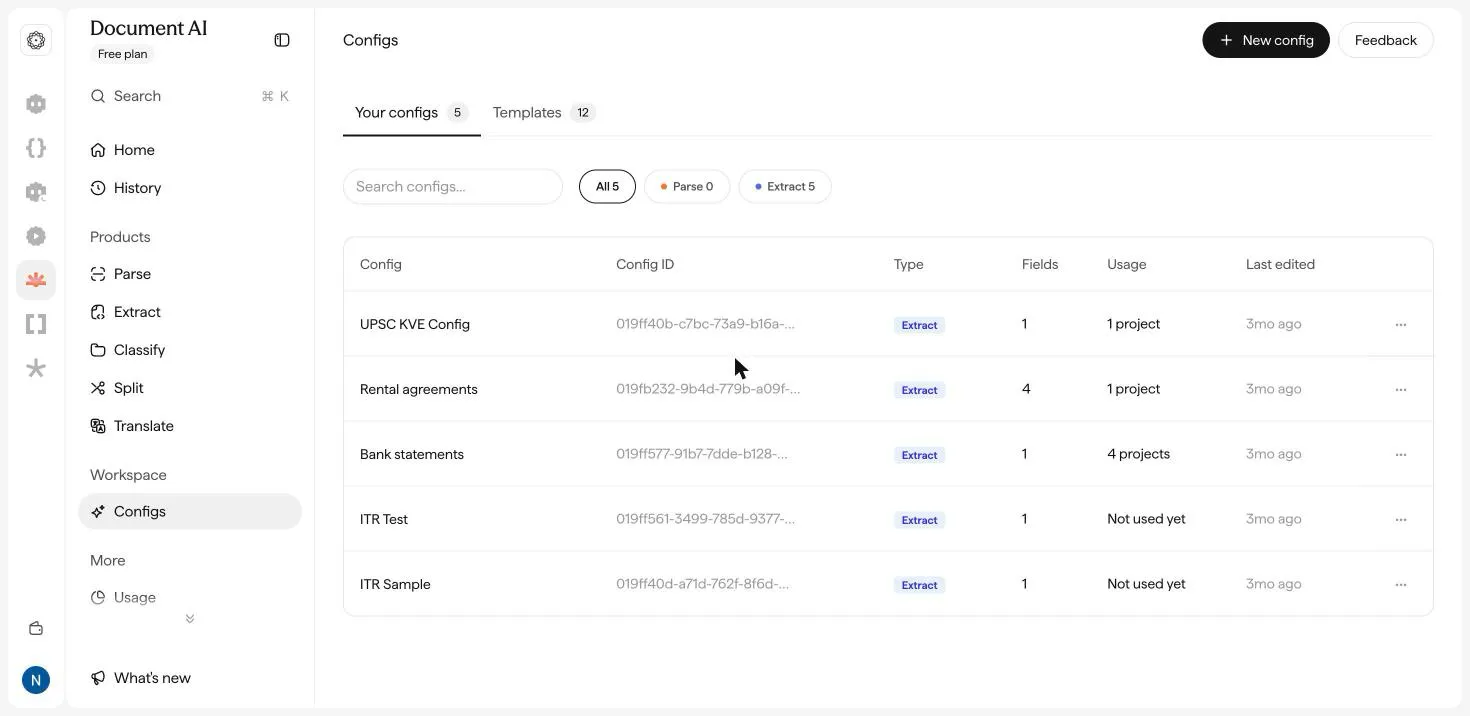
Your configs lists everything your workspace has saved. Each row shows a Config ID, the Type, the number of Fields, how many projects have used it (Usage), and when it was Last edited. Open a row’s ⋯ menu to:
Start from a template
The Templates tab lists ready-made Configs that ship with Document AI:
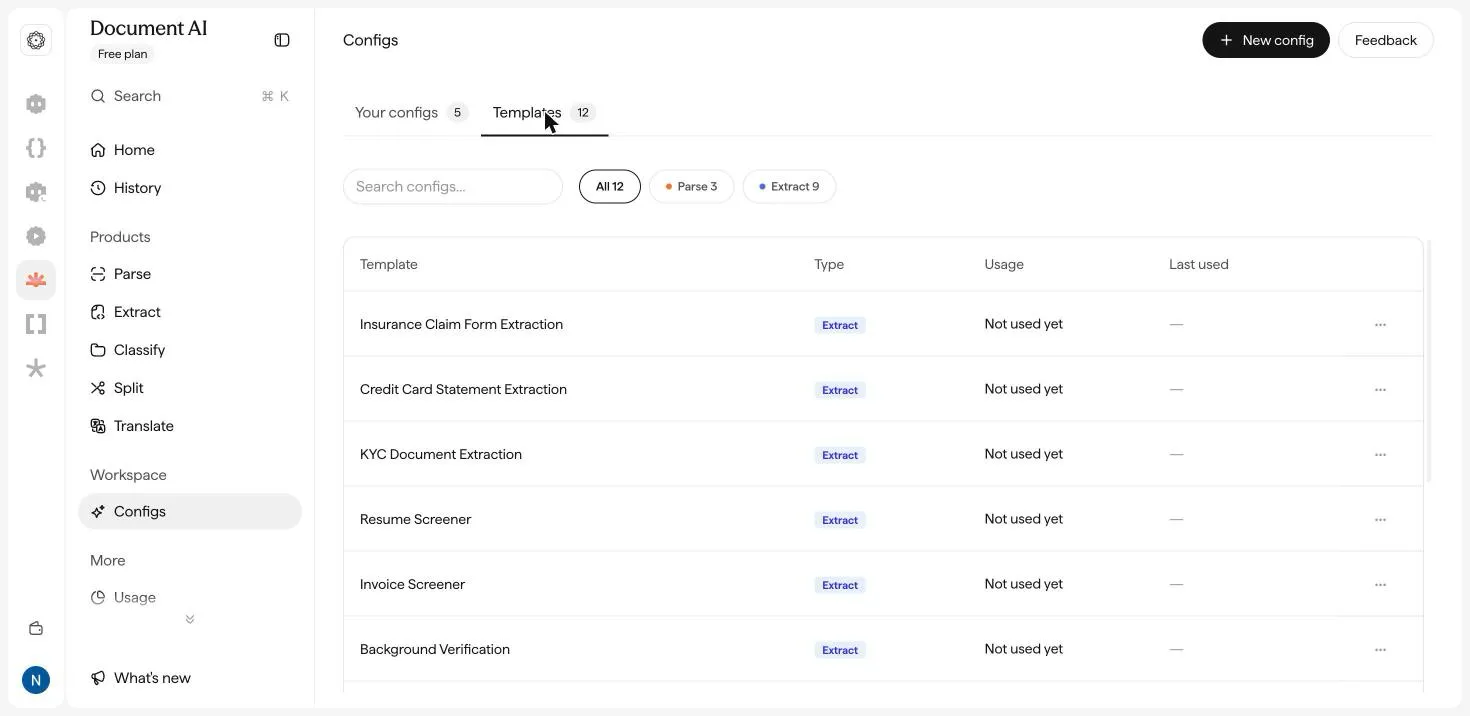
- Extract: Insurance Claim Form Extraction, Credit Card Statement Extraction, KYC Document Extraction, Resume Screener, Invoice Screener, Background Verification, Court Appeal Information Extraction, GST Registration Form Extraction, and Historic Land Deed Extraction.
- Parse: Land Deeds Digitisation, Digitise Handwritten Document, and Digitise Historic Gujarati Document.
Open a template’s ⋯ menu and click Duplicate to copy it into Your configs, where you can rename and edit it. Click Download JSON to save its definition.
For Extract, the Templates button inside the playground also has 40+ schemas grouped by workflow: loan and insurance underwriting, accounts payable, purchase orders, claims, trade finance, and cheques. See Extract fields.
Use a Config from code
Every Config has a Config ID. Open a Config’s ⋯ menu and click Get API code to get code that runs it through the API, so the app and your production system use the same setup. For request details, see the Document AI API guide.
Next: FAQs.