

Welcome to Document AI
One workspace for every document task.
Document AI turns real-world documents into text and data you can use. Upload a PDF, scan, or photo, pick a task, and see the result next to your document in seconds. When it works the way you want, save it as a Config or copy the API code and run it from your own system.
Everything runs on Sarvam Vision, with Sarvam Translate for whole-document translation. Both support 22 Indian languages plus English. Open the app at indus.sarvam.ai/akshar.
What you can do
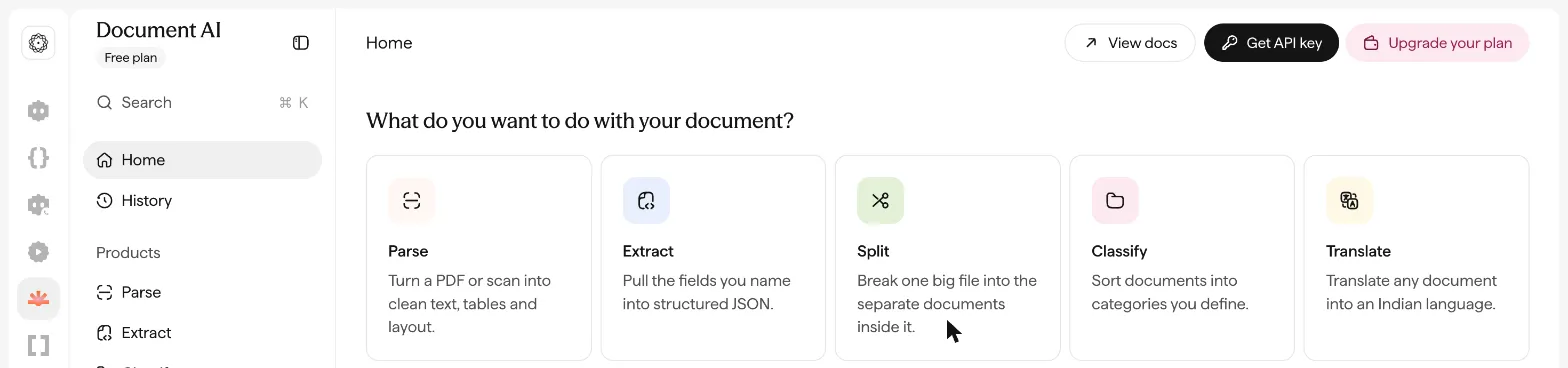
Which task do I need?
These tasks chain well. For example, Split a loan bundle into its bank statement, PAN card, and GST certificate, then run Extract on each part with the matching template.
Try it in a minute
You don’t need your own file to start. Every task page has a Try a demo doc strip below the upload area, and Home lists the same samples under Demo documents:
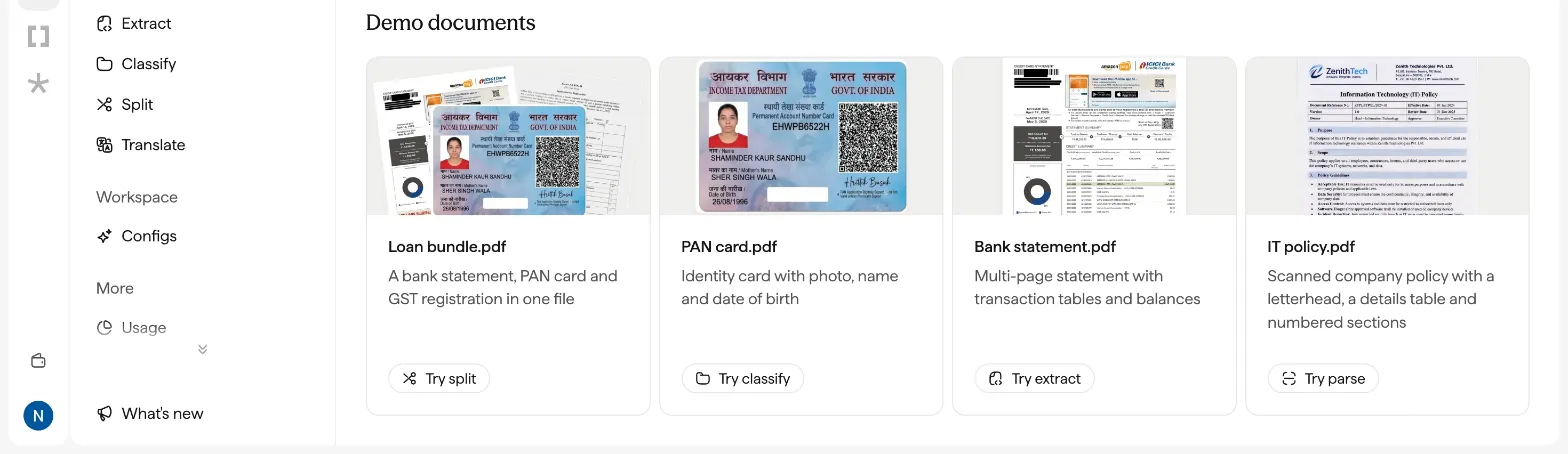
Click a demo document and the task loads it, along with a ready-made setup where one is needed. Then click the run button.
How every task works
Parse, Extract, Classify, and Split share one playground layout: your documents on the left, setup and results on the right.
Add documents
Drag and drop files, click Upload documents, or pick a demo document. Accepted formats are PDF, JPEG, PNG, TIFF, and ZIP, up to 10 files per run. The page limit depends on the task (see limits).
Set up the task
Extract needs a schema of fields, while Classify and Split need a list of document types. You can type these in, generate them with AI (Extract), or load a template or saved Config. Parse needs no setup.
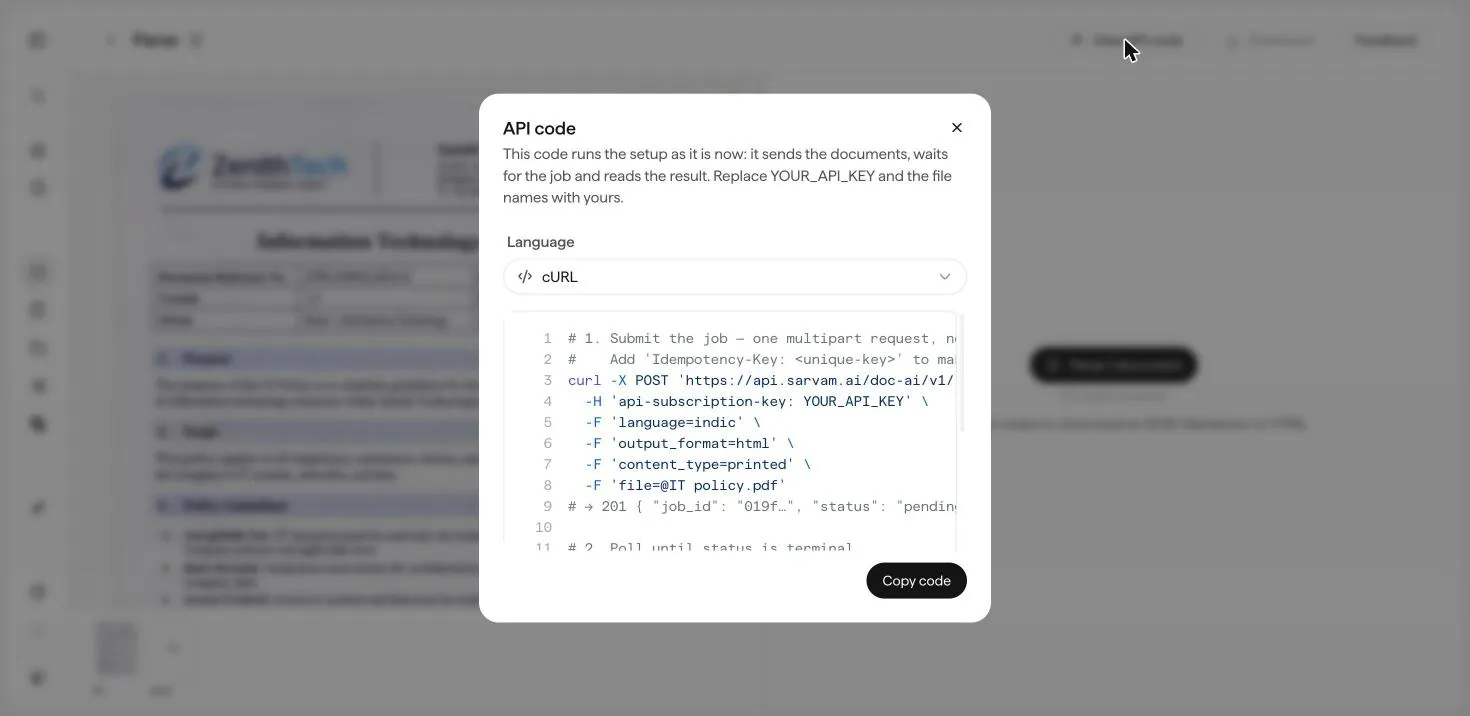
View API code gives you ready-to-run cURL, Python, or JavaScript for exactly what’s on screen: the same task, settings, and schema. It’s the fastest way to move from the playground to production. See the Document AI API guide for the full reference.
Limits
These are the limits for a single run in the app. The API has its own limits and accepts a slightly different set of file formats; see Languages, Formats & Limits.
Find your way around
The sidebar has three groups:
- Home and History. Home shows the task cards, your Recent runs, and the demo documents. History lists every run in your workspace. Search it, or filter by status (Completed, Processing, Draft, Failed) and by type. Click a run to reopen it exactly as you left it.
- Products. Parse, Extract, Classify, Split, and Translate.
- Workspace and More. Configs holds your saved setups and the shipped templates. Usage shows credit spend by service over any date range, with a Download CSV option. Your credit balance appears at the top of the Translate and Usage pages.
Press ⌘ + K (or Ctrl + K) anywhere to search.
Who it’s for
- Banking, lending, and insurance teams processing bank statements, KYC, salary slips, ITRs, claims, and loan bundles.
- Finance and procurement teams handling vendor invoices, GST returns, purchase orders, and trade-finance paperwork.
- Developers who want to try a setup in the playground and then run it from code.
- Legal, government, and research teams working with land deeds, court records, and multilingual archives.
- Publishers translating reports and books into Indian languages without rebuilding the layout.