

Extract fields
Extract pulls the fields you name out of a document and returns them as structured JSON. Examples include an invoice number, a PAN, a statement period, or every row of a transaction table. Each value comes with a confidence score, and you can see where on the page it came from.
You describe the fields in a schema. You can write it yourself, start from one of 40+ templates, or have AI draft it from your documents.
Step 1: Add your document
Click Extract under Products in the sidebar. Drag and drop your files, click Upload documents, or pick a demo document (GSTR-3B.pdf or Bank statement.pdf) under Try a demo doc.
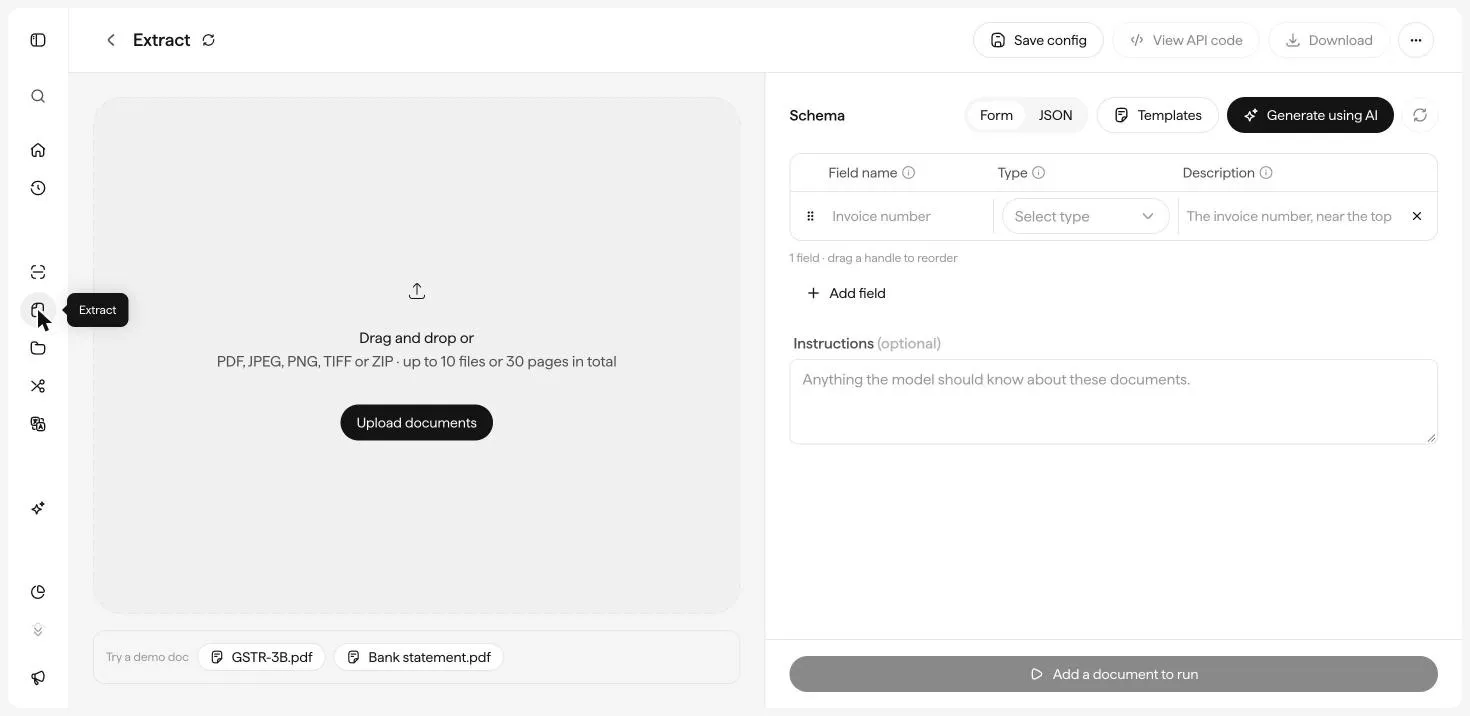
Accepted formats: PDF, JPEG, PNG, TIFF, ZIP. Each run takes up to 10 files or 30 pages in total. For more, use the Extract API.
A demo document comes with a matching schema. If you’ve already built a schema, the app asks before replacing it.
Step 2: Build the schema
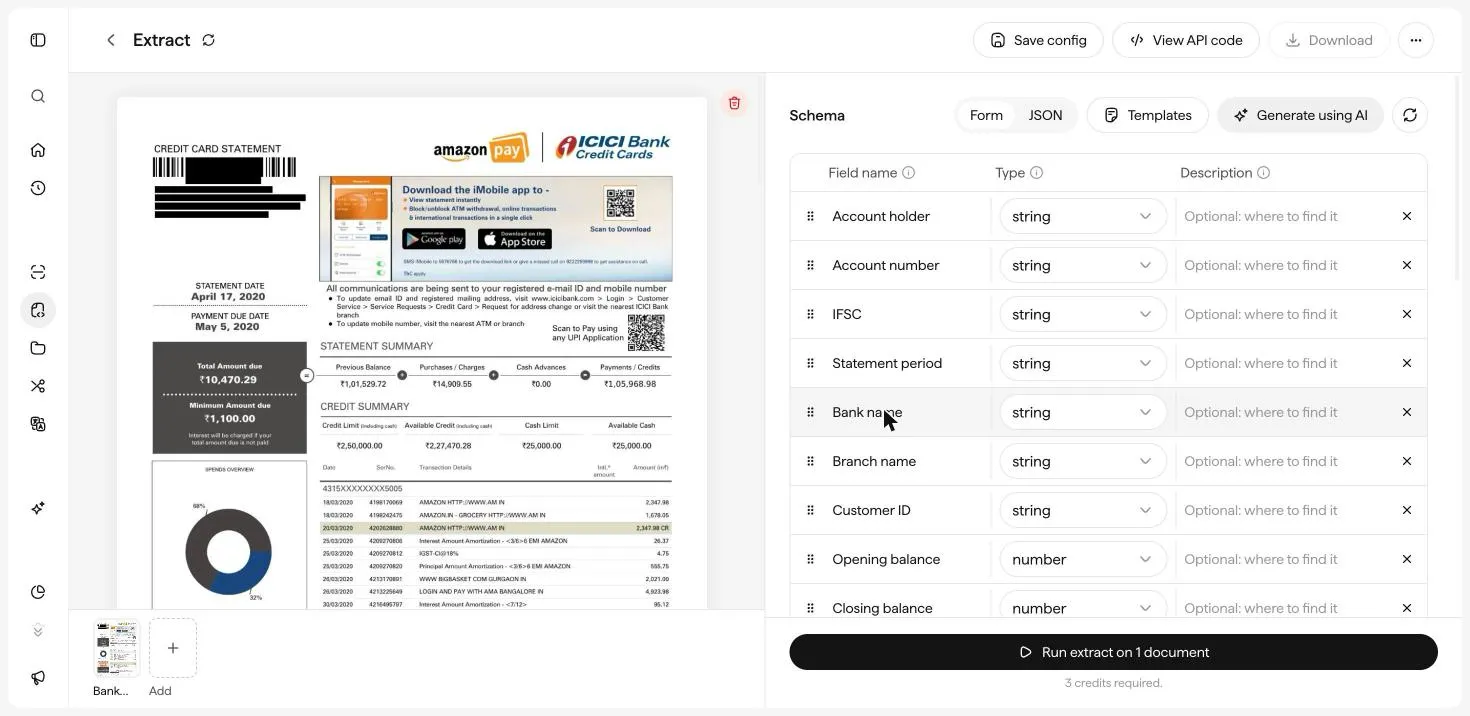
The Schema panel lists the fields to extract. Each field has three parts:
- Field name. What the field is called in the output, for example Invoice number.
- Type.
string,number,integer,boolean,date,enum, orarray of objects. - Description (optional). A hint about where or how to find the value, for example The invoice number, near the top.
You can fill the schema in three ways:
Start from a template
Generate using AI
Write it yourself
Click Templates to open Extraction templates. Search by document or field name, then click a template to load its fields. Everything stays editable.
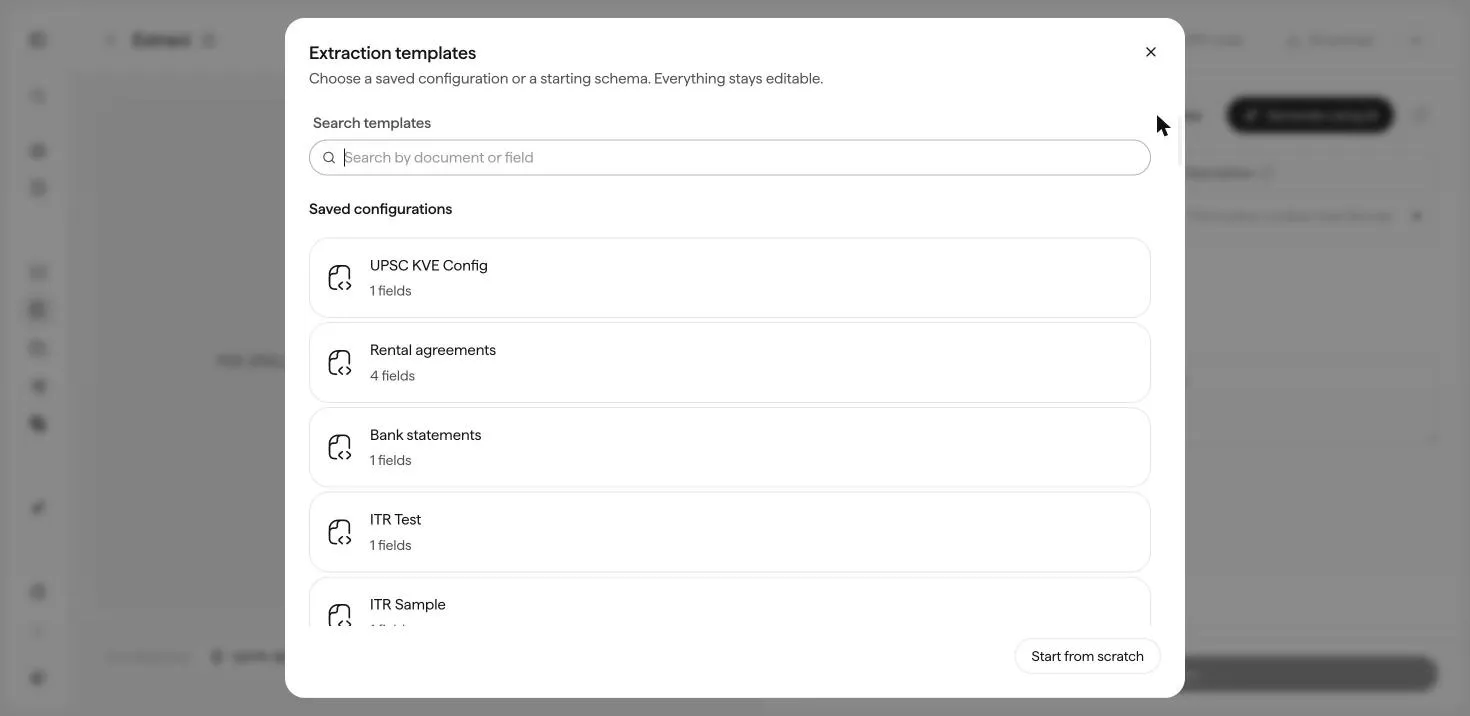
The dialog lists your Saved configurations first, then templates grouped by workflow:
Click Start from scratch to close the dialog with an empty schema.
Lists, tables, and fixed values
- Tables and repeating items. Use the array of objects type for anything that repeats, such as transactions, line items, or family members. Click + Add column inside the field to define what each row contains.
- Fixed sets of values. Use enum and list the allowed values (for example
debitandcredit). The output will always be one of them.
Instructions
Use the optional Instructions box for anything that applies to the whole document, for example Amounts are in INR. Return dates as DD/MM/YYYY.
Step 3: Run the extraction
Click Run extract on N documents. The credits the run will use are shown under the button. While it runs, the Output tab shows progress, for example Processing · 2 of 3 pages done. Large documents can take a few minutes. You can leave the page and reopen the run from History.
Step 4: Review the results
When the run is Done, the Output tab lists every field with its value. Switch between Results and JSON at the top right, or go back to Setup to change the schema and Run again.
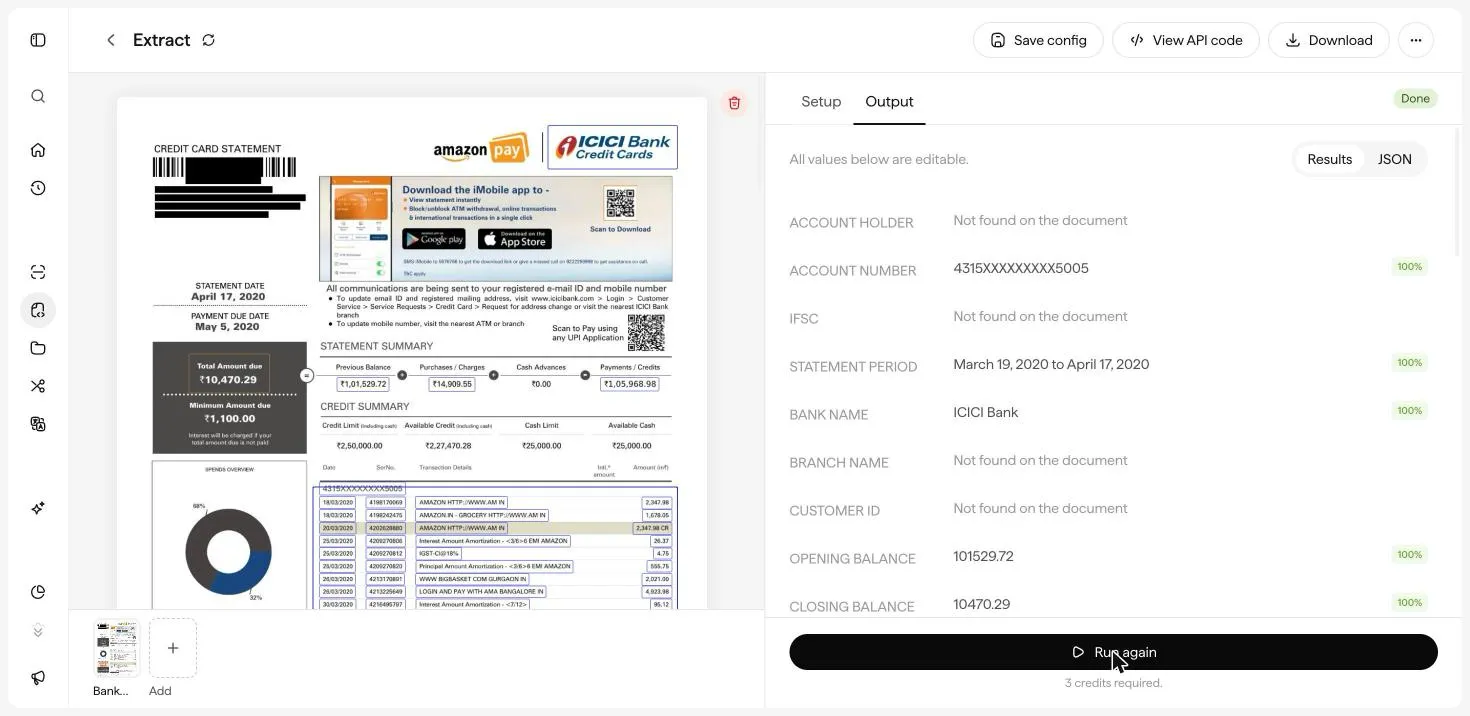
- Confidence. A percentage badge on every value. Low scores flag what to check first.
- Source location. Extracted values are boxed on the source document, so you can check each value against the page.
- Not found. Fields that aren’t in the document show Not found on the document instead of a guessed value.
- Tables. Array fields render as a table, with a row count such as 20 rows · spans pages. A dashed line marks where a table continues onto the next page.
- Editable. All values are editable. Click any value to correct it before you download.
Step 5: Download or reuse
- Download saves the result as a JSON file. It includes the extracted values (
result), a confidence score and source location for every field (annotations), and page counts (usage). - Save config saves the schema and instructions under a name so you can reuse them. See Save and reuse Configs.
- View API code gives you cURL, Python, or JavaScript that runs this exact schema through the Extract API.
Improve accuracy
Write clear descriptions
“Total” is vague. “Numeric total at the bottom of the invoice, after taxes, in INR” is not. The description is the main hint the model uses to find a field.
Use the right types
Use number for amounts and date for dates, so you get values you can compute with. Use enum when only a few values are valid, and array of objects for anything that repeats.
Normalise values in Instructions
Amounts like ₹ 1,24,500 can come back with symbols and separators. Add “Return amounts as plain numbers without currency symbols or commas” to Instructions.
Split bundles first
If one PDF holds several different documents, Split it first and run a matching schema on each part.
Start from a clean scan
Blurry or skewed scans hurt accuracy more than any schema change. Rescan at 300 DPI and straighten the page before uploading if you can.
Next: Classify documents.