

Create a Config
A Config is a saved recipe: a name, a description of what you want to extract or digitise, a language or output format, and any sharing settings. Build once, re-run against every document of that type.
There are three ways to create a Config. Pick the one that fits your situation.
Way 1: Start from a template
Way 2: Duplicate an existing Config
Way 3: Build a custom Config
Templates are the fastest path to a working project. Sarvam Pages ships with 12 ready-made templates (9 Extract + 3 Digitise) covering the document types users ask for most, including KYC, Credit Card Statement, Invoice Screener, Resume Screener, GST forms, Land Deeds Digitisation, and Digitise Handwritten Document.
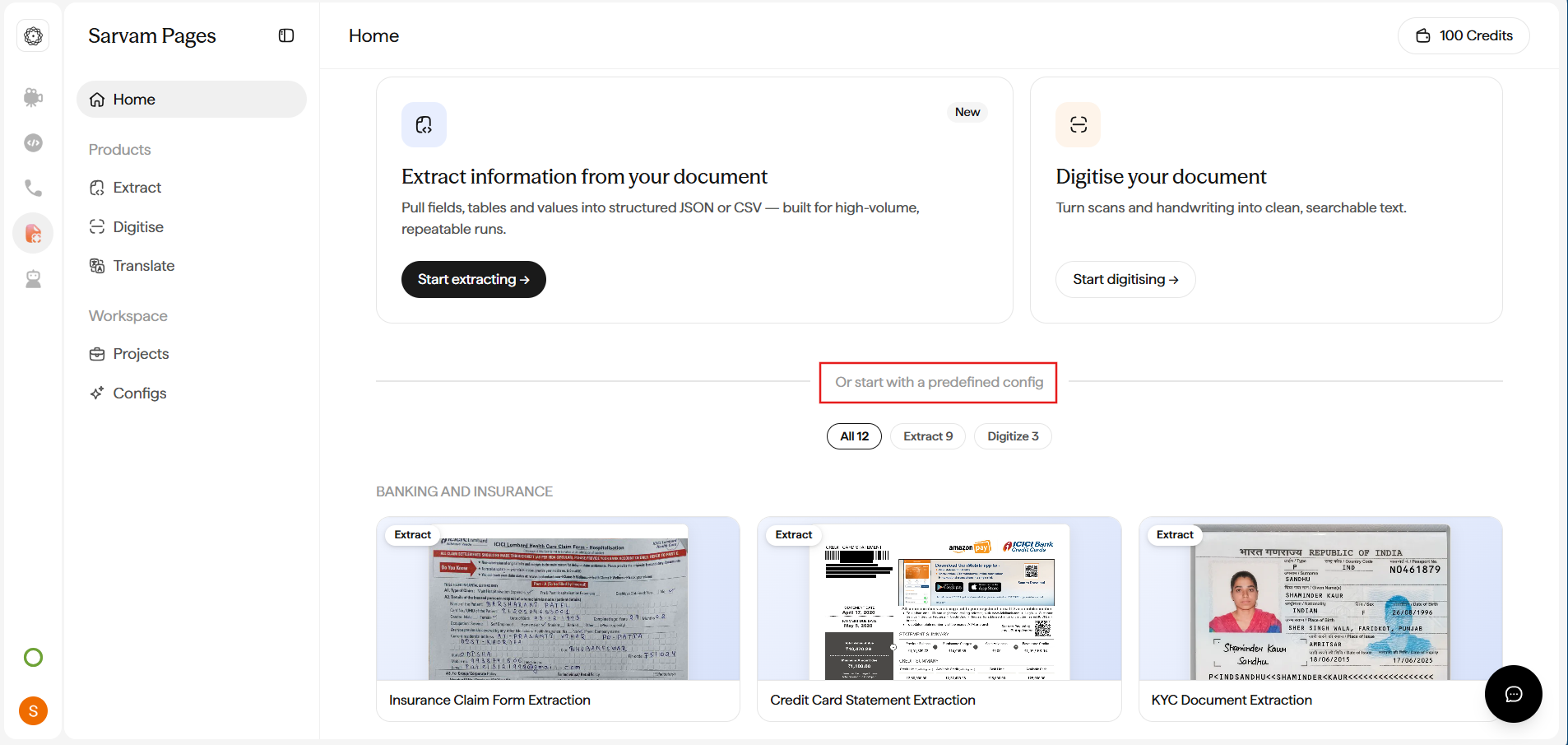
From Home: Scroll past the Extract and Digitise cards to Or start with a predefined config. Pick a template card from the shelf (filter by All / Extract / Digitise), preview it, and start a project in one click.
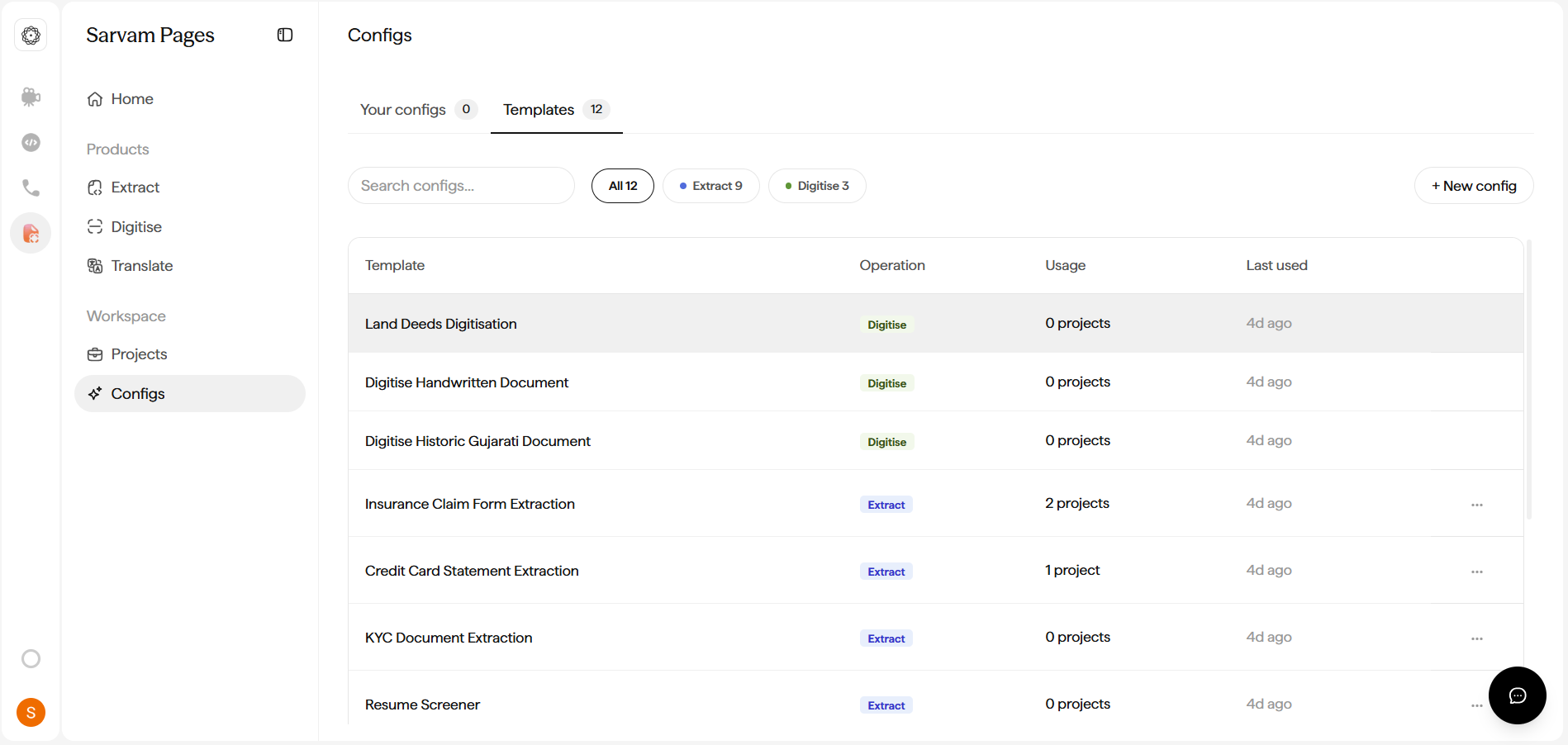
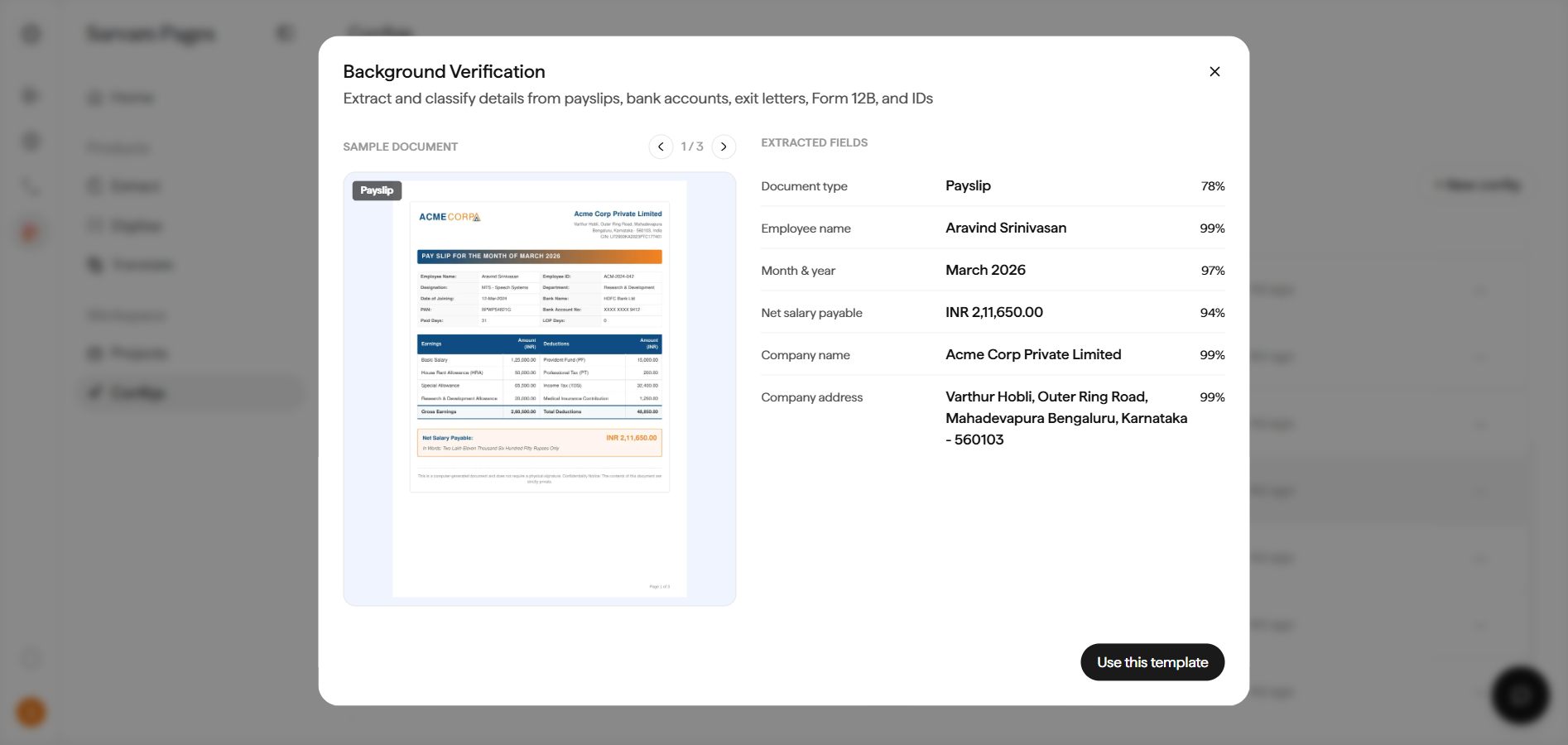
From Workspace: Open Workspace → Configs → Templates and click a template to preview it. Each preview shows a sample document with the fields it extracts (and a confidence score per field), so you can see exactly what you’ll get. Click Use this template to start.
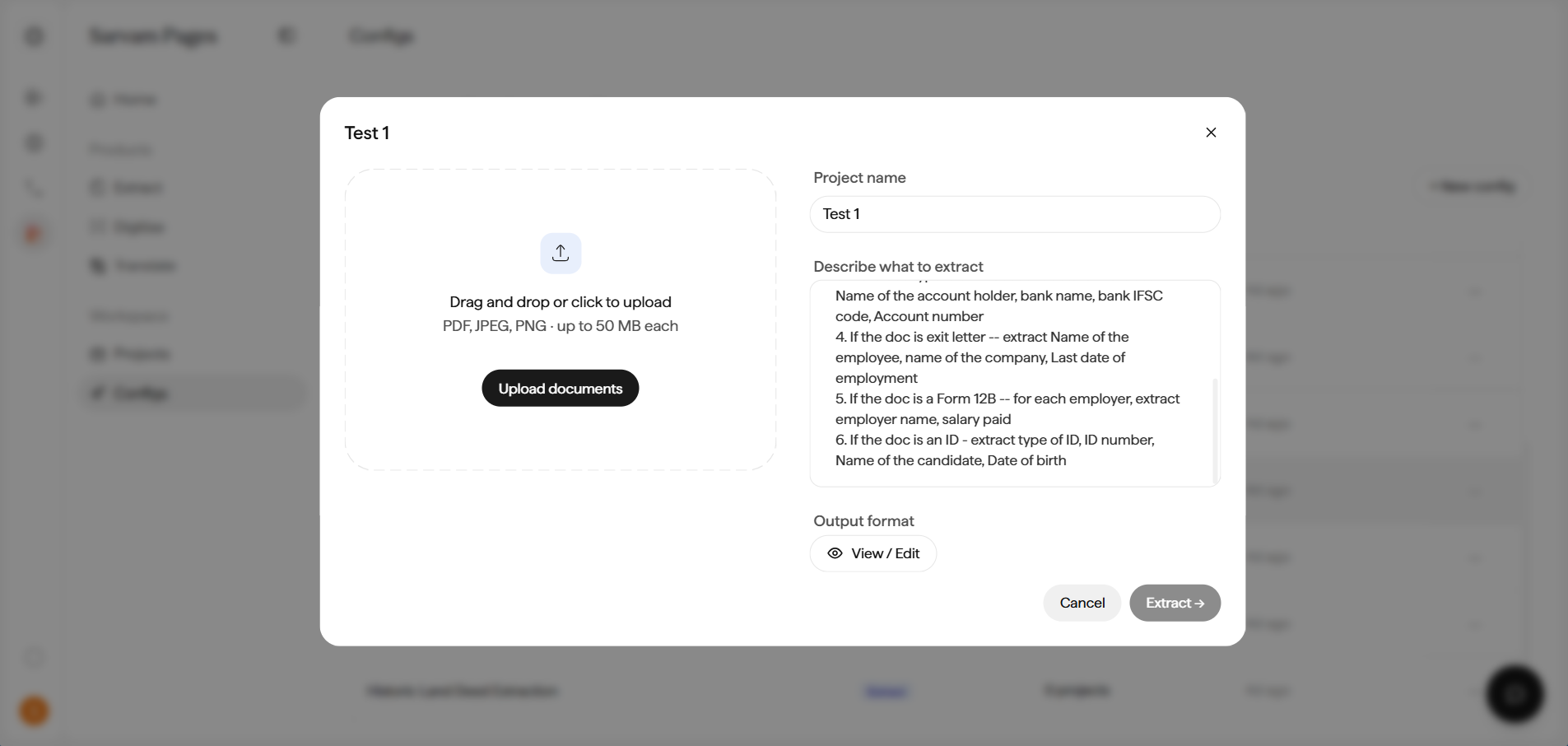
The template opens a New Project dialog with the prompt prefilled for that document type. Upload your document (PDF, JPEG, or PNG, up to 50 MB) and click Extract.
You can review and tweak the template’s schema in the Define your output format dialog before running, exactly as you would for a custom Config.
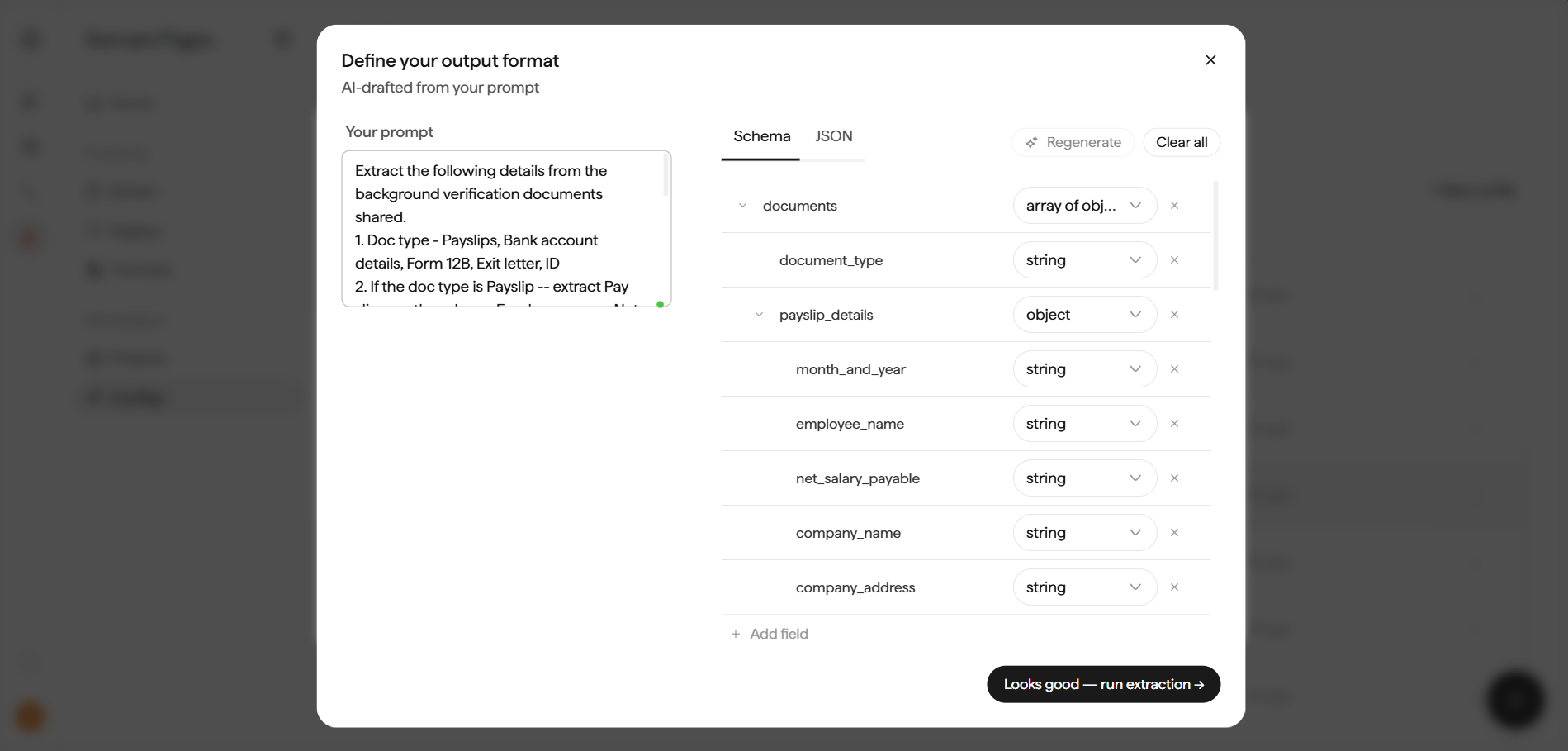
To make a template your own, open its ⋯ menu and click Duplicate. The copy lands under Your configs, where you can rename it and edit the prompt, language, or schema.
Where Configs live
Configs live under Workspace → Configs in the sidebar. The page has two tabs:
- Your configs. Anything your workspace has built or duplicated.
- Templates. The 12 shipped templates. Filter by All / Extract / Digitise using the pills.
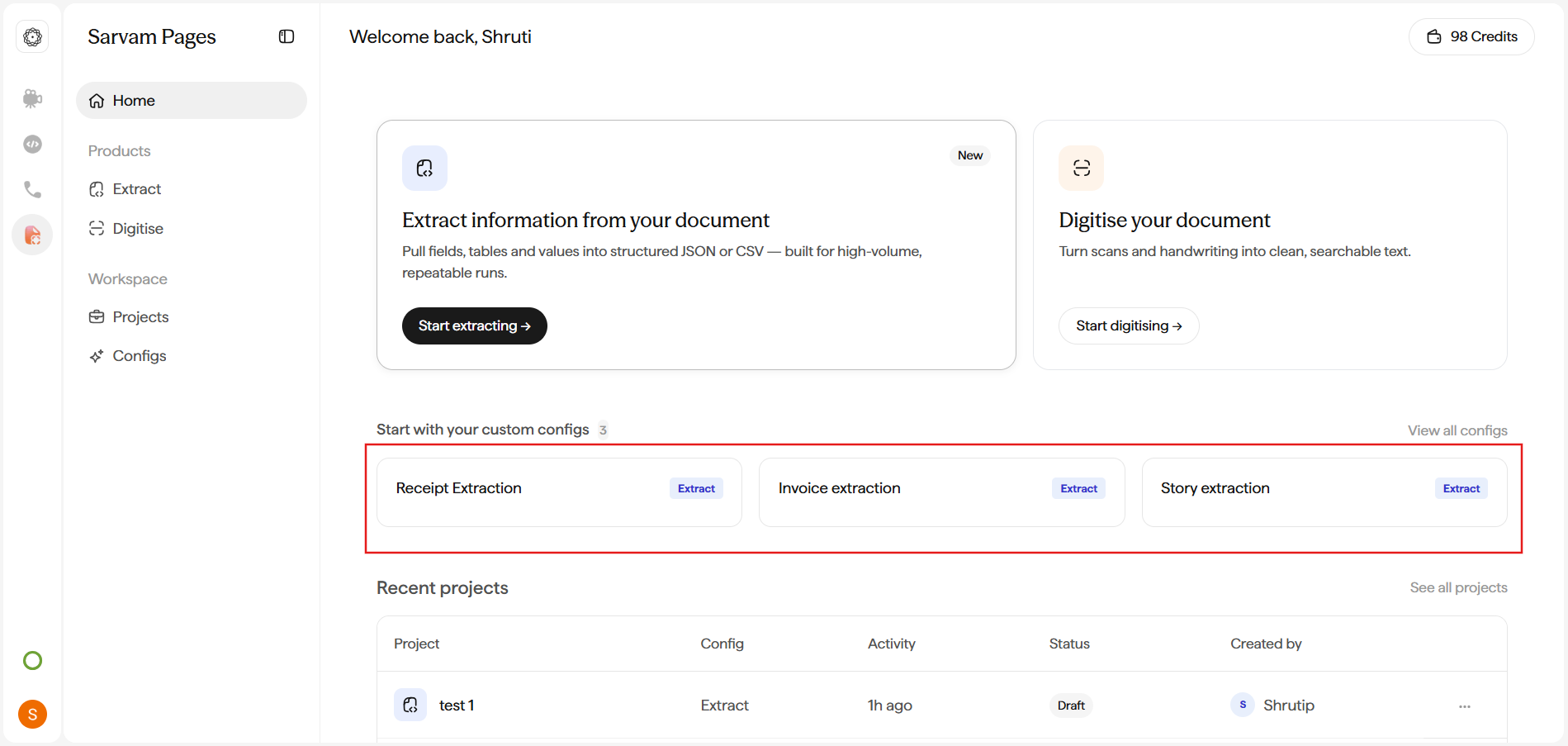
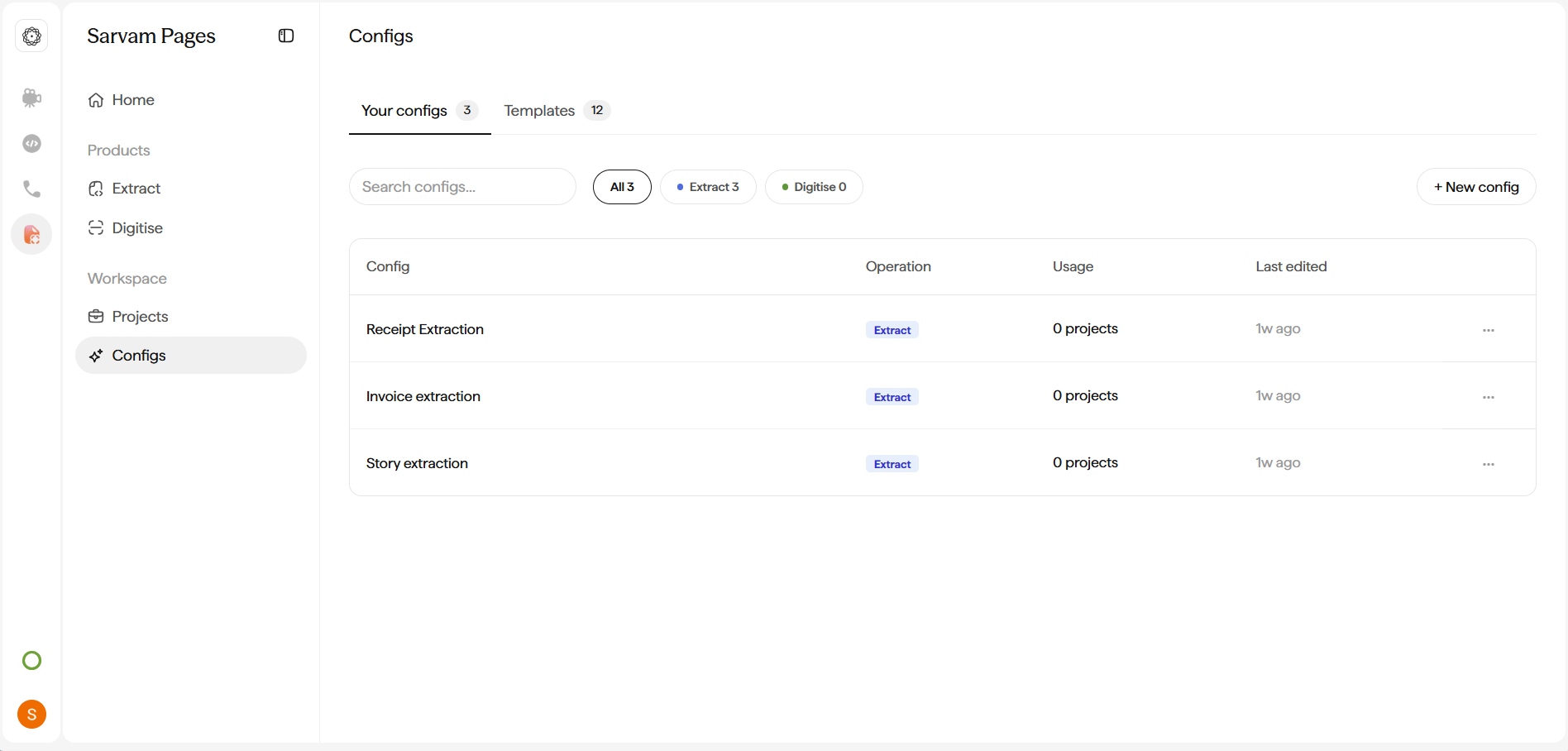
Each row shows a Usage count (how many projects have used the Config) and a Last used timestamp, a quick signal for which recipes your team relies on.
Next: run your first project with Extract structured fields or Digitise a document.