> For clean Markdown of any page, append `.md` to the page URL.
> For a complete documentation index, see https://docs.sarvam.ai/llms.txt.
> For full documentation content in one file, see https://docs.sarvam.ai/llms-full.txt.
> For AI client integration (Claude Code, Cursor, etc.), connect to the MCP server at https://docs.sarvam.ai/_mcp/server.
# Create a Config
> Build reusable Extract or Digitise Configs from templates, duplicates, or scratch — name, prompt, language, and output schema.
A **Config** is a saved recipe: a name, a description of what you want to extract or digitise, a language or output format, and any sharing settings. Build once, re-run against every document of that type.
There are three ways to create a Config. Pick the one that fits your situation.
Templates are the fastest path to a working project. Sarvam Pages ships with **12 ready-made templates** (9 Extract + 3 Digitise) covering the document types users ask for most, including KYC, Credit Card Statement, Invoice Screener, Resume Screener, GST forms, Land Deeds Digitisation, and Digitise Handwritten Document.
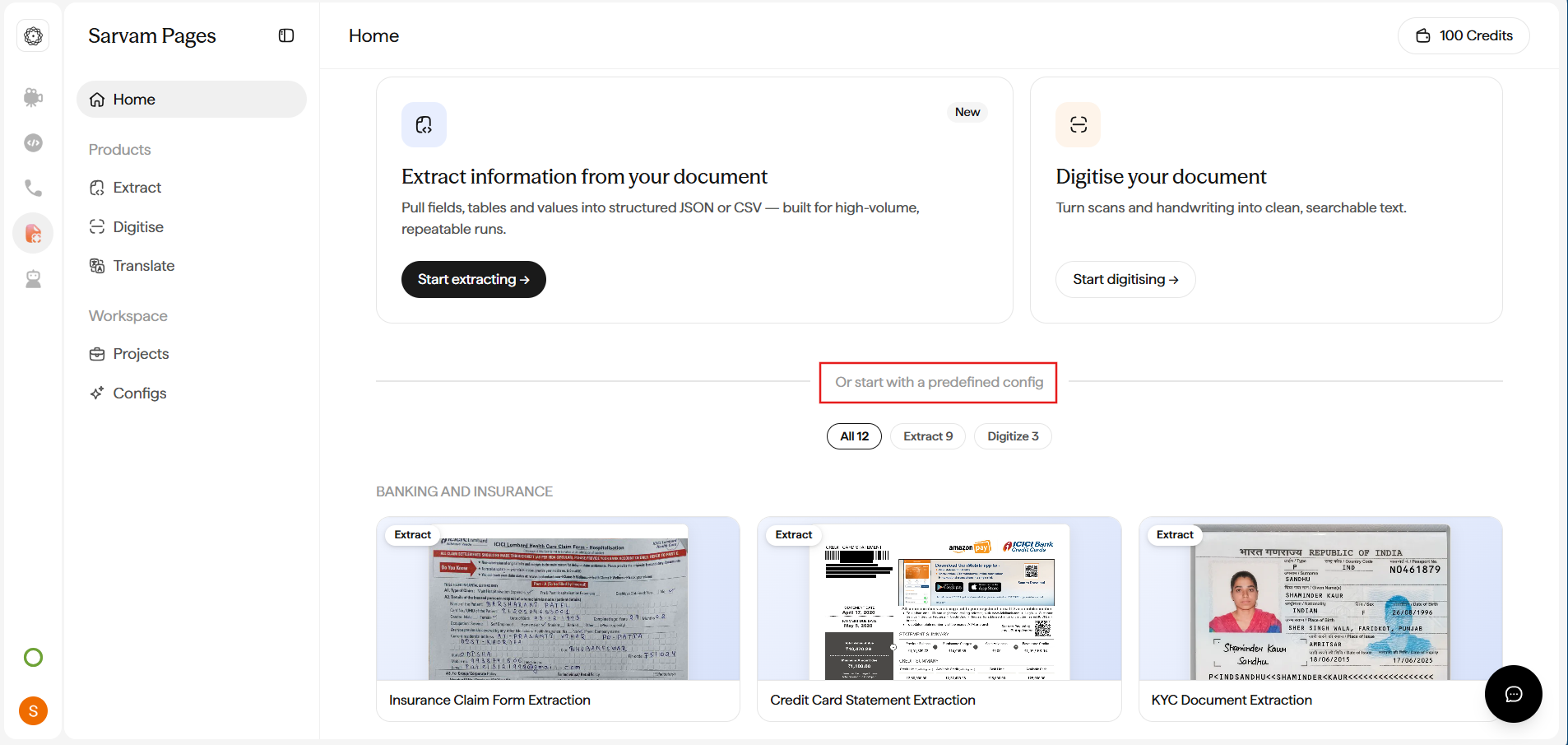
**From Home:** Scroll past the Extract and Digitise cards to **Or start with a predefined config**. Pick a template card from the shelf (filter by **All / Extract / Digitise**), preview it, and start a project in one click.
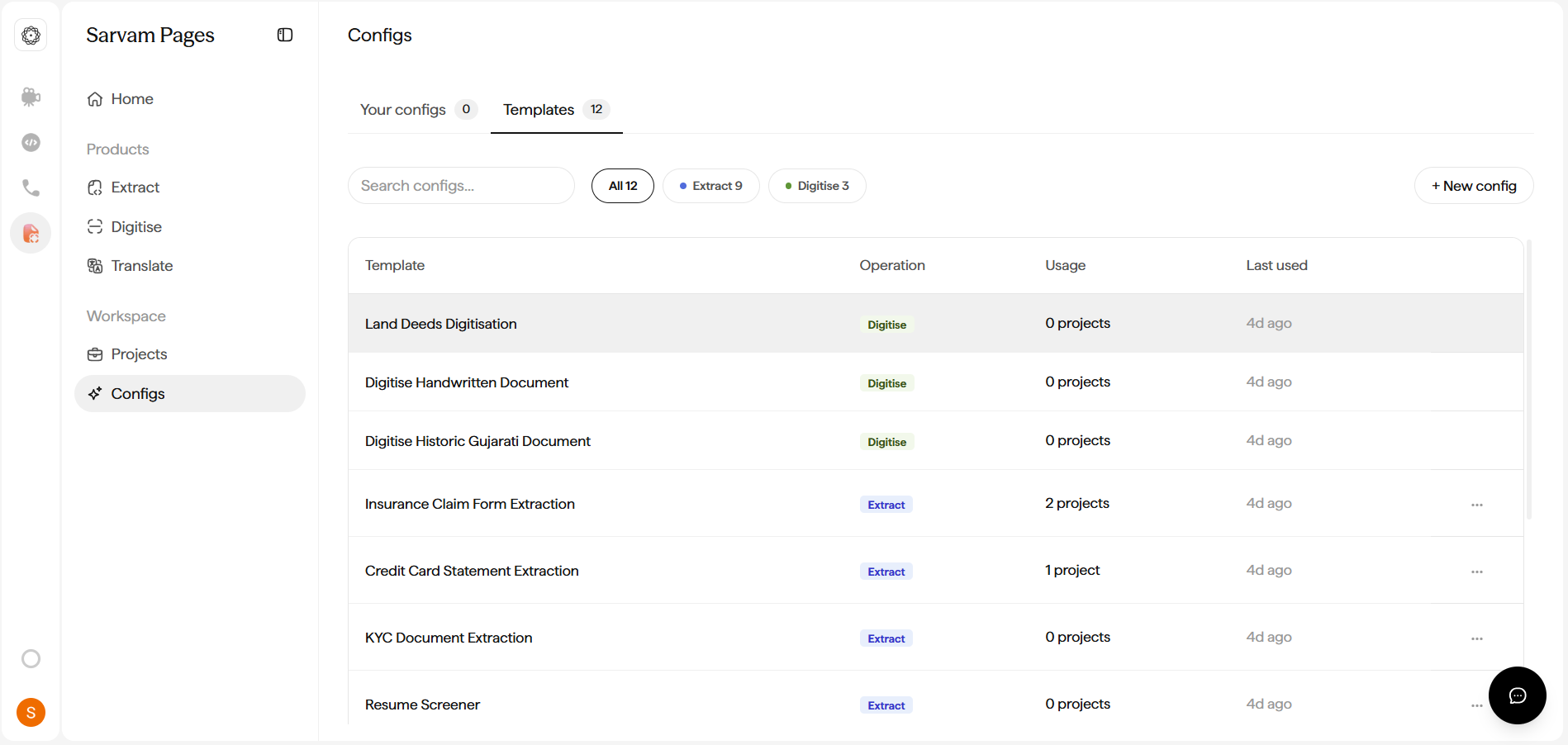
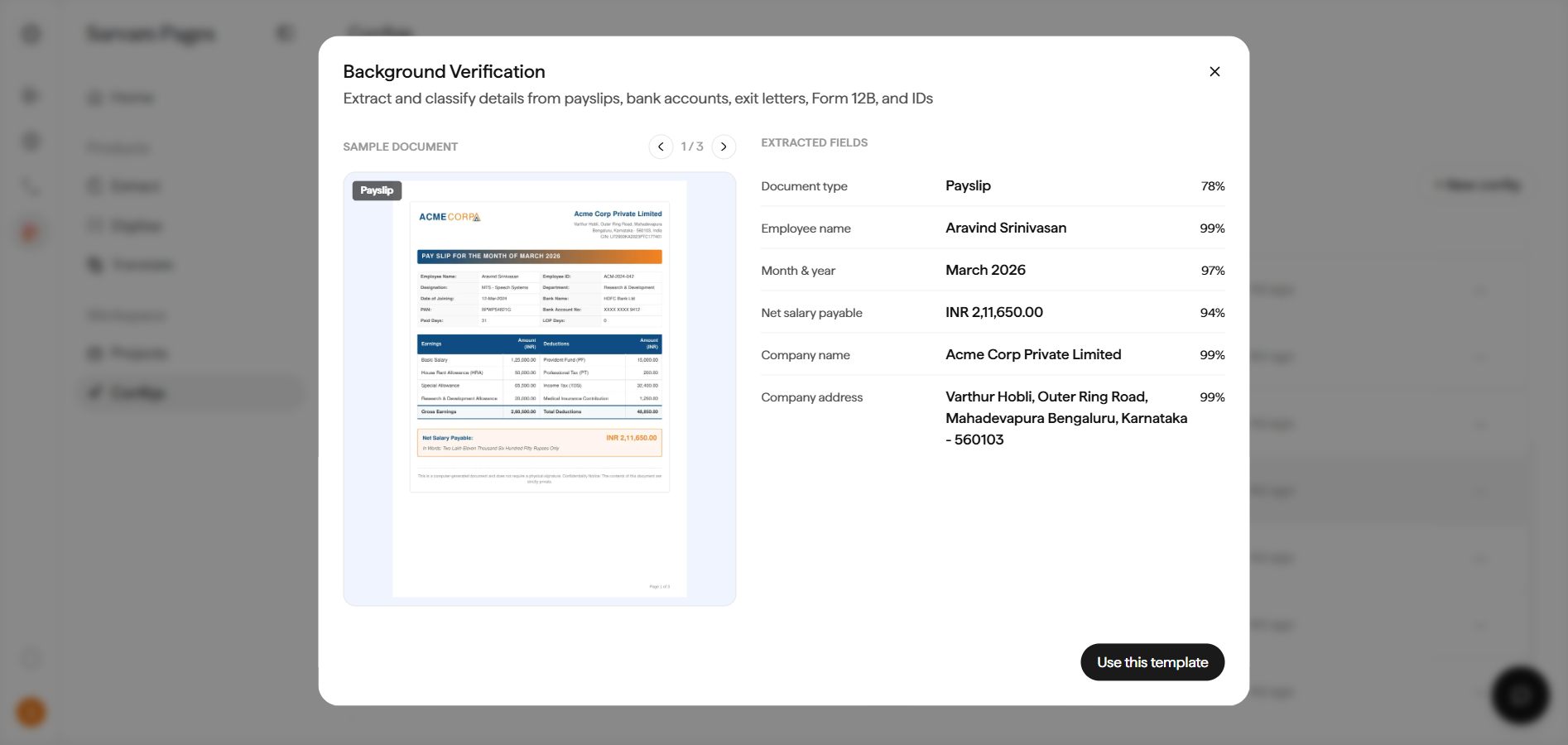
 **From Workspace:** Open **Workspace → Configs → Templates** and click a template to preview it. Each preview shows a sample document with the fields it extracts (and a confidence score per field), so you can see exactly what you'll get. Click **Use this template** to start.
 The template opens a New Project dialog with the **prompt prefilled** for that document type. Upload your document (PDF, JPEG, or PNG, up to 50 MB) and click **Extract**.
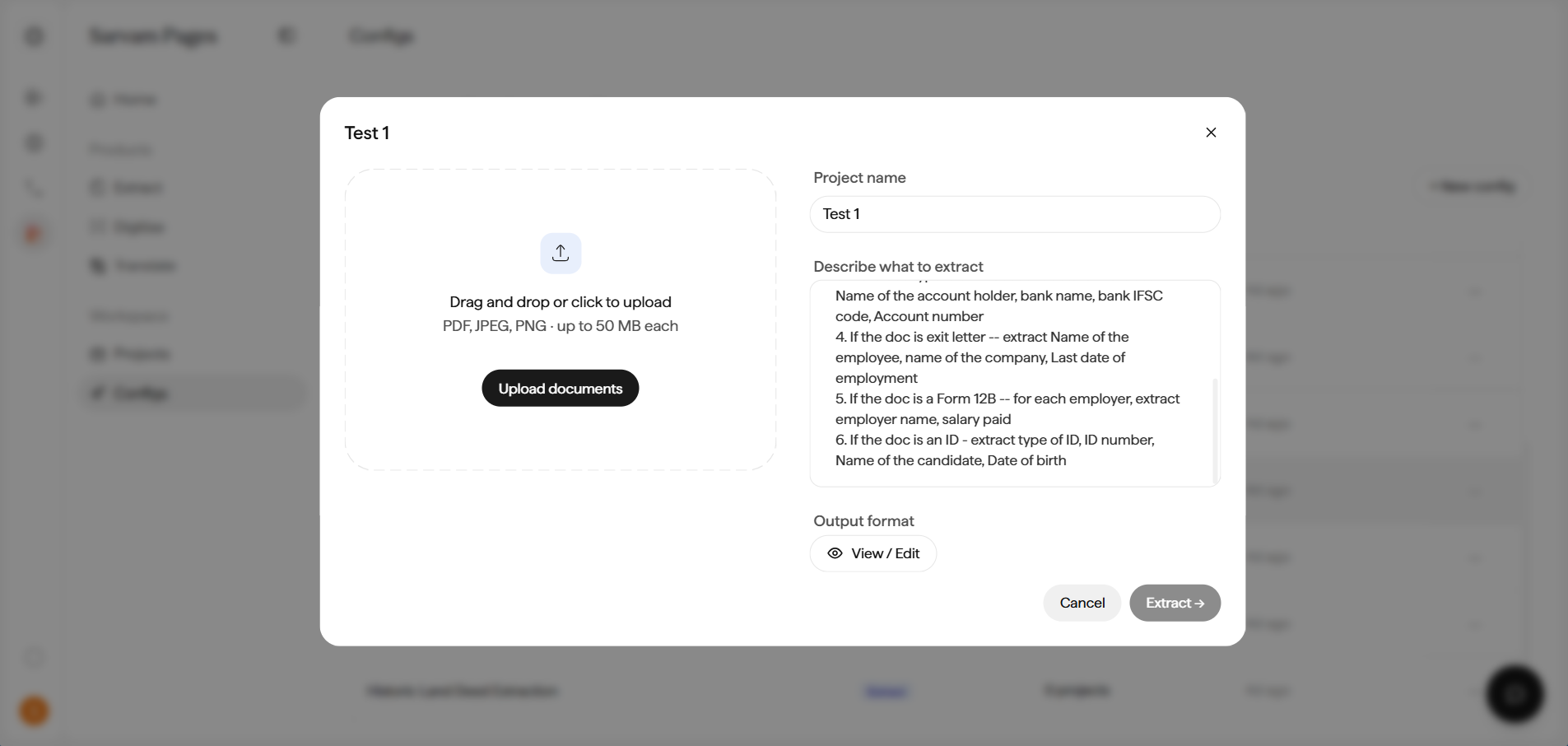 You can review and tweak the template's schema in the **Define your output format** dialog before running, exactly as you would for a custom Config.
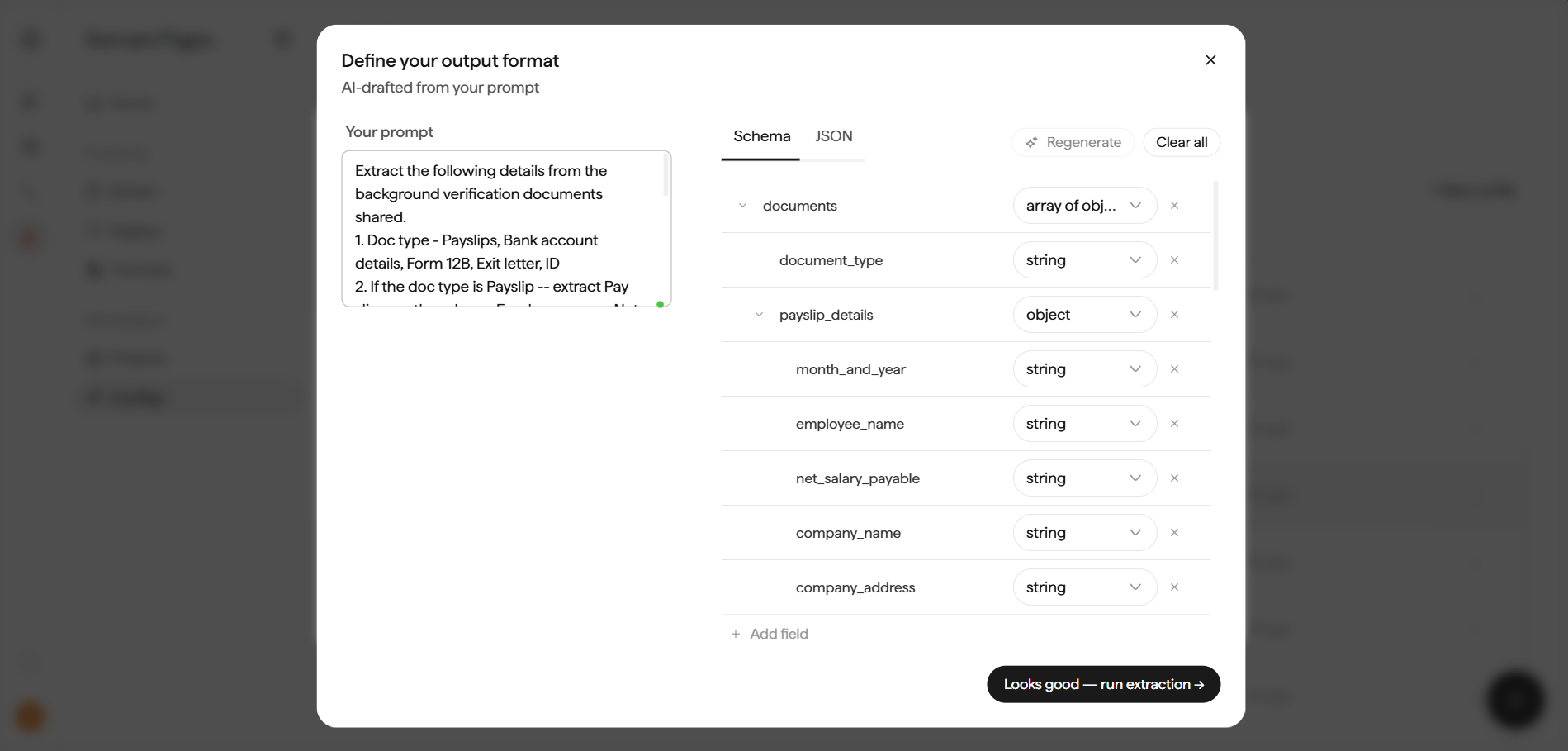 To make a template your own, open its `⋯` menu and click **Duplicate**. The copy lands under **Your configs**, where you can rename it and edit the prompt, language, or schema.
Already have a Config that's close to what you need? Duplicate it instead of starting over.
Sidebar → **Workspace → Configs** → **Your configs** tab.
Open its `⋯` menu and click **Duplicate**. A copy lands under **Your configs**.
Give the copy a clear new name, then tweak the prompt, language, or schema for the new use case.
Duplicating is the safe way to experiment: the original Config keeps running unchanged for every project that already uses it, while you iterate on the copy.
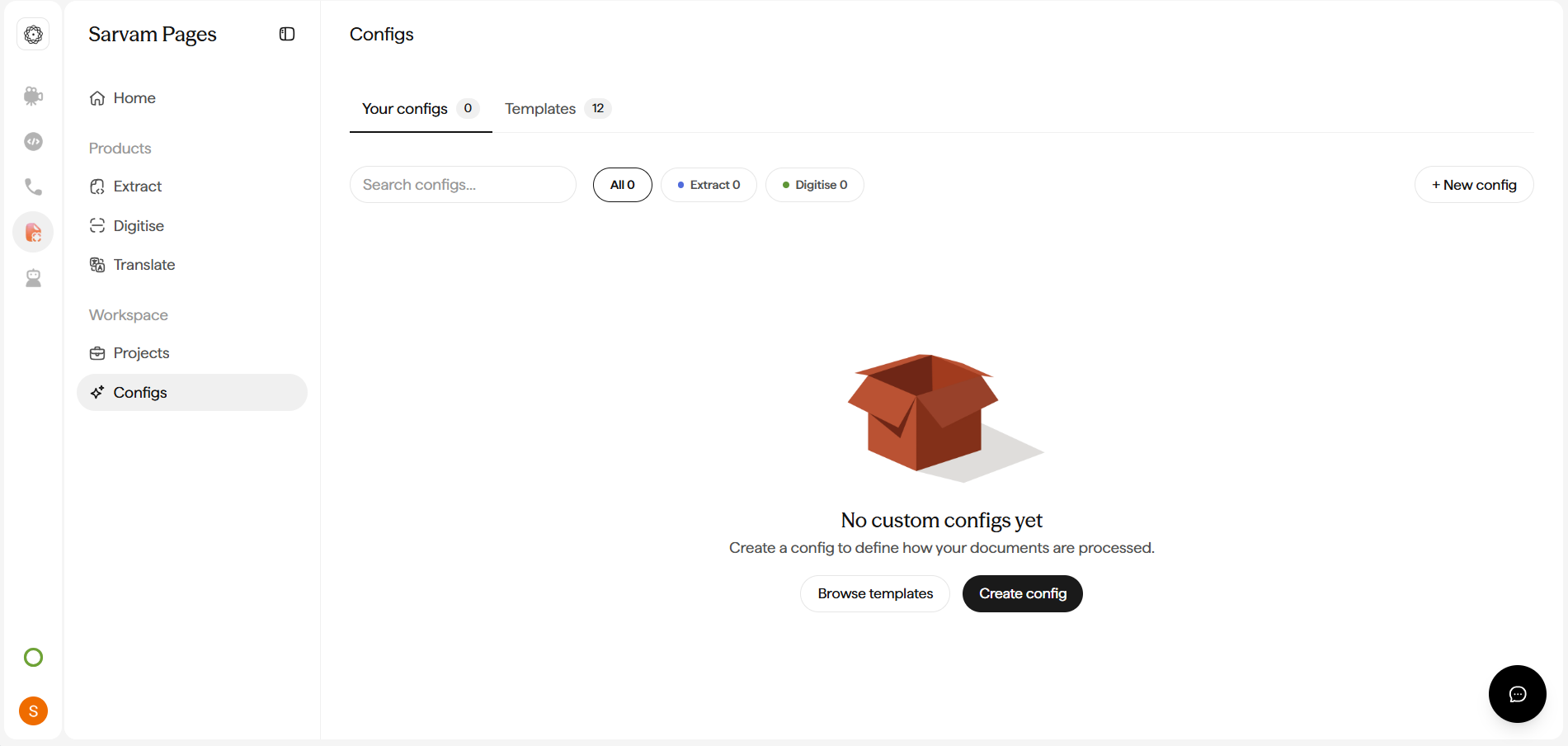
If no template fits, or you want a purpose-built recipe for your team, build one from scratch. On the **Configs** page, click **Create config** (or **+ New config** in the top-right).
To make a template your own, open its `⋯` menu and click **Duplicate**. The copy lands under **Your configs**, where you can rename it and edit the prompt, language, or schema.
Already have a Config that's close to what you need? Duplicate it instead of starting over.
Sidebar → **Workspace → Configs** → **Your configs** tab.
Open its `⋯` menu and click **Duplicate**. A copy lands under **Your configs**.
Give the copy a clear new name, then tweak the prompt, language, or schema for the new use case.
Duplicating is the safe way to experiment: the original Config keeps running unchanged for every project that already uses it, while you iterate on the copy.
If no template fits, or you want a purpose-built recipe for your team, build one from scratch. On the **Configs** page, click **Create config** (or **+ New config** in the top-right).
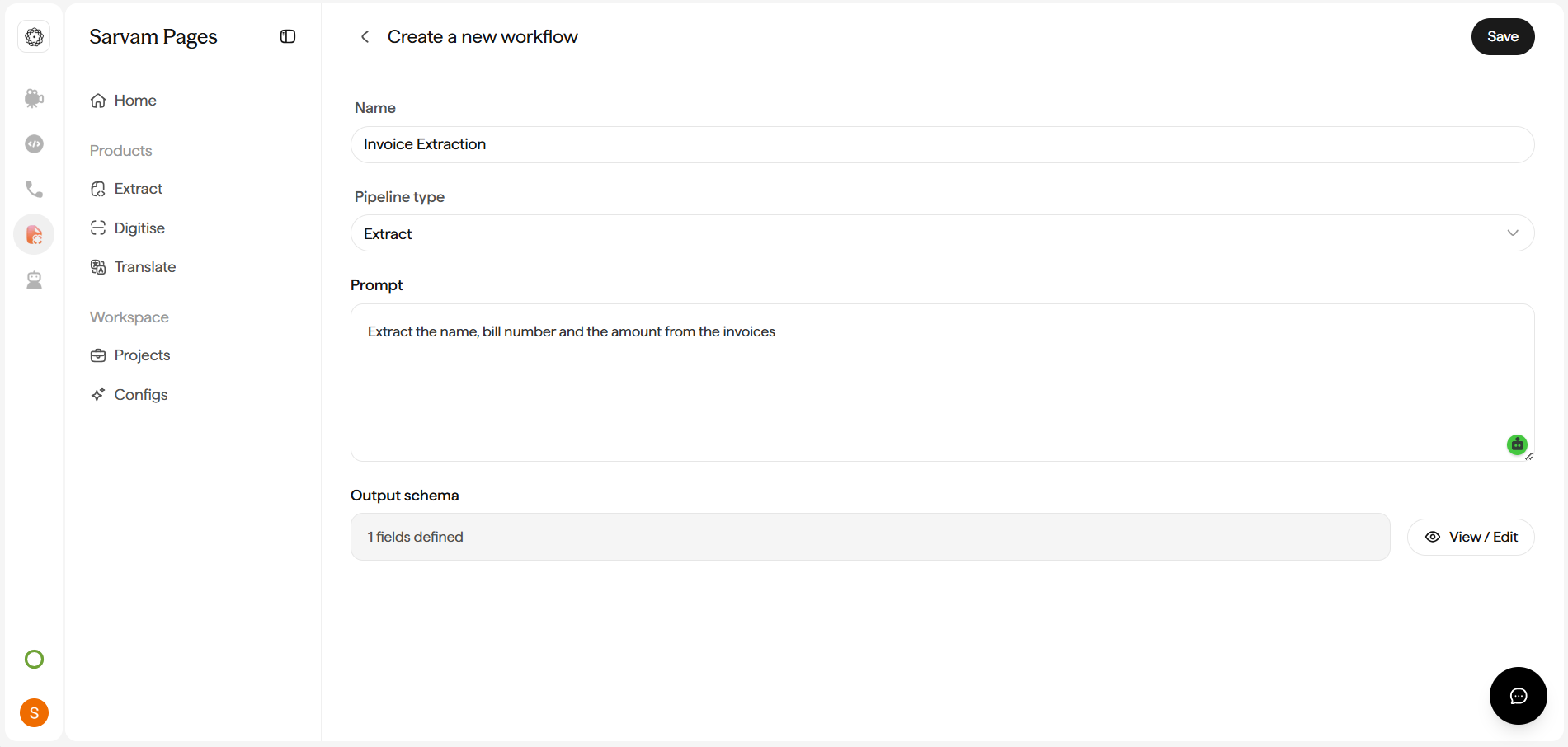
 On the **Create a new workflow** screen, fill in:
A clear identifier like *Invoice Extraction* or *Land Deed Digitiser v2*. Shows up in the Configs list and in every Project that uses this recipe.
Pick **Extract** for structured-field pulls or **Digitise** for full-document text conversion.
Describe what you want in plain English. Copy this into **Prompt**, then edit for your use case:
```text
Extract the name, bill number and the amount from the invoices.
```
Click **View / Edit** to open the schema builder.
On the **Create a new workflow** screen, fill in:
A clear identifier like *Invoice Extraction* or *Land Deed Digitiser v2*. Shows up in the Configs list and in every Project that uses this recipe.
Pick **Extract** for structured-field pulls or **Digitise** for full-document text conversion.
Describe what you want in plain English. Copy this into **Prompt**, then edit for your use case:
```text
Extract the name, bill number and the amount from the invoices.
```
Click **View / Edit** to open the schema builder.
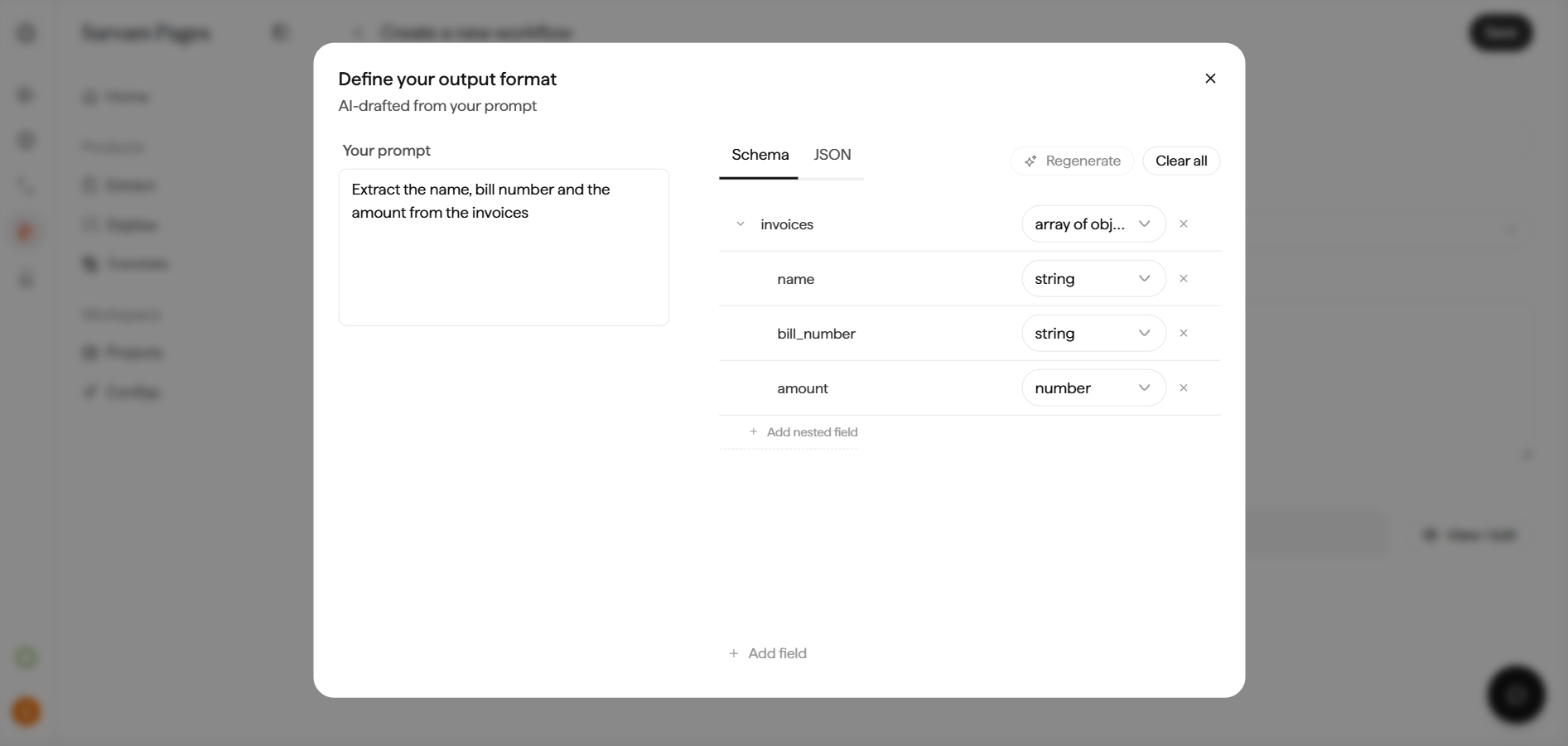
 In the **Define your output format** dialog, the workbench AI-drafts a schema from your prompt. Each field has a type (`string`, `number`, `array of objects`, and more), and you can add or remove fields, **Regenerate** from the prompt, or switch to the **JSON** tab. Edit until it matches what your downstream system expects.
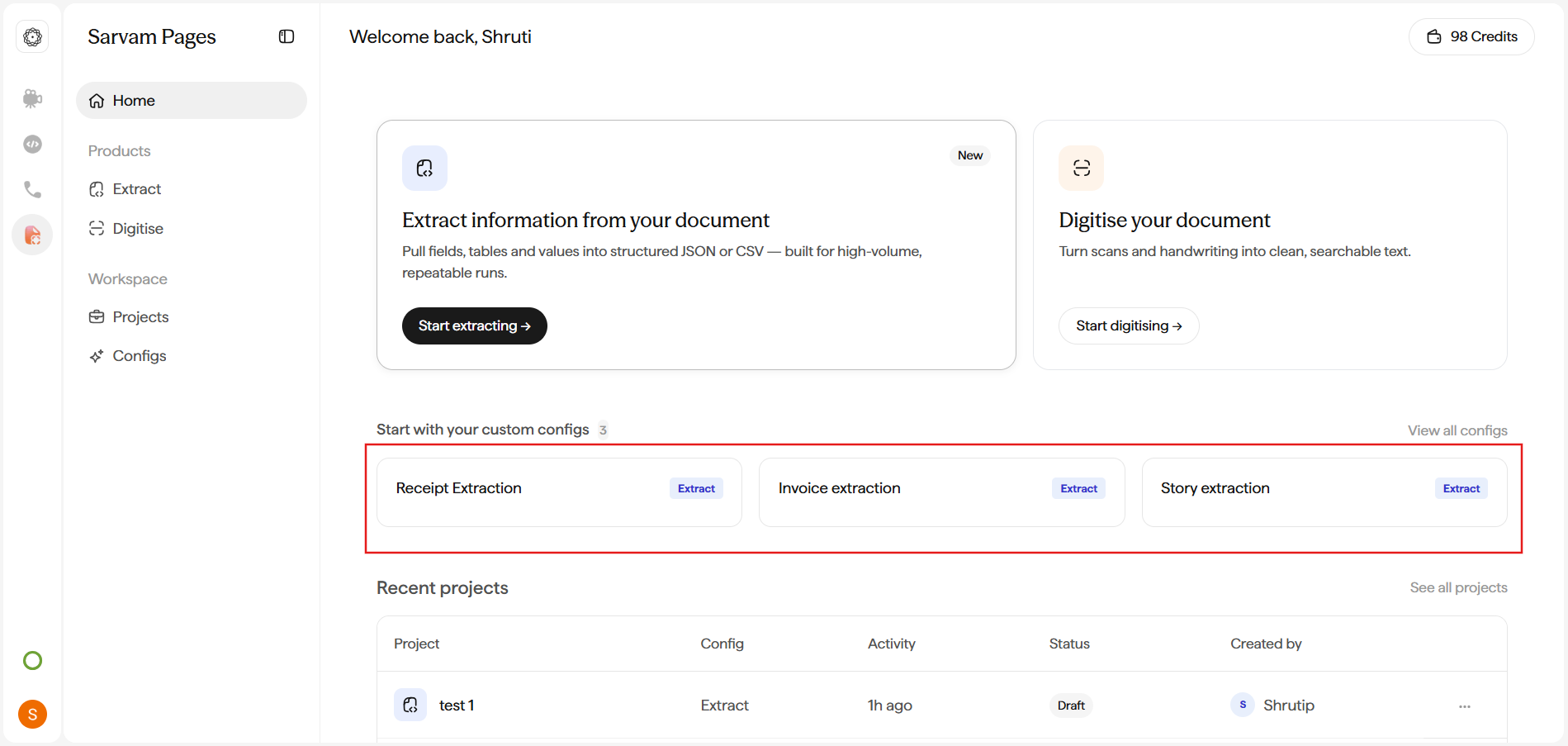
 Click **Save**. The Config appears under **Your configs**, and also surfaces on the **Home** dashboard under **Start with your custom configs** for one-click reuse.
## Where Configs live
Configs live under **Workspace → Configs** in the sidebar. The page has two tabs:
* **Your configs.** Anything your workspace has built or duplicated.
* **Templates.** The 12 shipped templates. Filter by **All / Extract / Digitise** using the pills.
Click **Save**. The Config appears under **Your configs**, and also surfaces on the **Home** dashboard under **Start with your custom configs** for one-click reuse.
## Where Configs live
Configs live under **Workspace → Configs** in the sidebar. The page has two tabs:
* **Your configs.** Anything your workspace has built or duplicated.
* **Templates.** The 12 shipped templates. Filter by **All / Extract / Digitise** using the pills.
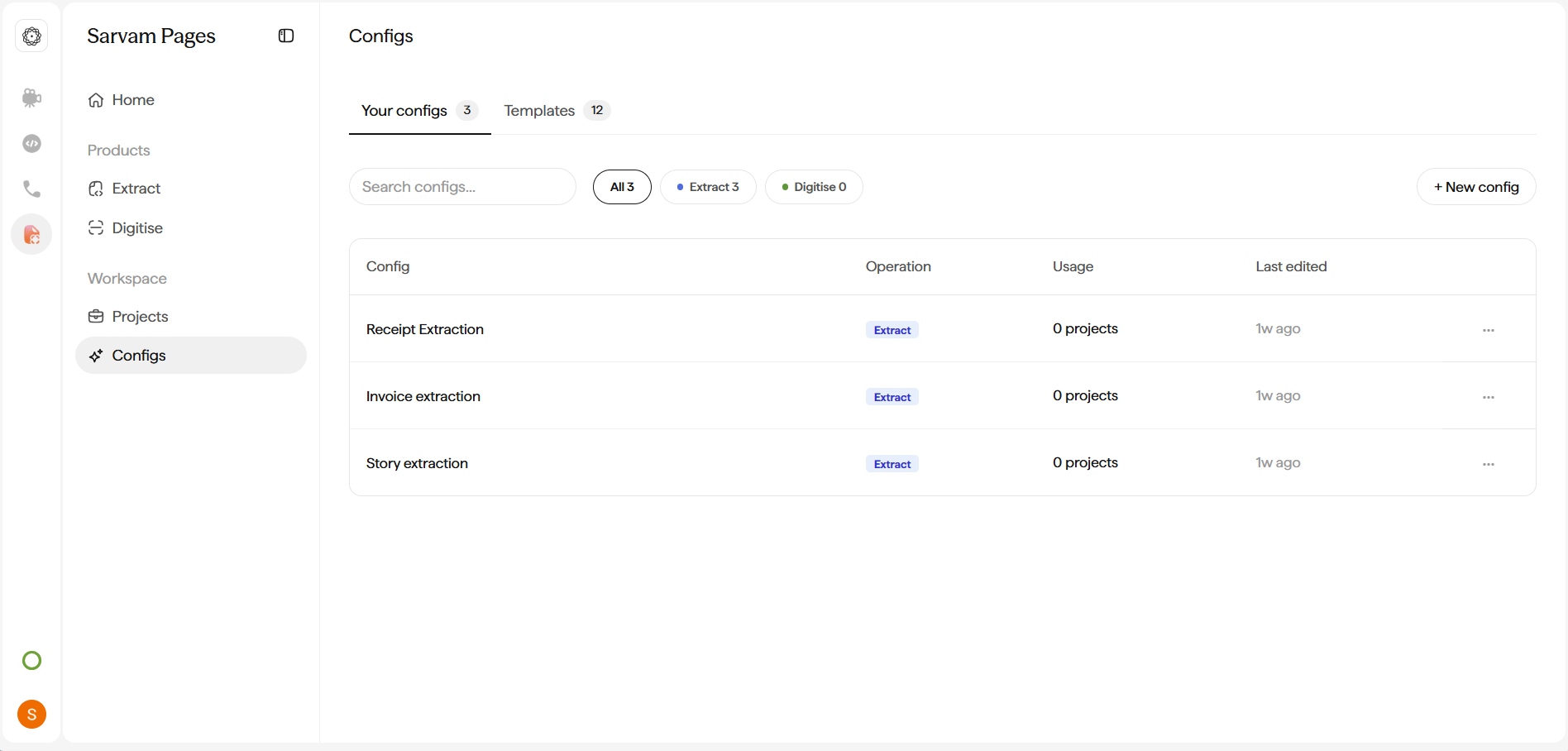 Each row shows a `Usage` count (how many projects have used the Config) and a `Last used` timestamp, a quick signal for which recipes your team relies on.
Next: run your first project with [Extract structured fields](/pages/how-to/extract-structured-fields) or [Digitise a document](/pages/how-to/digitise-a-document).
Each row shows a `Usage` count (how many projects have used the Config) and a `Last used` timestamp, a quick signal for which recipes your team relies on.
Next: run your first project with [Extract structured fields](/pages/how-to/extract-structured-fields) or [Digitise a document](/pages/how-to/digitise-a-document).