

Welcome to Sarvam Pages
One workbench. Every document.
Extract and digitise any document in Hindi, Bengali, Tamil, Telugu, English, and 18 more Indian languages. No code required.
Sarvam Pages is a document-intelligence workbench for turning real-world documents into data you can use. From BFSI paperwork (invoices, KYC, bank and credit-card statements, insurance claims) to government records (land deeds, licensing forms), legal filings, HR resumes, healthcare intake, printed books, and handwritten multilingual manuscripts, the workbench handles it all. Every workflow is one dashboard click at dashboard.sarvam.ai. No code required.
Under the hood, Sarvam Vision powers all extraction and digitisation: a 3B-parameter document-intelligence model with SOTA accuracy on 22 Indian languages plus English.
What you can do
Pull invoice numbers, PAN, dates, amounts, and line-items from any document type as JSON, CSV, or Excel.
Convert scans, handwritten forms, land deeds, and historic multilingual manuscripts into structured text, Markdown, HTML, or DOCX.
Turn table-heavy PDFs such as bank statements and invoices into spreadsheet-ready CSV or Excel output.
Save every workflow as a Config. Share with your team. Re-run against thousands of documents with one click.
Who it’s for
Built for anyone whose day-to-day involves documents:
- BFSI teams processing invoices, KYC, bank and credit-card statements, GST filings, and insurance claims at scale.
- Analysts turning scanned reports and statements into Excel-ready data for pandas, SQL, or dashboards.
- Developers wiring document extraction into product flows, back-office pipelines, and RAG systems.
- Legal, compliance, and government teams working with land deeds, court records, licensing forms, and notarised documents.
- HR and healthcare teams parsing resumes, offer letters, patient intake forms, and prescriptions.
- Researchers and publishers digitising historic manuscripts, out-of-print books, and multilingual archives.
Prerequisites
- A document to test on: PDF, JPEG, or PNG, up to 50 MB per file and 10 pages per project
- Sufficient credits in the workspace
Home Page
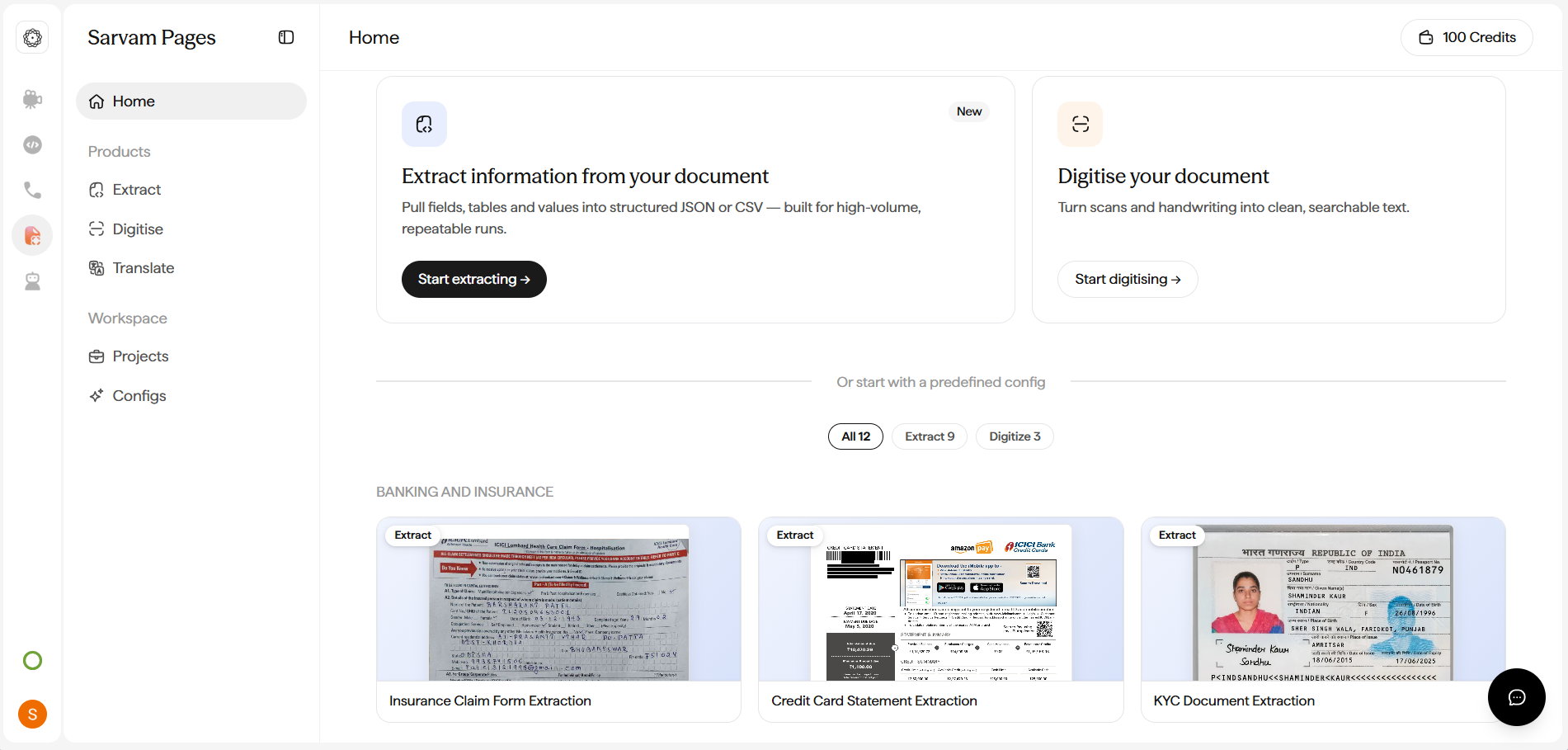
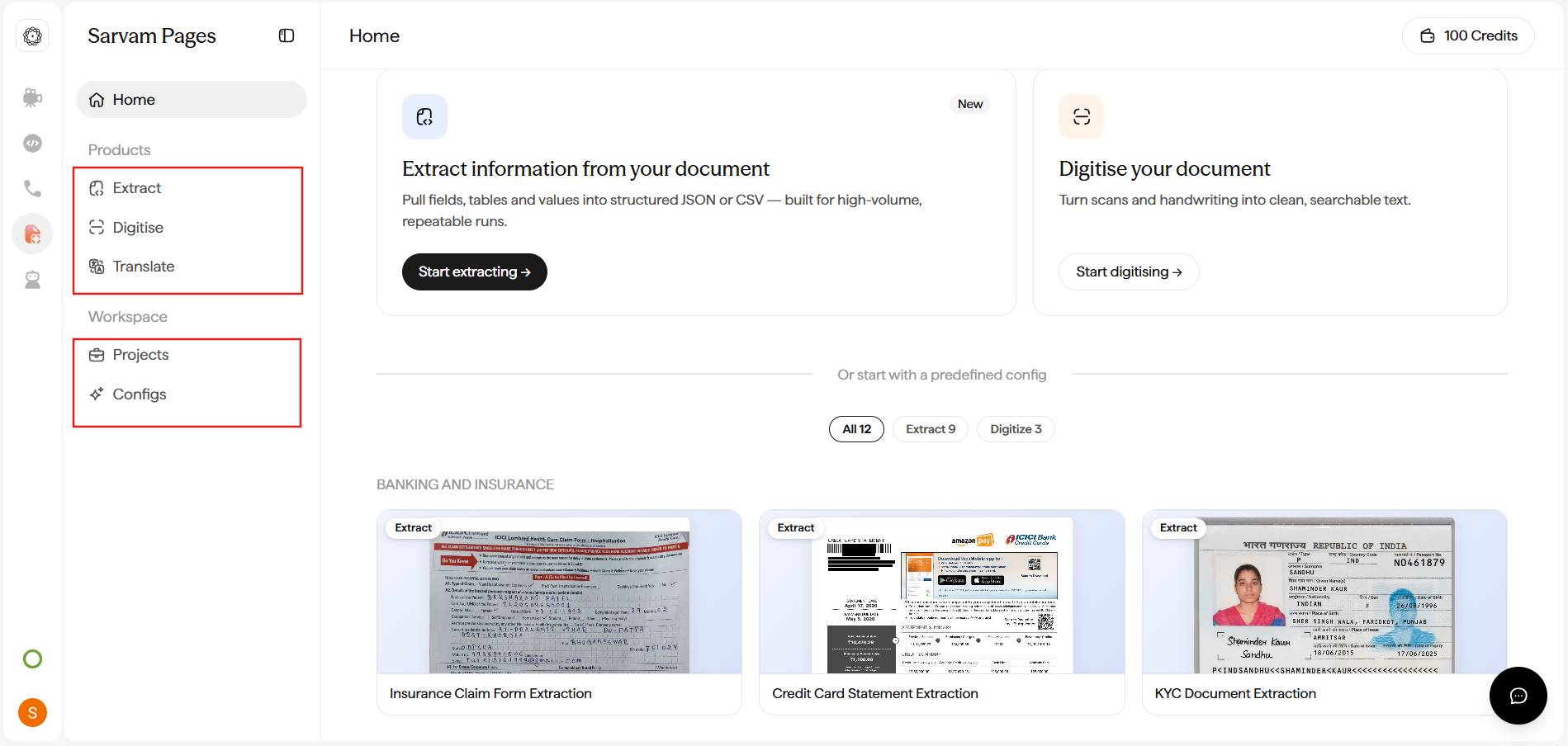
Open dashboard.sarvam.ai/akshar/dashboard and sign in. You land on Home, which shows your credit balance, quick-start cards for Extract and Digitise, and a shelf of ready-made template configs organised by category. The sidebar has two working groups: Products (Extract, Digitise) and Workspace (Projects, Configs).
Products
Products in the sidebar contains the two things the workbench does:
- Extract pulls specific fields out of a document (invoice numbers, dates, amounts, names) and returns them as structured JSON, CSV, or Excel. You describe what you want in plain English and the workbench drafts a schema for you.
- Digitise converts the whole content of a document into structured text (headlines, paragraphs, tables, images) and exports as HTML, Markdown, DOCX, or Plain Text. Great for scans, handwritten forms, land deeds, and historic multilingual manuscripts.
Extract
Extract pulls specific fields out of a document and returns them as structured data: invoice numbers, dates, amounts, PAN, GST IDs, account holders, transaction rows, or whatever fields the document contains.
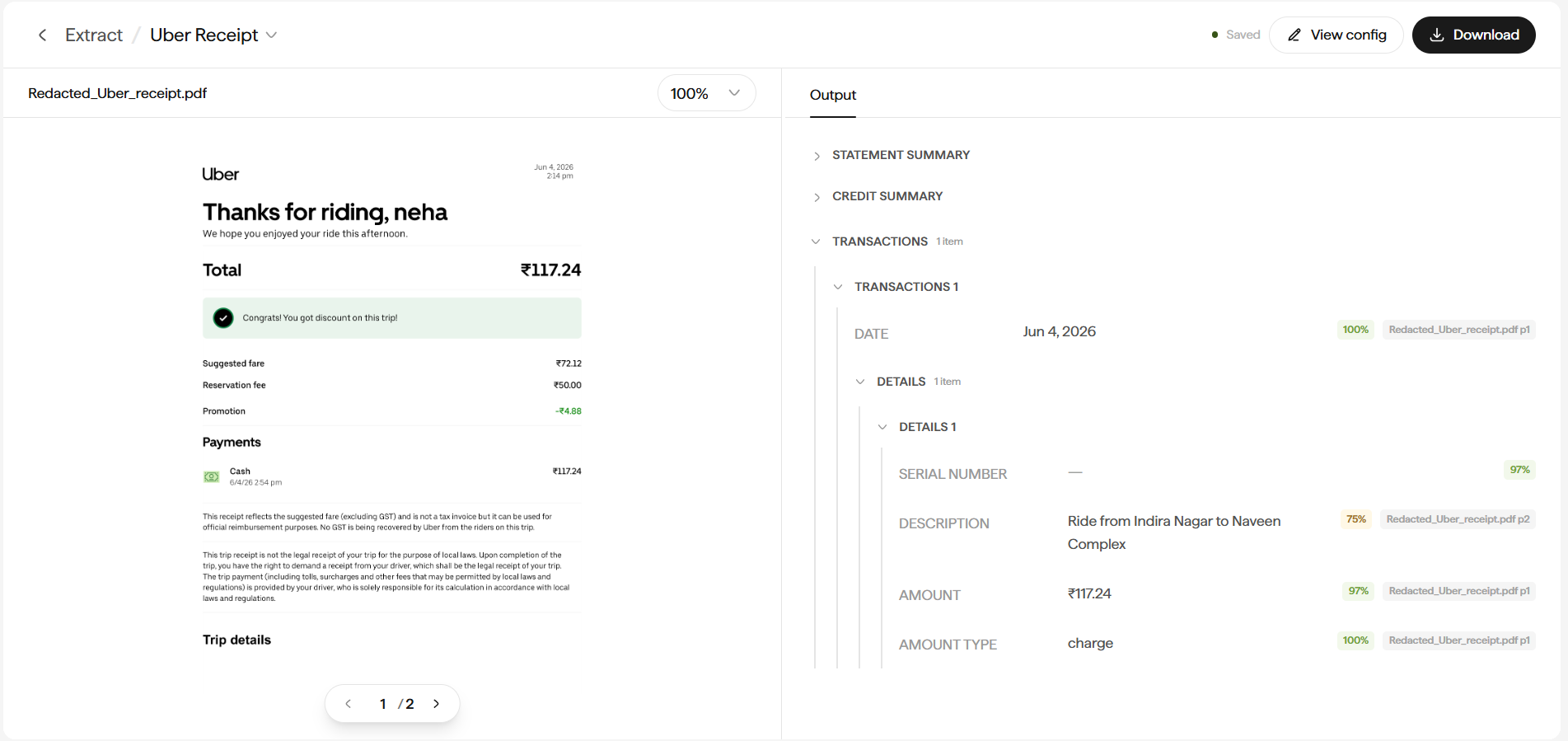
You describe what you want in plain English (“rider name, trip date, total amount”), and the workbench auto-drafts a schema from your prompt. Review and edit the schema (change field types, add nested groups, remove fields you don’t need), then approve and run.
The results view puts the source document on the left and a hierarchical Output panel on the right. Every field carries a value, a per-field confidence score, and a dash placeholder if the field wasn’t found. Click any value to correct it inline before export.
Great for: invoices, receipts, KYC forms, bank and credit-card statements, GST filings, insurance claims, purchase orders, resumes, background verifications, loan applications, prescriptions, ID cards, and any document where you already know the fields you need.
Download as: JSON, CSV, or Excel (XLSX).
For the full walkthrough see How to Extract structured fields.
Digitise
Digitise converts the whole content of a document into structured text. Headlines, section titles, paragraphs, tables, and images are all identified and preserved.
The editor puts the source page on the left with color-coded bounding boxes on every detected region, and a numbered Sections list on the right. Each section has a type dropdown, and table sections open in a dedicated Table Editor for cell-by-cell fixes. If a region was missed, click + Add boxes to draw a rectangle and label it from the same list of section types.
The output is clean, machine-readable text with layout preserved, ready to feed into LLMs, RAG pipelines, publishing tools, or archives.
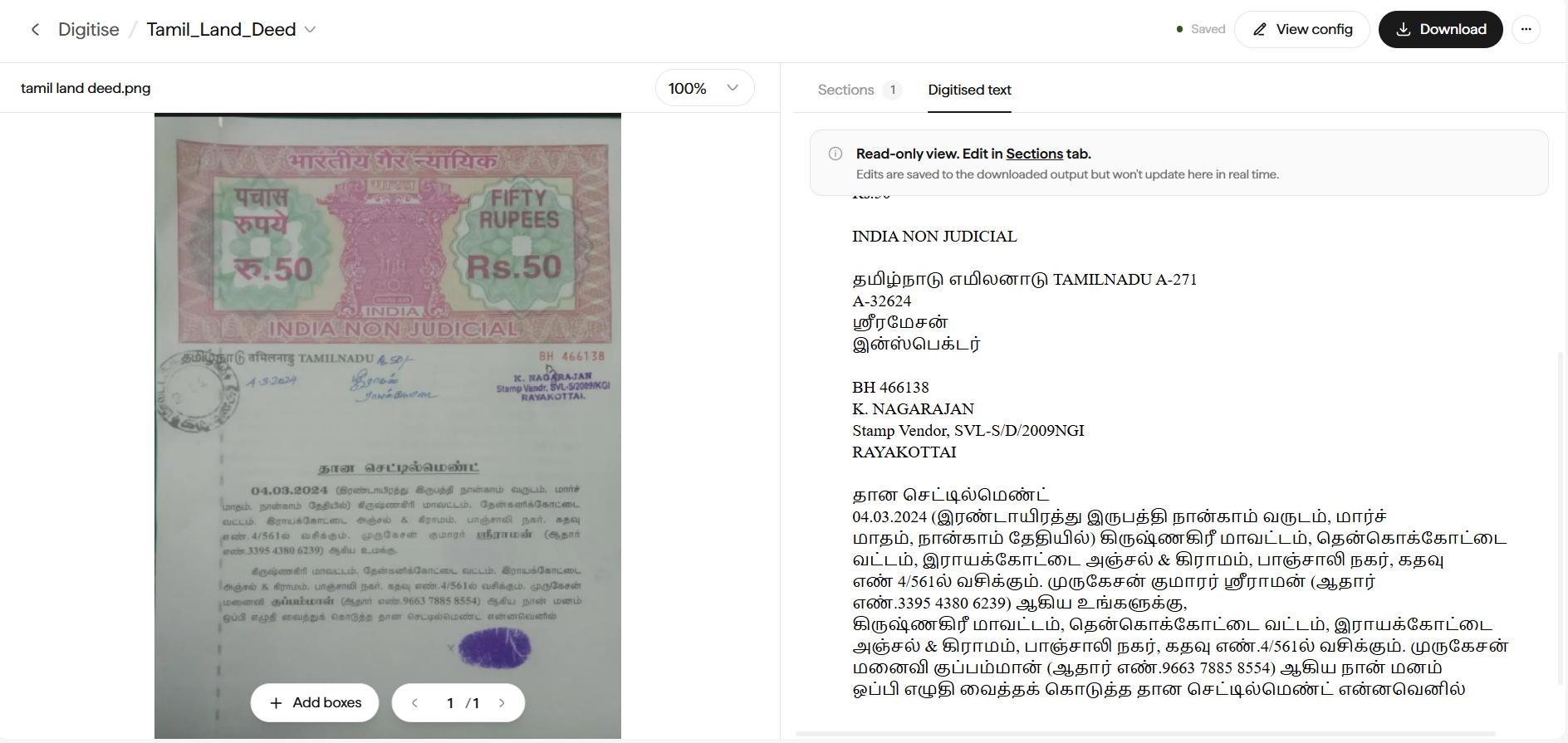
Every page is broken into typed Sections (headers, paragraphs, tables, images, and more), each with color-coded bounding boxes you can review, reclassify, or edit.
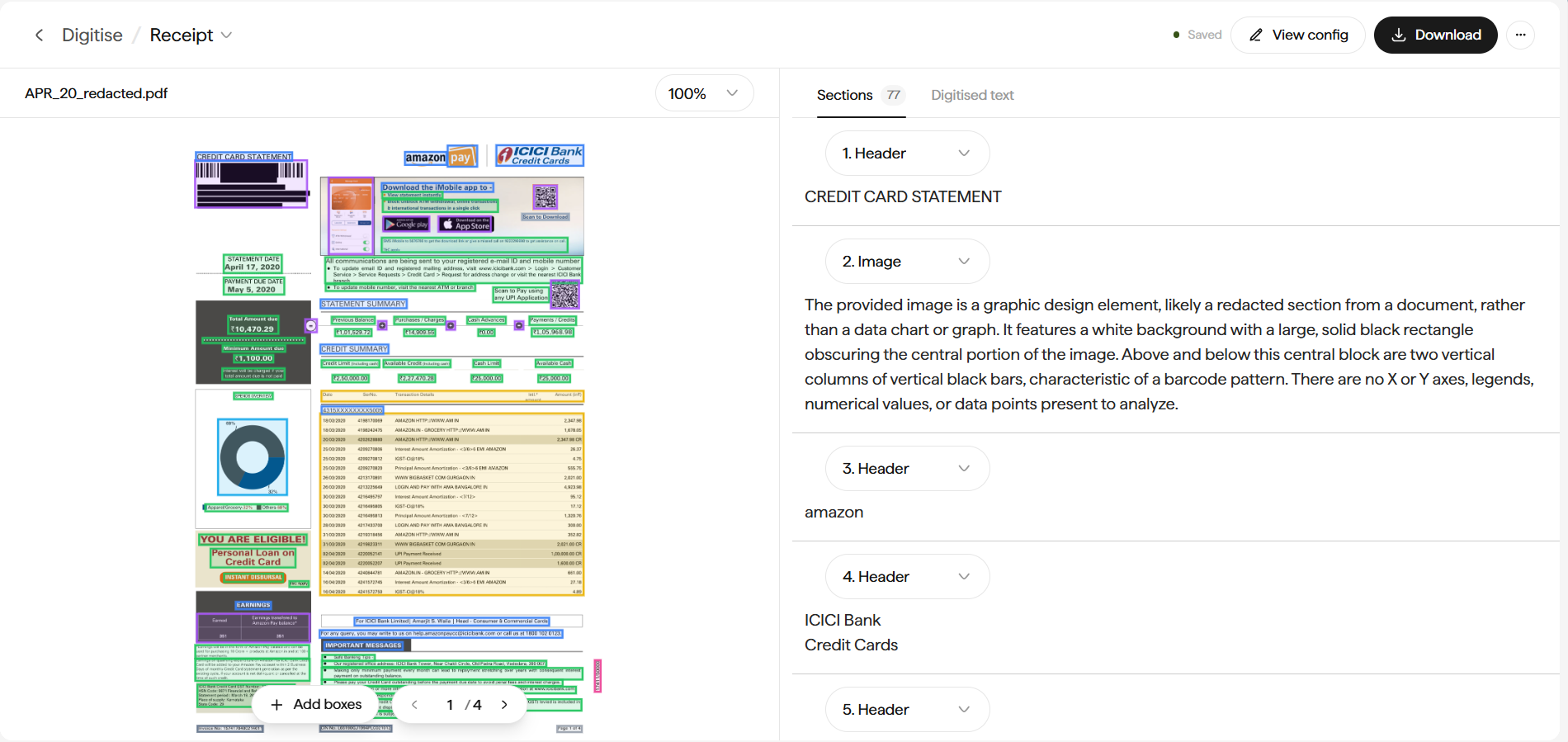
Great for: handwritten forms and notes, land deeds, court records, historic manuscripts, regional-language archives, printed books and journals, contracts, research papers, gazettes, and any document you want as clean text for LLMs, RAG, or publishing.
Download as: HTML, Markdown, DOCX, or Plain Text.
For the full walkthrough see How to Digitise a document.
Extract or Digitise: how to choose
You know which fields you need. You want structured JSON, CSV, or Excel out. You’re feeding a database, spreadsheet, or business workflow.
You want the whole document. You don’t know in advance what you’ll query. You’re feeding an LLM, publishing, or archiving.
For messy scans, handwritten documents, or dense multilingual pages, chain the two. Digitise first to produce clean text, then run an Extract Config over the digitised output. See Chain Digitise and Extract.
Workspace
Configs
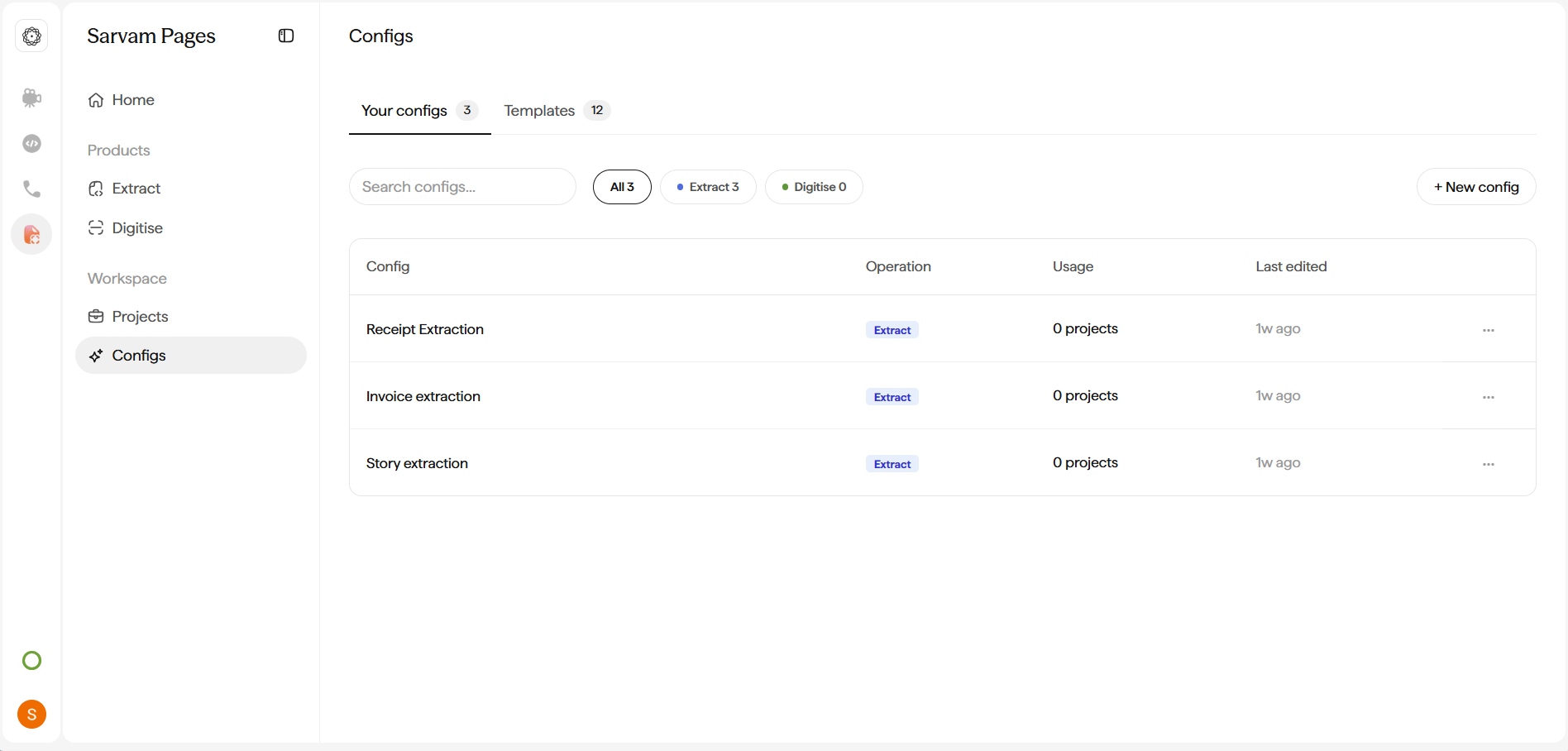
A Config is a saved recipe: a name, a description of what you want, a language, and an output format. Build once, run against every document of that type. The Usage column tells you how many projects have used each Config.
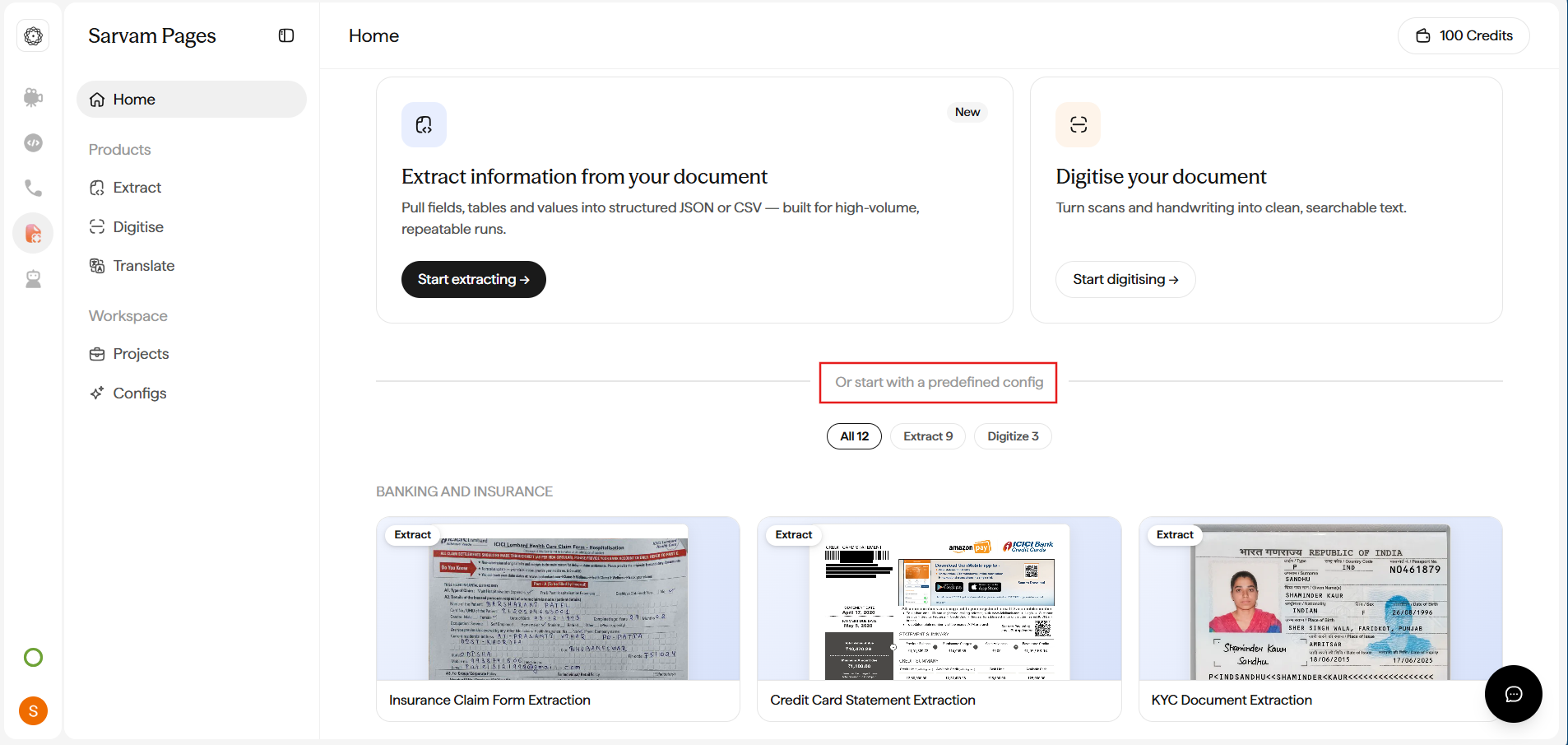
On Home, scroll past the Extract and Digitise cards to Or start with a predefined config. The template shelf lists 12 ready-made recipes (9 Extract + 3 Digitise) with filter pills for All / Extract / Digitise. Click any card to preview the sample document and the fields it extracts, then start a project in one click.
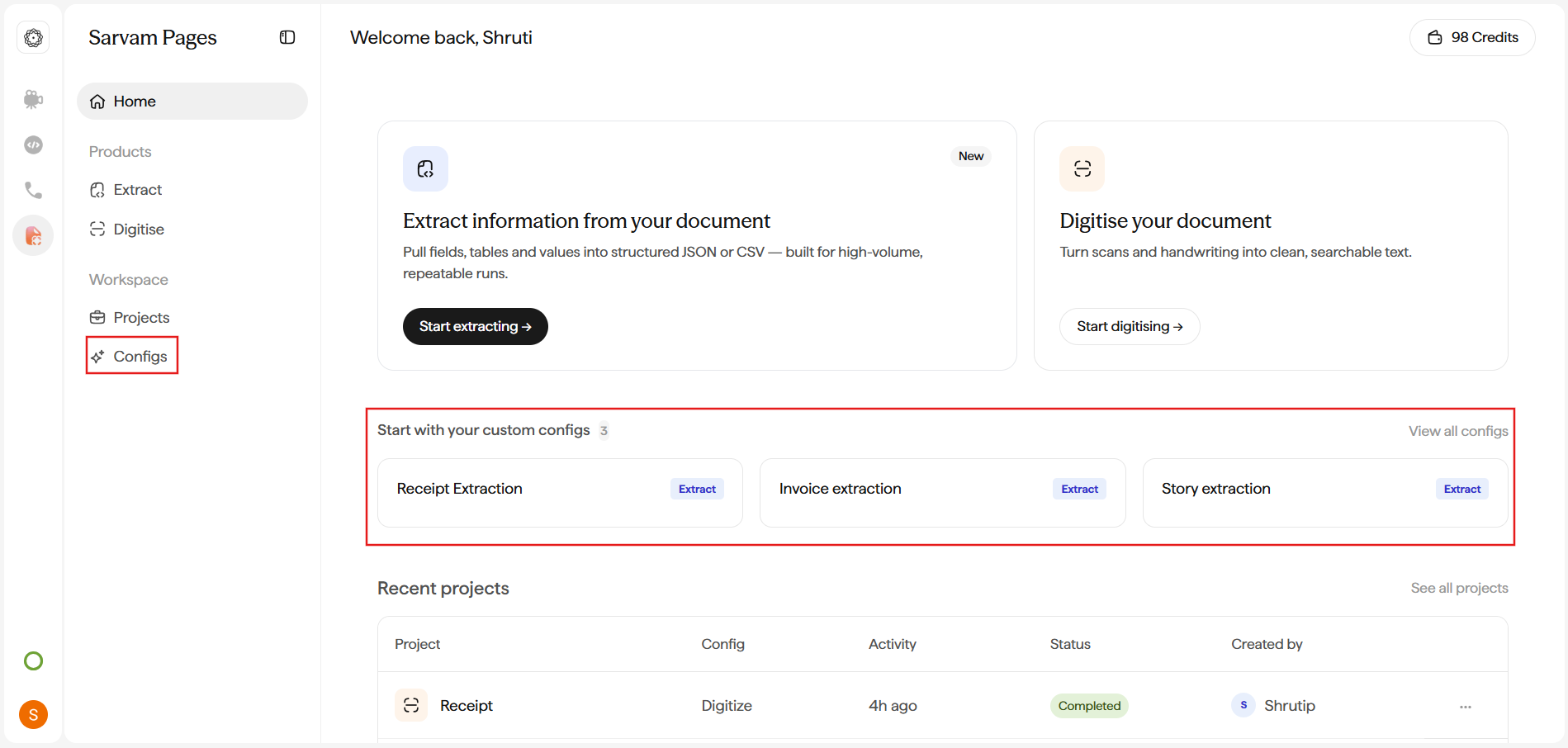
Saved Configs you’ve built also surface on Home under Start with your custom configs, so your team can kick off a project in one click.
You can also browse the same templates under Workspace → Configs → Templates, duplicate any into your own Config, tweak the prompt or language, and share with your team. Or start from scratch with + New config. See How to Create a Config for the full walkthrough.
Projects
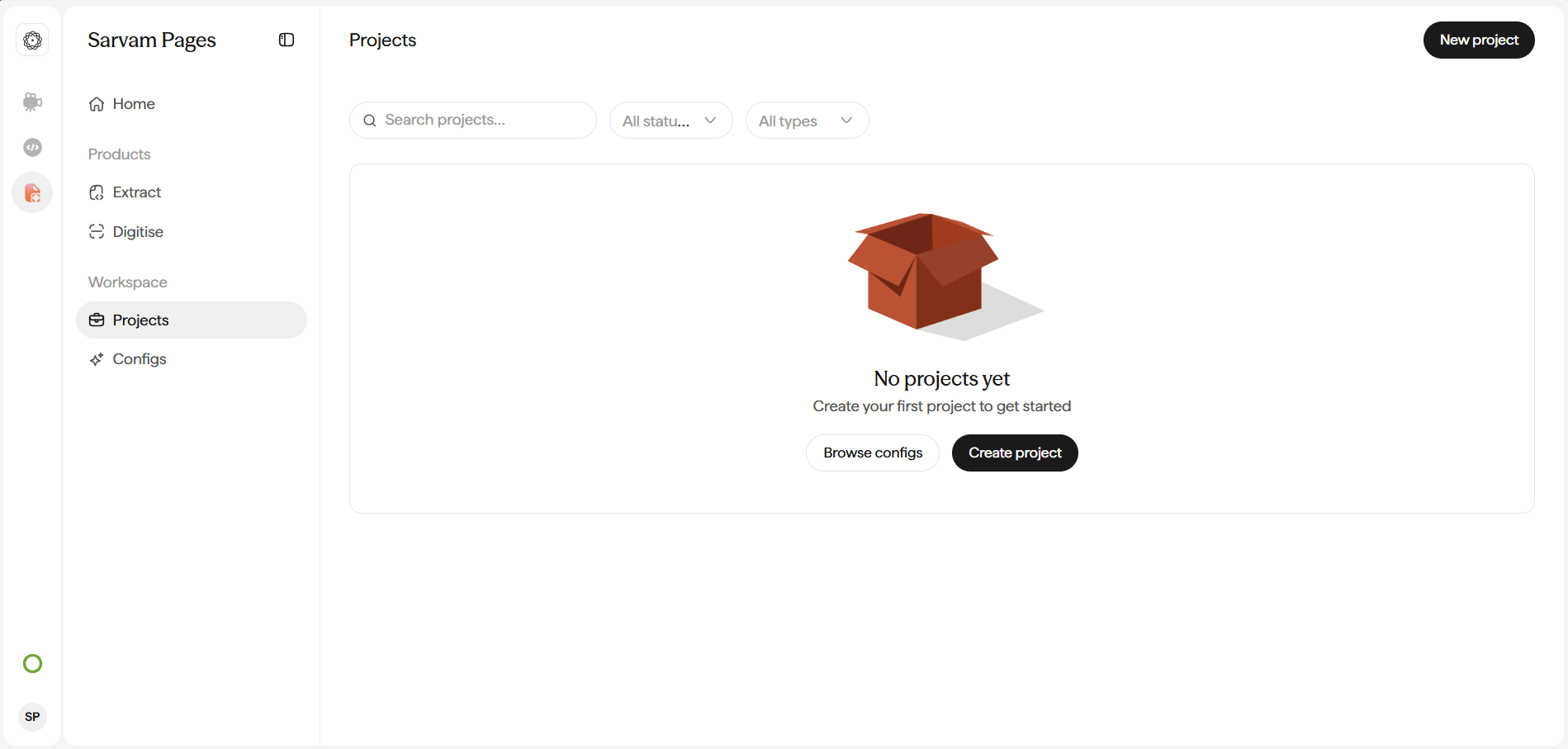
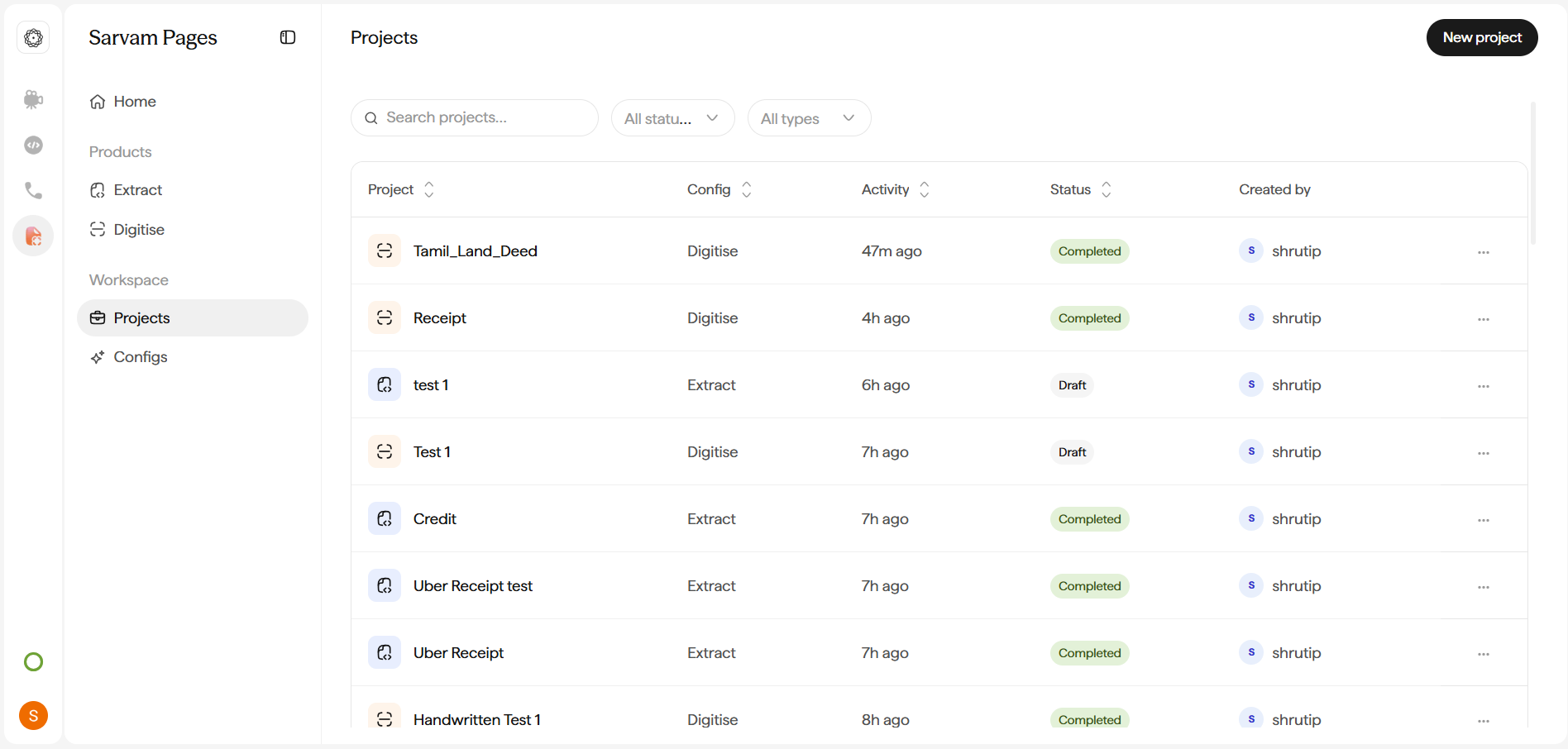
A Project is a single run of a Config against one document. It has its own status, results view, and downloads. Workspace → Projects lists every project across your organisation, sortable by any column and filterable by Status or Type.
How the flow works
Every project (Extract or Digitise) follows the same three-step flow.
Upload documents
Drag and drop scans, photos, or PDFs. Supported: PDF, JPEG, PNG, up to 50 MB per file and 10 pages per project.
Next steps
End-to-end walkthrough of an Extract project, including the AI-drafted schema step.
End-to-end walkthrough of a Digitise project, including bounding boxes, section types, and Add boxes.
Start from one of the 12 templates or build a custom Config with Name, Pipeline type, Prompt, and Output schema.
Turn table-heavy PDFs (bank statements, invoices) into spreadsheet-ready output.