

Create a Config
A Config is a saved recipe: a name, a description of what you want to extract or digitise, a language or output format, and any sharing settings. Build once, re-run against every document of that type.
There are four ways to create a Config. Pick the one that fits your situation.
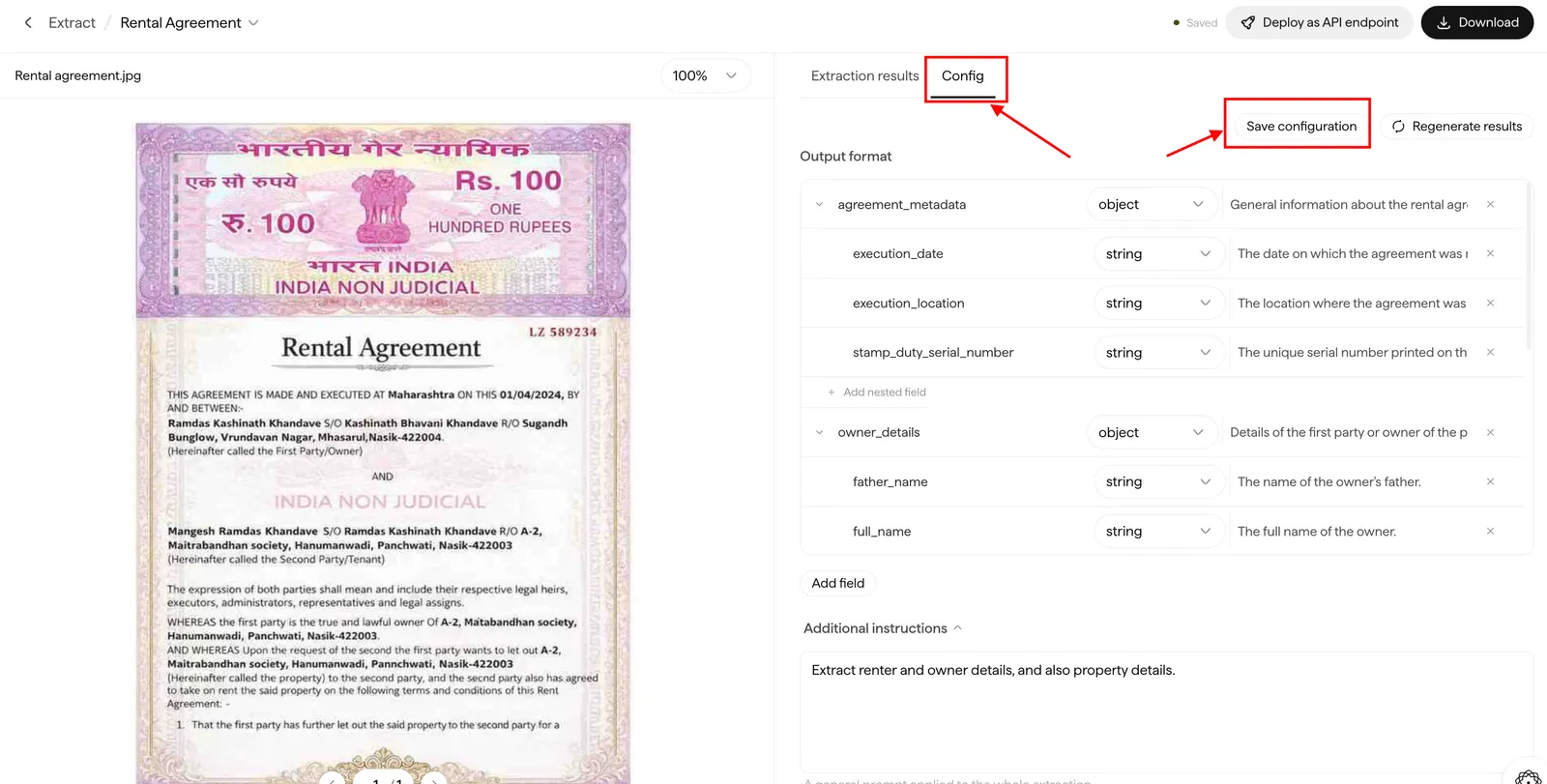
Way 1: Save configuration used on your project
Way 2: Start from a template
Way 3: Duplicate an existing Config
Way 4: Build a custom Config
Already ran an Extract project and happy with the results? Save the configuration directly from the project — no need to rebuild the schema from scratch.
Start an Extract project
In the Doc Agents dashboard at indus.sarvam.ai, upload a document, describe what you want to extract, and run the project.
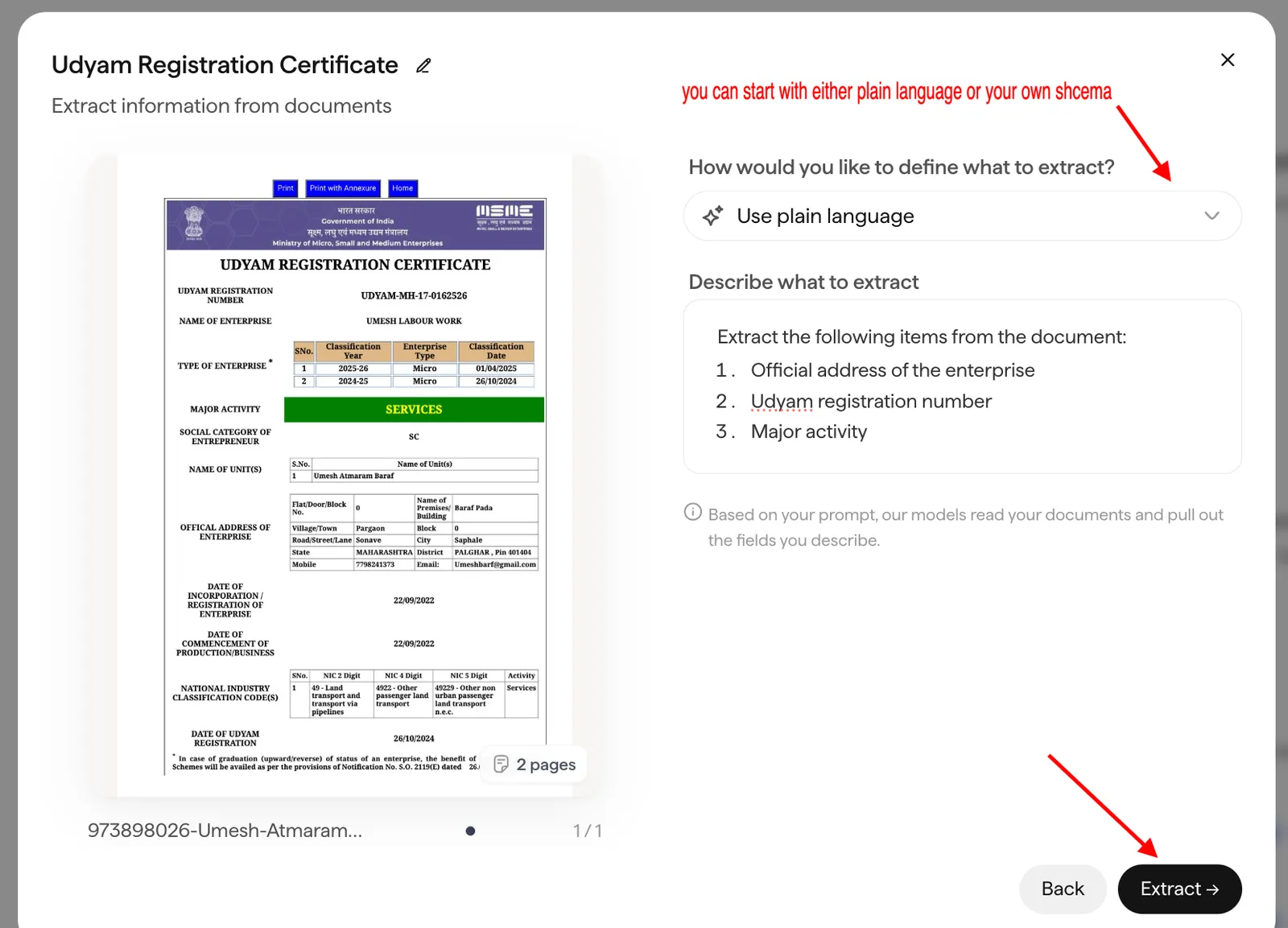
Open the Config tab
Once the project finishes processing, open it and switch to the Config tab. Here you can play around with the schema — add or remove fields, change types, adjust descriptions — until the extracted output matches what you need.
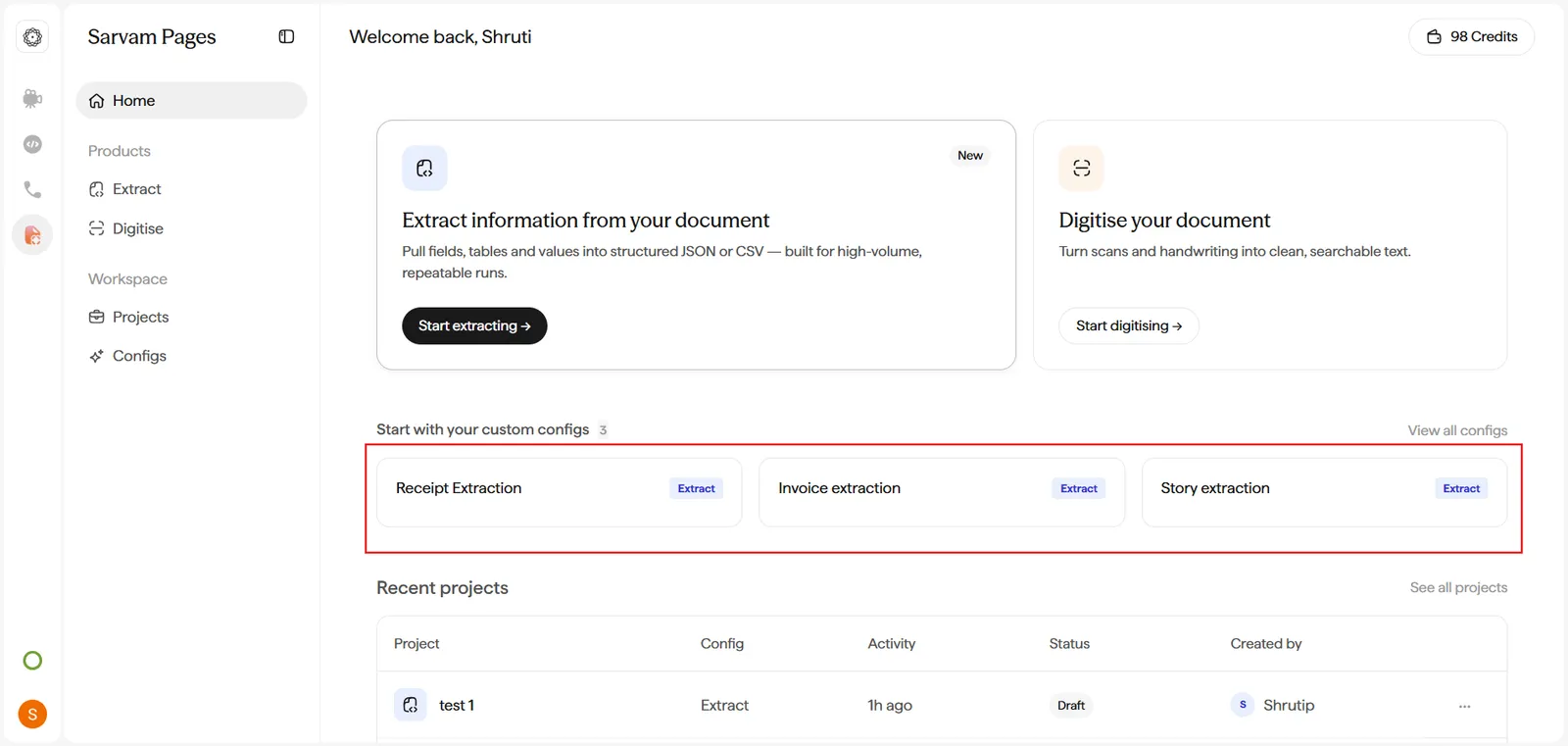
Where Configs live
Configs live under Workspace → Configs in the sidebar. The page has two tabs:
- Your configs. Anything your workspace has built or duplicated.
- Templates. The 12 shipped templates. Filter by All / Extract / Digitise using the pills.
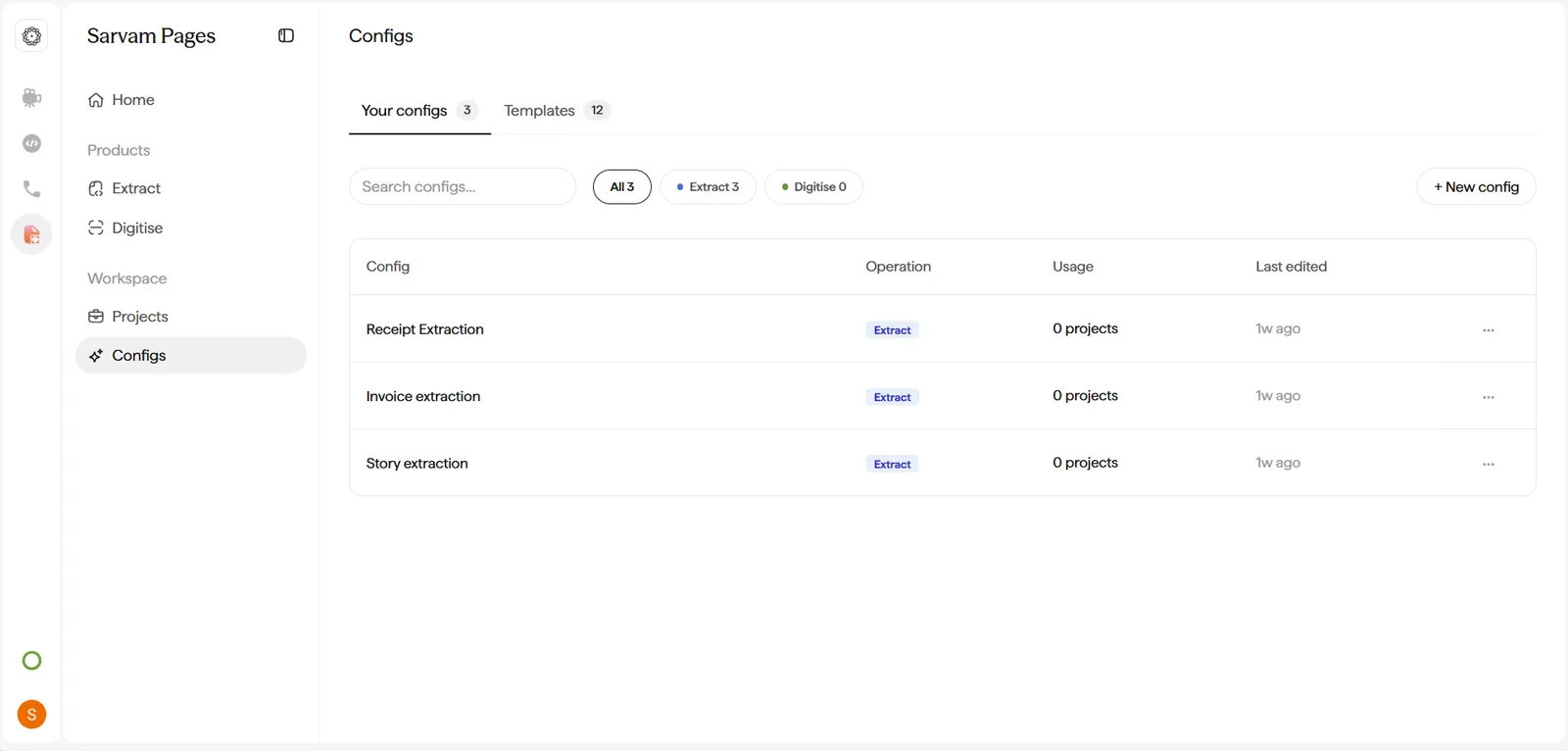
Each row shows a Usage count (how many projects have used the Config) and a Last used timestamp, a quick signal for which recipes your team relies on.
Next: run your first project with Extract structured fields or Digitise a document.