> For clean Markdown of any page, append `.md` to the page URL.
> For a complete documentation index, see https://docs.sarvam.ai/llms.txt.
> For full documentation content in one file, see https://docs.sarvam.ai/llms-full.txt.
> For AI client integration (Claude Code, Cursor, etc.), connect to the MCP server at https://docs.sarvam.ai/_mcp/server.
# Extract as CSV/Excel
> Turn table-heavy PDFs such as bank statements and invoices into spreadsheet-ready CSV or Excel using Extract.
Turn table-heavy PDFs (receipts, invoices, bank statements, expense sheets, GST filings) into spreadsheet-ready **CSV**, **Excel (XLSX)**, or structured **JSON**.
You'll need an **Extract** Config that describes the tabular fields you want. If you don't have one yet, see [How to Create a Config](/pages/how-to/create-a-config), then come back here.
## Step 1: Run the project
Click **Extract** under **Products** in the sidebar.
Click **Extract** next to your Config, or click **Upload documents** and pick your file.
Something like *Bank Statement May-Q2* to make it easy to spot in the Projects list.
Click **Extract**. Status progresses **Draft → Processing → Completed** (or **Failed** if something goes wrong).
## Step 2: Review in the editor pane
Once the project shows **Completed**, click it to jump straight into the editor pane. The source document sits on the left and the extracted tables appear as a hierarchical **Output** panel on the right. Every row expands to show its fields, and every field carries a per-field confidence score and a source-page reference.
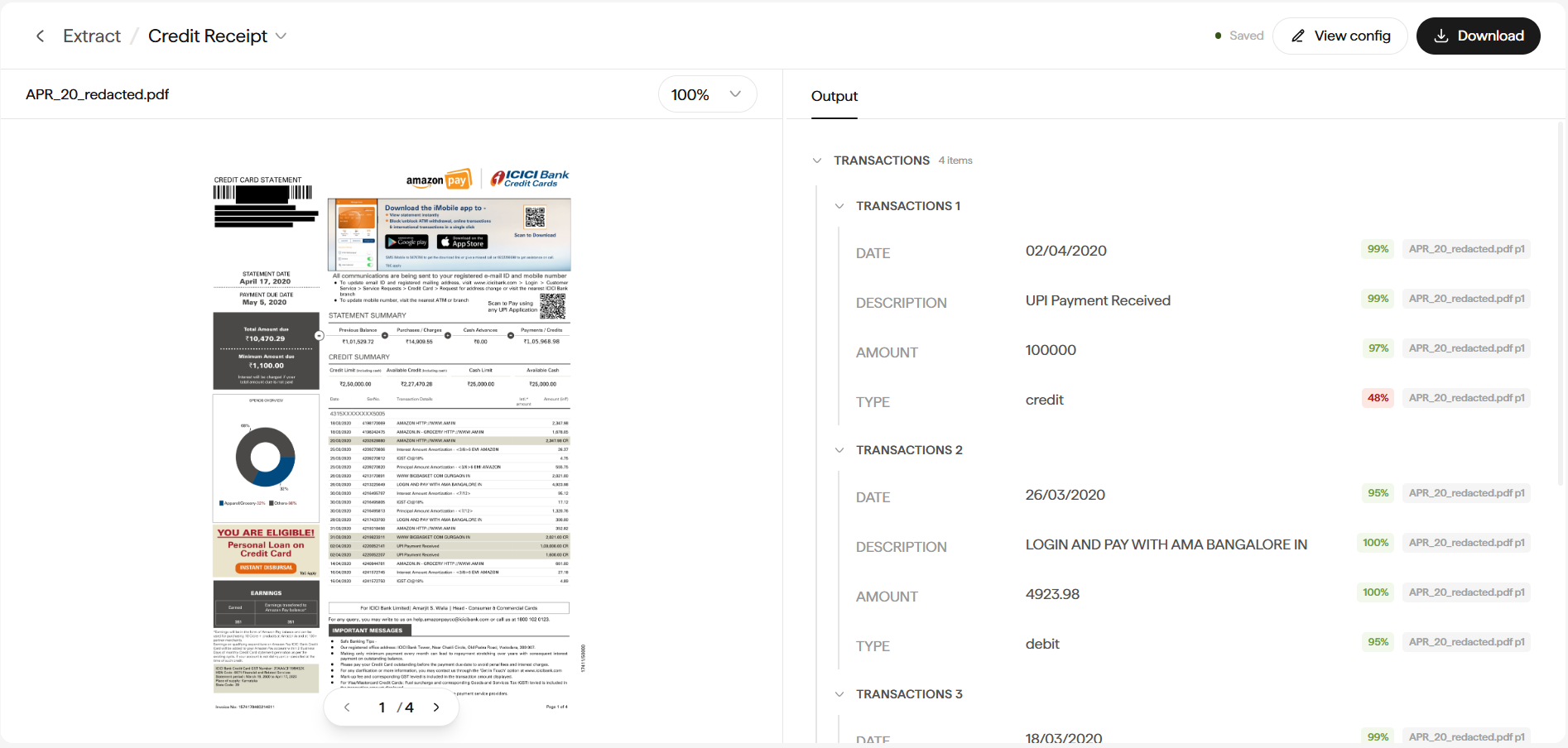 For a bank statement, you might see something like:
| Date | Description | Amount | Type |
| ---------- | ----------------------------------- | ------: | ------ |
| 02/04/2020 | UPI Payment Received | 100000 | credit |
| 26/03/2020 | LOGIN AND PAY WITH AMA BANGALORE IN | 4923.98 | debit |
| 18/03/2020 | AMAZON PURCHASE IN | 2347.98 | debit |
Low-confidence values (e.g. `48%`) are highlighted so you can spot-review them quickly.
### Edit tables in the Table Editor
Double-click any table in the results to open the dedicated **Table Editor**. It puts the source-table image on the left and an editable grid on the right, so you can fix cells without losing the surrounding page context.
For a bank statement, you might see something like:
| Date | Description | Amount | Type |
| ---------- | ----------------------------------- | ------: | ------ |
| 02/04/2020 | UPI Payment Received | 100000 | credit |
| 26/03/2020 | LOGIN AND PAY WITH AMA BANGALORE IN | 4923.98 | debit |
| 18/03/2020 | AMAZON PURCHASE IN | 2347.98 | debit |
Low-confidence values (e.g. `48%`) are highlighted so you can spot-review them quickly.
### Edit tables in the Table Editor
Double-click any table in the results to open the dedicated **Table Editor**. It puts the source-table image on the left and an editable grid on the right, so you can fix cells without losing the surrounding page context.
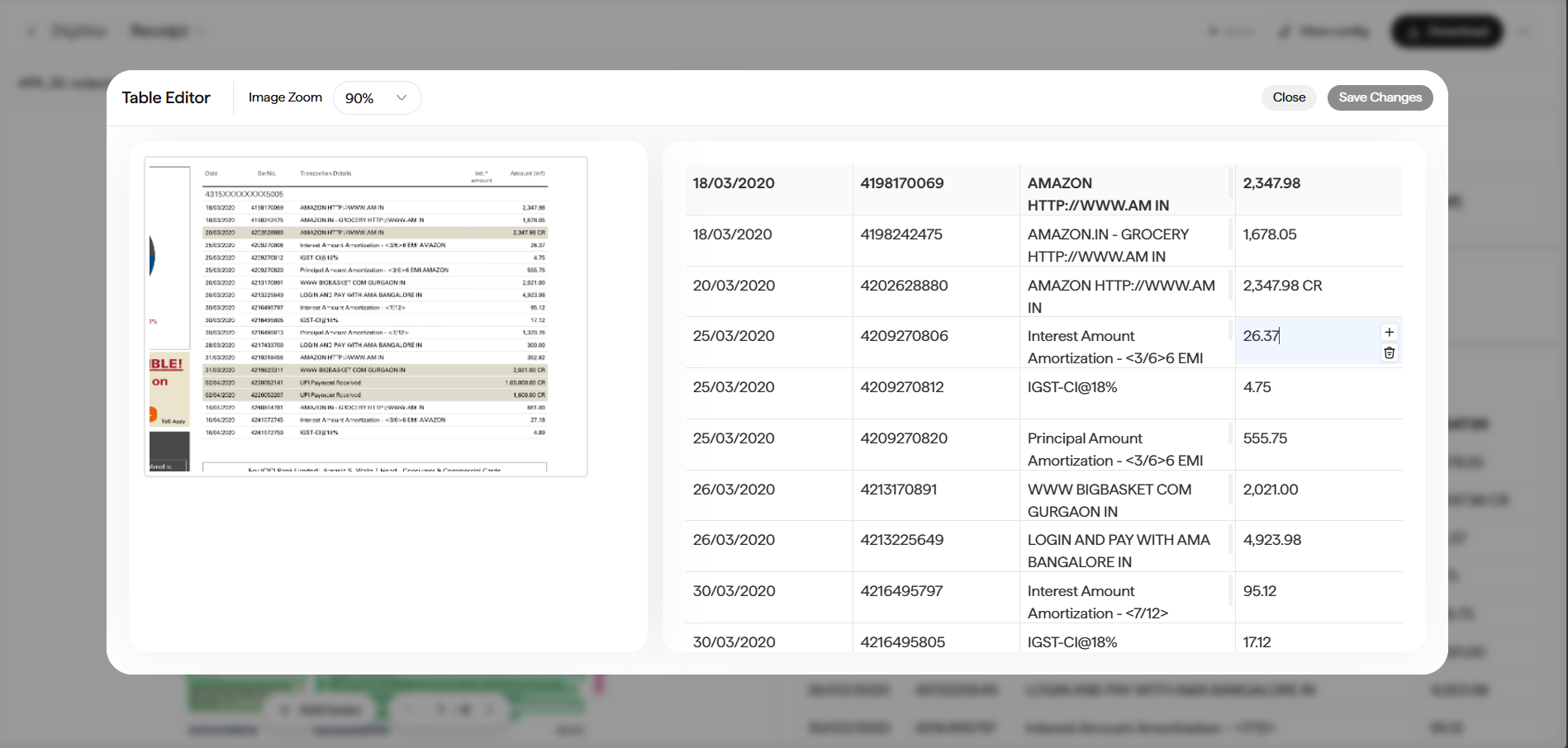 Inside the Table Editor you can zoom the source preview with the **Image Zoom** dropdown, click any cell to edit its value, add or delete rows with the `+` and trash icons, then click **Save Changes** to commit (or **Close** to discard).
## Step 3: Download as CSV, Excel, or JSON
Click **Download** to open the export dialog and pick your **Format** from the dropdown.
Inside the Table Editor you can zoom the source preview with the **Image Zoom** dropdown, click any cell to edit its value, add or delete rows with the `+` and trash icons, then click **Save Changes** to commit (or **Close** to discard).
## Step 3: Download as CSV, Excel, or JSON
Click **Download** to open the export dialog and pick your **Format** from the dropdown.
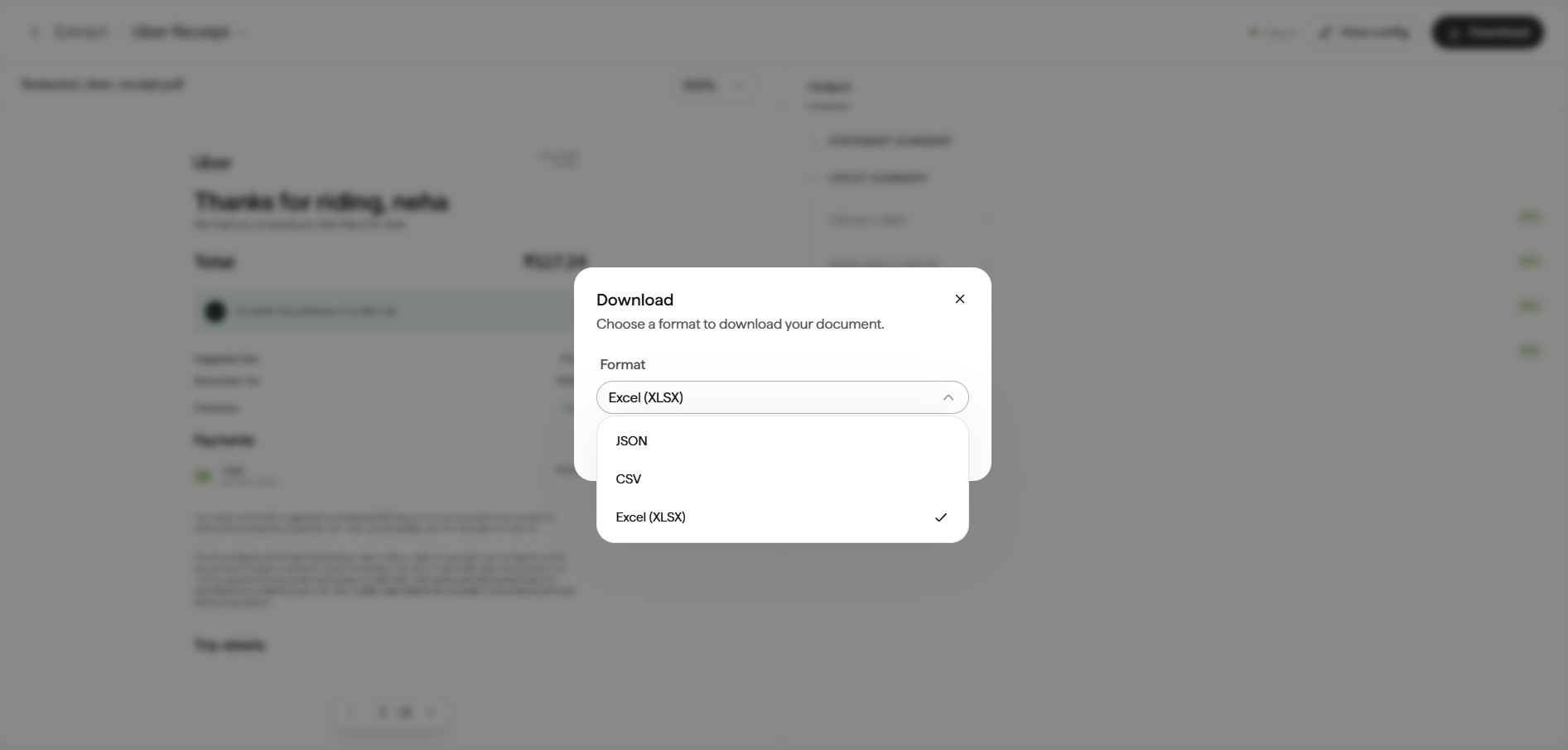 Single-file, one-row-per-transaction. Best for pandas, SQL loading, or a spreadsheet tool.
Native Excel format with headers and cell formatting preserved.
Structured JSON, preserving nested groups and arrays. Best for feeding another system natively.
Confirm to save the file.
## Handling tricky tables
Ask the Extract description to un-merge them:
```text
When a cell spans multiple rows, repeat the value across the child rows.
```
Sarvam normalises the output for you.
Bank-statement descriptions often wrap. Sarvam consolidates wrapped lines into a single row by default. To keep them split, add:
```text
Preserve each line of the description as a separate row.
```
Sarvam detects each distinct table. In **Excel** output, each becomes its own sheet. In **CSV**, tables are separated by a blank row. Split on blank rows in your loader.
Currency symbols and thousands separators are kept as-is unless you ask otherwise. Add:
```text
Return amounts as plain numbers without currency symbols or commas.
```
## Batch processing many documents
Two approaches, depending on how many similar documents you have:
Best when you want each document's rows in its own file. Every project shows up in **Workspace → Projects** for easy tracking.
Download CSVs or JSON from multiple projects and concatenate them. One paste per project works because column layouts are identical across runs of the same Config.
Next: [Chain Digitise and Extract](/pages/how-to/chain-digitise-and-extract).
Single-file, one-row-per-transaction. Best for pandas, SQL loading, or a spreadsheet tool.
Native Excel format with headers and cell formatting preserved.
Structured JSON, preserving nested groups and arrays. Best for feeding another system natively.
Confirm to save the file.
## Handling tricky tables
Ask the Extract description to un-merge them:
```text
When a cell spans multiple rows, repeat the value across the child rows.
```
Sarvam normalises the output for you.
Bank-statement descriptions often wrap. Sarvam consolidates wrapped lines into a single row by default. To keep them split, add:
```text
Preserve each line of the description as a separate row.
```
Sarvam detects each distinct table. In **Excel** output, each becomes its own sheet. In **CSV**, tables are separated by a blank row. Split on blank rows in your loader.
Currency symbols and thousands separators are kept as-is unless you ask otherwise. Add:
```text
Return amounts as plain numbers without currency symbols or commas.
```
## Batch processing many documents
Two approaches, depending on how many similar documents you have:
Best when you want each document's rows in its own file. Every project shows up in **Workspace → Projects** for easy tracking.
Download CSVs or JSON from multiple projects and concatenate them. One paste per project works because column layouts are identical across runs of the same Config.
Next: [Chain Digitise and Extract](/pages/how-to/chain-digitise-and-extract).