> For clean Markdown of any page, append `.md` to the page URL.
> For a complete documentation index, see https://docs.sarvam.ai/llms.txt.
> For full documentation content in one file, see https://docs.sarvam.ai/llms-full.txt.
> For AI client integration (Claude Code, Cursor, etc.), connect to the MCP server at https://docs.sarvam.ai/_mcp/server.
# Editing a Dub
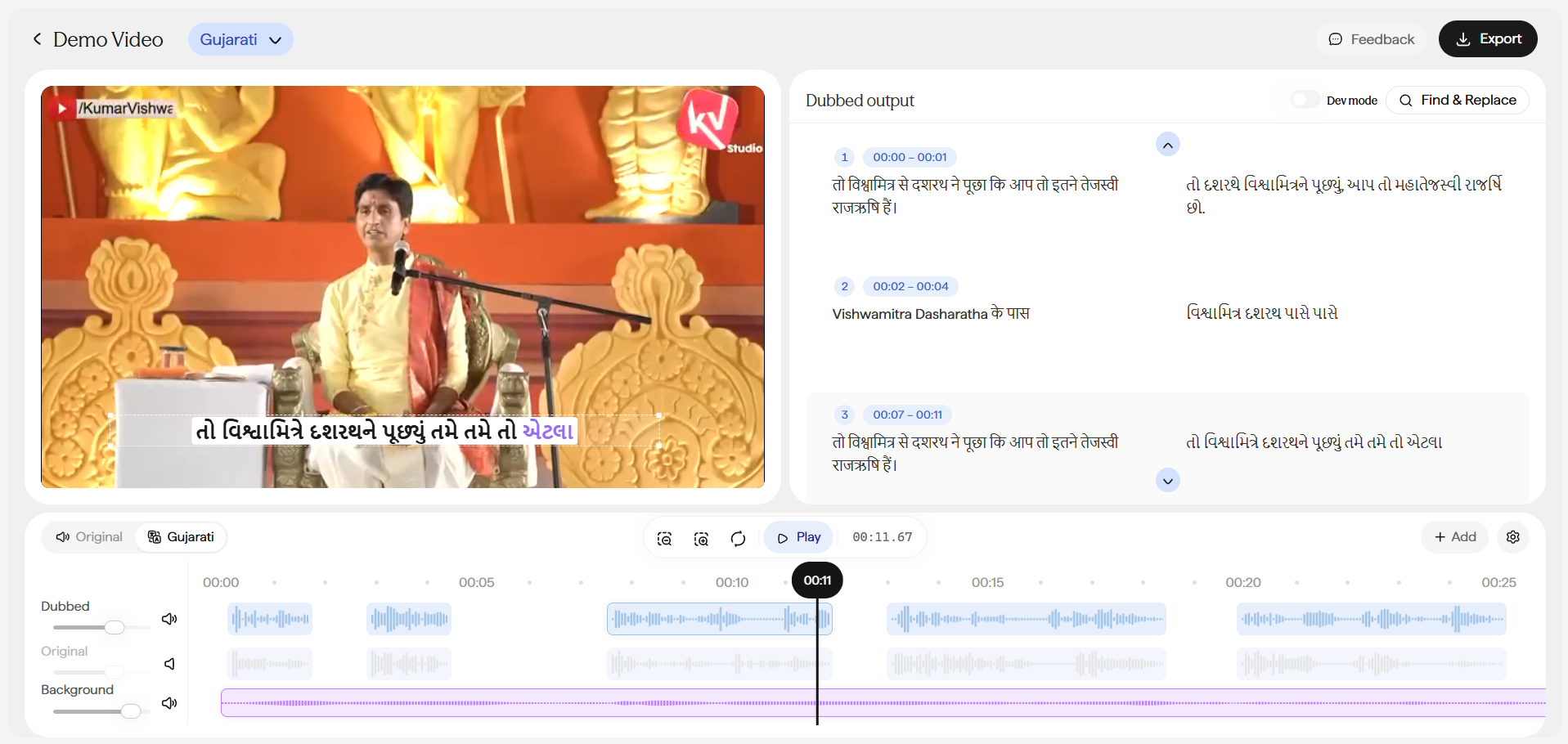
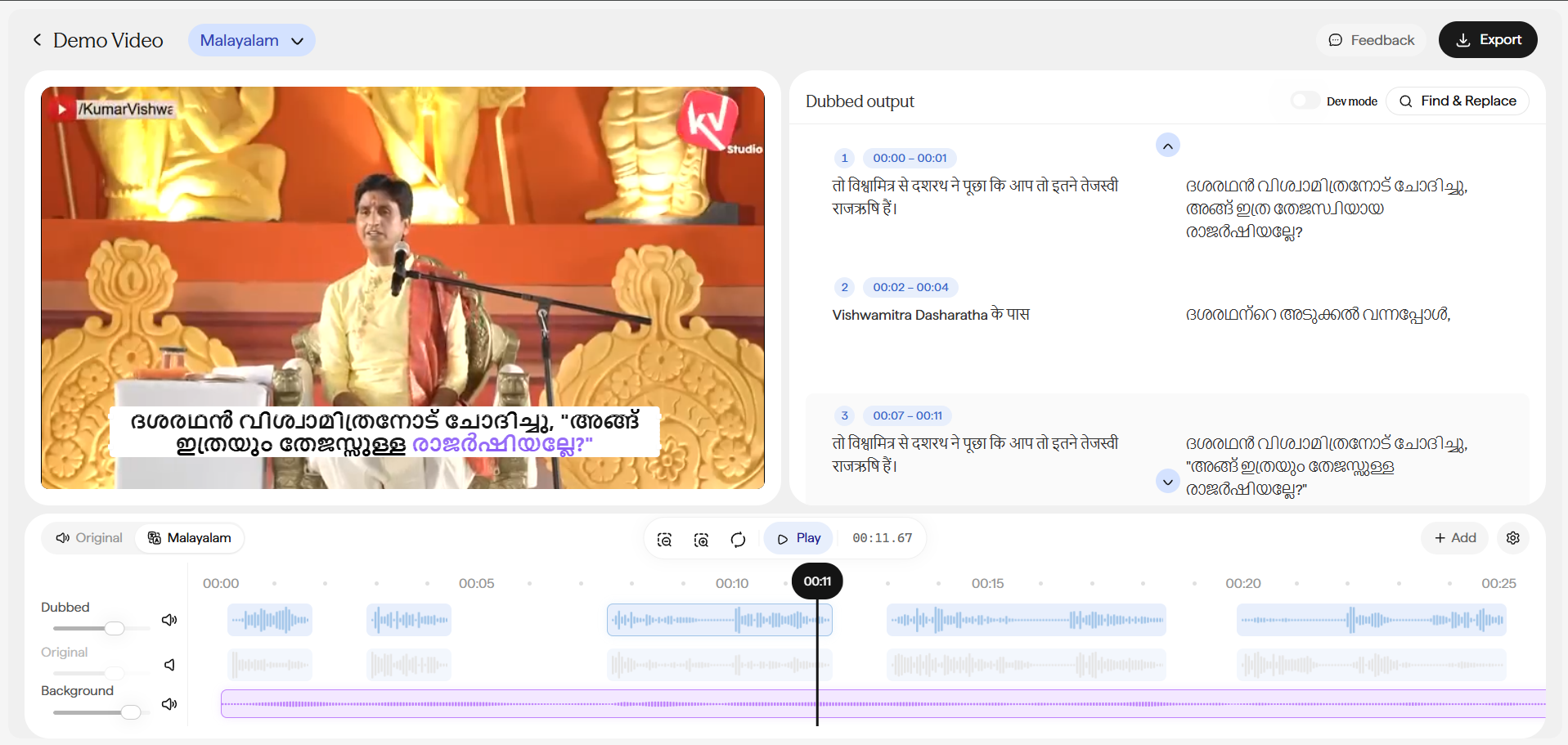
Once your asset reaches "Review Ready" status, select it to open the **Dubbed output** editor - a dual-pane view with your original video on the left and a timestamped, block-by-block transcript-and-translation pane on the right.
## Editor Layout
## Switching Between Target Languages
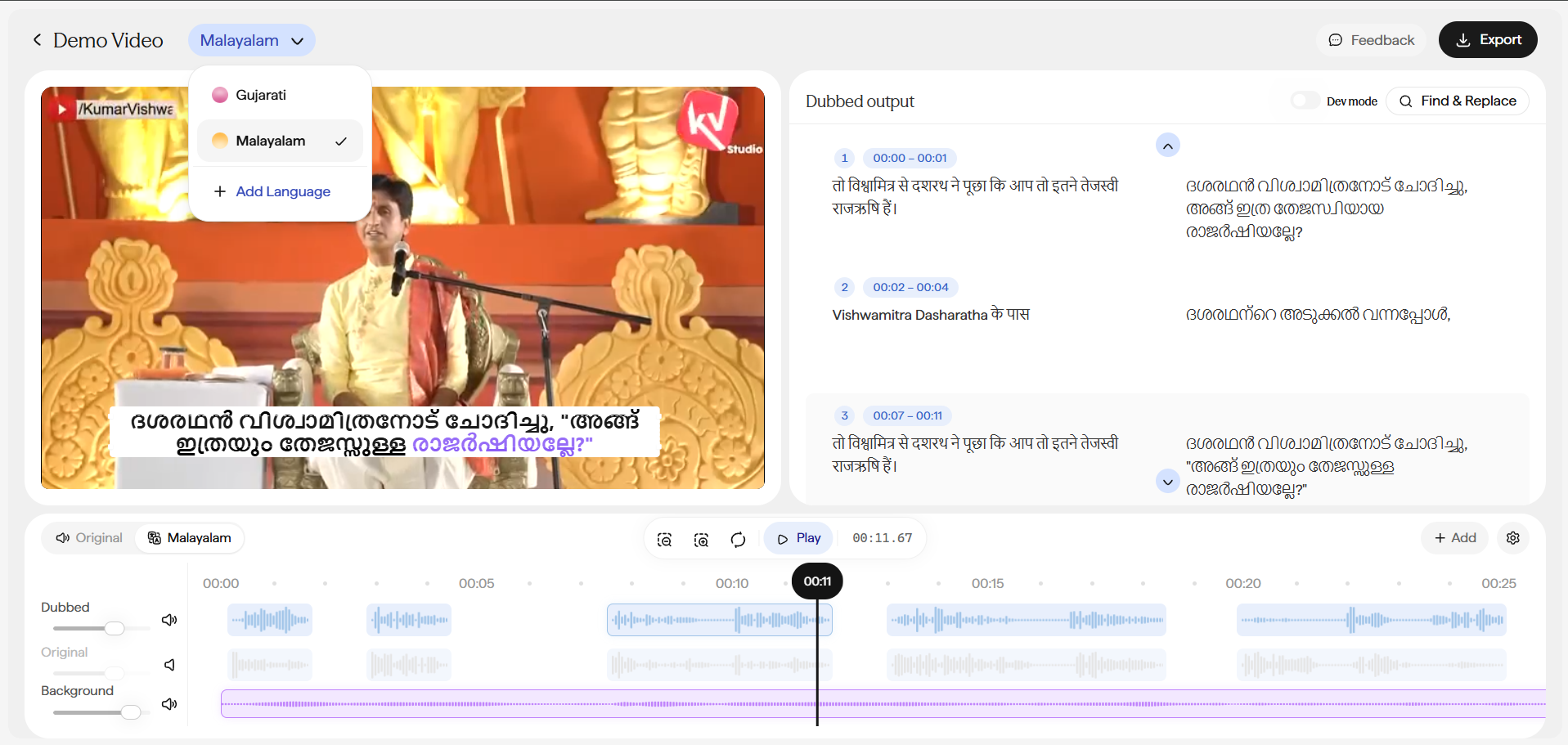
* If you generated multiple target languages from one source file, use the language pill in the header (e.g. "Hindi ▾") to switch which one you're viewing.
* Each language keeps its own independent transcript and edits - switching languages doesn't carry a fix over to the others.
* Click **+ Add Language** in the same dropdown to generate an additional target language for this project later, without starting a new dub from scratch.
## Correcting a Localized Line
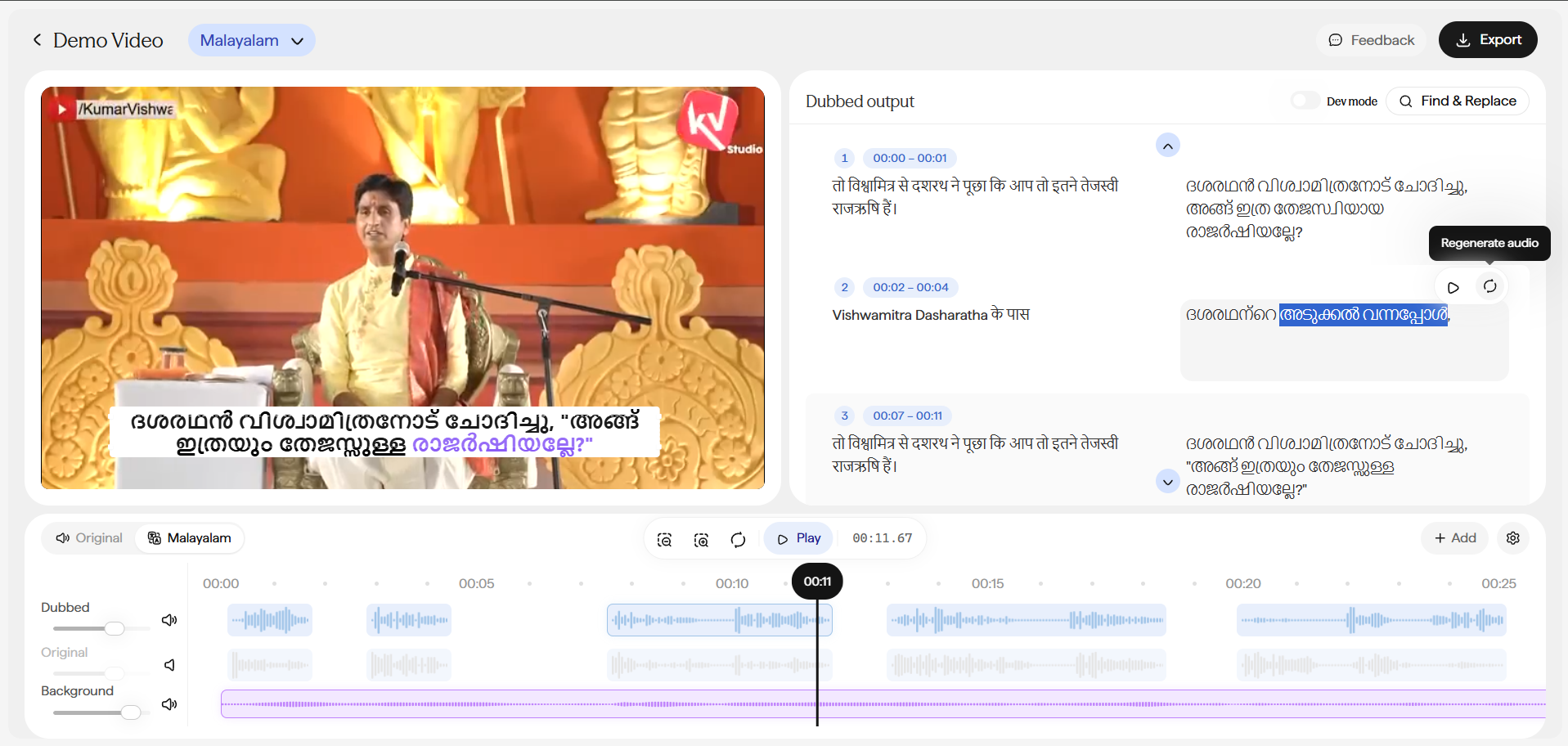
Scroll the **Dubbed output** pane to the numbered, timestamped block you want to fix, or use **Find & Replace** in the top-right corner to search across the whole transcript instead of scrolling.
Click into the translated-text box for that block and correct the phrasing directly.
Click the **Regenerate audio** icon beside the block.
* Only that specific block re-renders - the rest of the dub stays untouched, so a one-word fix doesn't cost you a full re-render or a fresh review pass on lines you already approved.
* Use the **Play audio** icon next to it to preview the block before and after regenerating.
## Mixing Dubbed, Original, and Background Audio

 *Clicking a track's speaker icon mutes it - its waveform grays out immediately, as shown above.*
* The playback bar includes three independent volume sliders - **Dubbed**, **Original**, and **Background** - each with its own speaker icon that mutes just that track.
* Use them to blend the new dubbed voice track against the original audio and background sound, instead of simply replacing the audio track outright.
* This is useful when you want ambient sound or background music from the source to carry through the final dub.
## Exporting Your Dub
* Once you're happy with a language's output, click **Export** in the header to download the final dubbed video for that language.
* Export each target language independently once it's ready - you don't need to wait for every language to finish review.
## Reviewing Multi-Speaker Dubs
* Review speaker-by-speaker rather than line-by-line for multi-speaker content.
* Diarization errors (two speakers merged into one) are easiest to catch when you're specifically listening for voice-consistency across a single speaker's lines, rather than reading the transcript top to bottom.
* Use the **Original** / target-language toggle on the playback bar to quickly A/B the source against the dub for a given block.
*Clicking a track's speaker icon mutes it - its waveform grays out immediately, as shown above.*
* The playback bar includes three independent volume sliders - **Dubbed**, **Original**, and **Background** - each with its own speaker icon that mutes just that track.
* Use them to blend the new dubbed voice track against the original audio and background sound, instead of simply replacing the audio track outright.
* This is useful when you want ambient sound or background music from the source to carry through the final dub.
## Exporting Your Dub
* Once you're happy with a language's output, click **Export** in the header to download the final dubbed video for that language.
* Export each target language independently once it's ready - you don't need to wait for every language to finish review.
## Reviewing Multi-Speaker Dubs
* Review speaker-by-speaker rather than line-by-line for multi-speaker content.
* Diarization errors (two speakers merged into one) are easiest to catch when you're specifically listening for voice-consistency across a single speaker's lines, rather than reading the transcript top to bottom.
* Use the **Original** / target-language toggle on the playback bar to quickly A/B the source against the dub for a given block.